
← Back to modules

nexya media Regenerate thumbnails and organise the media library

Background thumbnail regeneration, in batches, that continues even when you close the tab — and notifies you when it's finished. With Pro, folders to organize your media library.

  • You can close the page The work does not depend on the tab staying open. Start it, go and do something else, and find the report waiting when you come back
  • In batches, without falling over Images are processed in small batches of ten, each in its own request. Modest hosting can go the distance where a bulk regeneration would fail halfway through.
  • You can see where it is The count and the bar move in real time, and the final report says what was regenerated and what failed — naming the files involved
  • Orphan sizes go too Formats left behind by an old theme often take up several gigabytes without anyone knowing. With Pro, the module counts them and removes them if you ask it to.
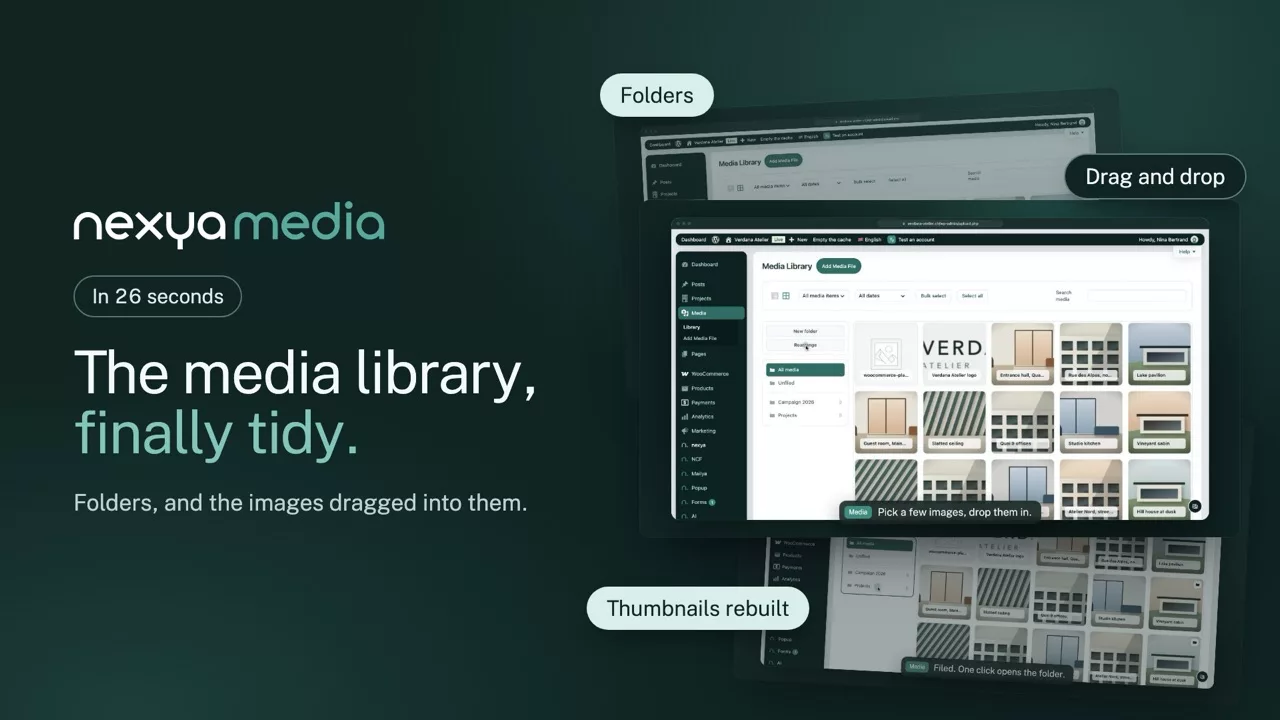
  • The media library sorted into folders With Pro, a folder tree appears next to your files in the media library and the selection window. Drag and drop media into a folder to organize it; nothing changes on the server, and no image URLs are affected.
  • Uploads explained The File Upload card clearly states what the server accepts, tests each image library with a photo-sized image, and switches to GD with one click. In the media library, a failed upload tells you why and what to do.
nexya media on video: Regenerate thumbnails and organise the media library 0:26

What it can do

Regenerate WordPress thumbnails and sort the media library into folders

The media library is often the heaviest part of a site. Thumbnails are rebuilt in the background, failed uploads are explained, and with Pro images get sorted, lighter and their alt text.

Regeneration

Start it, close the tab, the work carries on

Images are processed in batches of ten, each in its own request, in the background. Modest hosting keeps up; the counter moves live, and the final report names the files that failed.

  • Filter by post type
  • GD instead of Imagick in one click
  • With Pro, regeneration triggered automatically
The regeneration nexya media

0 / 3482 images

In batches of 10, in the background: the work carries on even if you leave the page, and a badge tells you when it is done.
Folders

A tidy media library, without moving anything on the server

With Pro, a folder tree sits next to the files, in the media library and in the media picker. Drag an image onto a folder to file it; no image URL changes.

  • In the media picker too
  • WebP conversion, with a way back
  • Automatic or AI-written alt texts
The media library, sorted into folders nexya media

Folders

Pro

The list of folders beside the files, in the library and in the media dialog. Drag a file onto a folder to file it — nothing moves on the server.

  • All media
  • Unfiled
  • Photos 126
  • Team 18
  • Premises 42
  • Documents 31
  • Logos 9

A folder shows what it holds, a mark on the tile says where a file went — no image address changes.

Orphan sizes

The gigabytes left behind by an old theme

Each theme declares its own image sizes, and they stay on disk when you switch. With Pro, the module counts these unused files and removes them when you ask.

  • The count before anything is deleted
  • Originals never touched
  • Recovered disk space shown
The orphan image sizes nexya media

Orphan sizes

Pro

Size files the theme no longer declares stay on the server: they are counted here, then deleted along with their entry in the metadata.

1 284 files, 412 Mo taken up.

Remove the orphan sizes

Opened by a licence.

Enter a key

A Pro setting is never hidden: its card sits in its place, with what it does. The sizes left by an old theme often take up several gigabytes.

And everything else, already included

  • Uploads explained What the server accepts, in plain words, and why an upload fails.
  • Image library tested GD and Imagick tried with a photo-sized image.
  • Notified at the end A notice in the admin when regeneration is done.
  • AI alt text With Pro, each image described in the page’s language.

Why background processing

Regenerating thumbnails for a large media library takes minutes, sometimes tens of minutes. Tools that do this work in the browser require you to keep the tab open, and lose everything if the connection drops. Here, the site restarts itself from batch to batch: the browser is only used for monitoring.

When you need it

After a theme change, when the declared formats are no longer the same. After adding a format to an existing theme, so that old images have it too. And after a migration, when the files are there but the variations are missing.

What it doesn’t do

It does not recompress JPEG or PNG images: that is a different job, well covered by dedicated tools. With Pro, however, it converts them to WebP — upon upload, and for the existing media library in the background, in batches.

Free

Complete regeneration, content type filtering, image upload diagnostics, and choosing GD over Imagick.

Pro

Folders in the media library, orphan size cleanup, regeneration triggered on its own, WebP conversion with restore, automatic and AI alt texts

On the blog

Our guides: regenerate WordPress thumbnails

AI · 1 min read

AI WordPress SEO: Suggested titles, meta descriptions, and share images

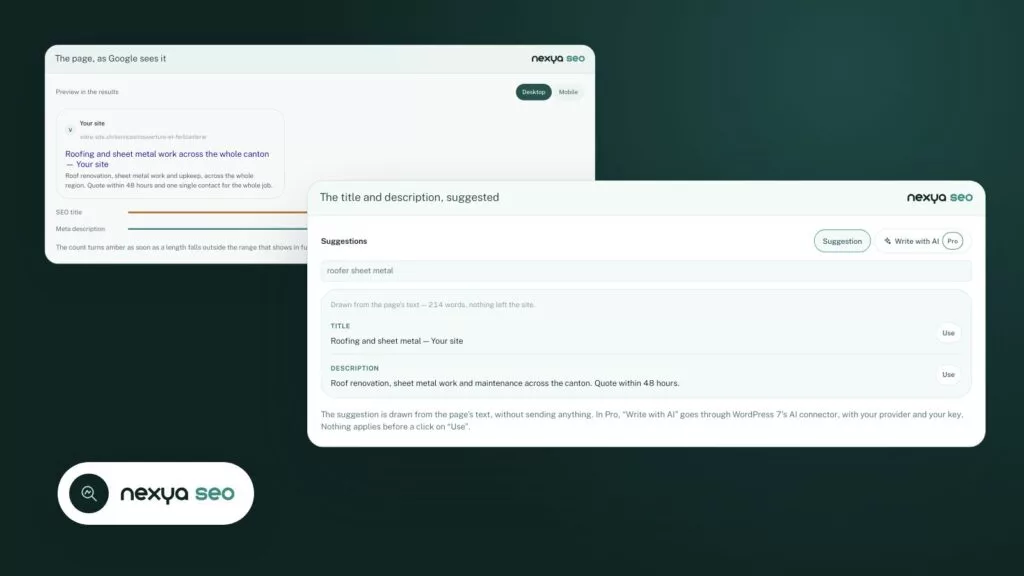
The nexya SEO module uses AI to suggest titles, meta descriptions, alt texts, internal links, and share images for your WordPress site. You validate each suggestion.

  • Title and meta description suggested based on the text and main keyword.
  • Descriptions and alt texts prepared in batches, then reviewed before saving.
  • Internal links, correction, and share image, always by suggestion.

Read the post

Get started

nexya media in three steps

  1. Switch on nexya media In the nexya hub.
  2. Start the regeneration Thumbnails are rebuilt in small batches, in the background: you can close the tab.
  3. Tidy the library With Pro, folders beside the files: drop an image on a folder to file it.

nexya media is in the free extension, on as many sites as you want.

FAQ

Everything about nexya media

Start the regeneration in nexya media: images are processed in small batches, with a progress bar, and the work goes on with the tab closed. The report says what failed and why.

With Pro, a folder tree shows in the media library and in the media picker. Files do not move on the server: no image address changes.

Regeneration and, with Pro, folders are in the same module, and regeneration runs in the background rather than in the open tab: modest hosting can go the distance.

Image formats left behind by an old theme or plugin, often taking up several gigabytes. Pro counts them and removes them when you ask.

Yes, with Pro: new image titles are cleaned up and, with the AI module, alt texts for the entire media library are generated in batches, then reviewed.

No. The work carries on in the background, in batches, and a notice in the admin tells you when it is done.

No. Folders organise the library in the admin; nothing moves on the server, and no link breaks.

Often because of a server limit or the image library. The File uploads card says what the server accepts and lets you switch to GD in one click.

The suite

Other modules