Key points
- By default, WordPress leaves its emails to the web host, which limits them or sends them without authentication.
- The Mail module, free of charge, sends via SMTP or an API like Brevo, Mailgun, SendGrid, or Postmark.
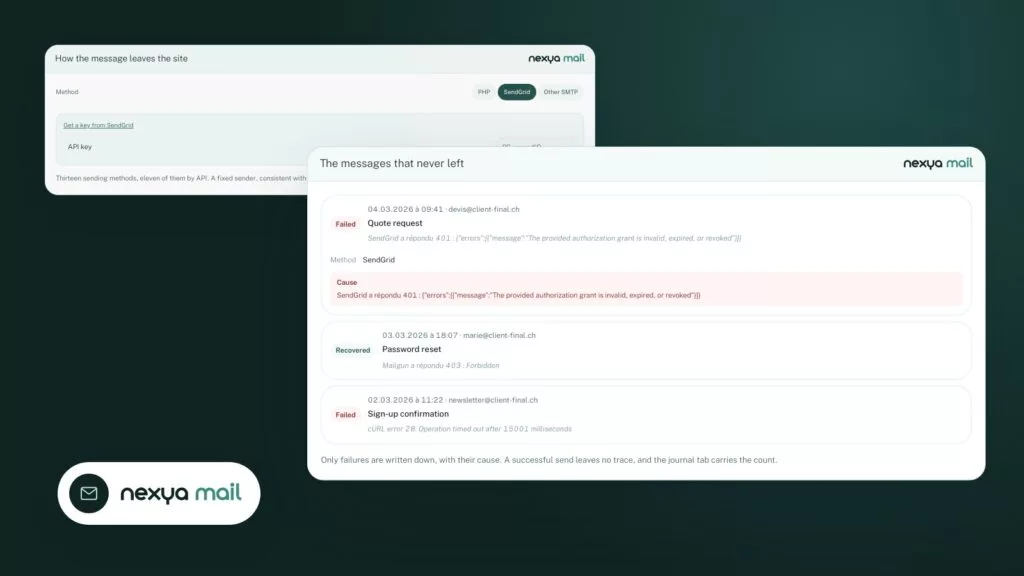
- Each failed send is recorded with the cause given by the server, and a test email verifies the route.
- The invisible captcha protects comments, login, and forms without Google or Cloudflare.
- nexya Pro adds a second sending server with alerts, Mailya for newsletters, and nexya forms.
Why WordPress emails fail to send
On the WordPress.org forums, the same question comes up every week: WordPress emails are not sending, or have stopped altogether. Form notifications don’t arrive, double opt-in registration confirmation emails arrive half the time, and a scheduled newsletter never goes out. Around twenty topics in six weeks, almost always with the exact same starting point.
By default, WordPress relies on the PHP mail function to send emails, which means using the hosting provider’s server. Many hosts limit or block this function. When it does work, the message is often sent without authenticating the sender domain, causing destination mailboxes to flag it as spam or reject it silently.
The website itself notices nothing. WordPress treats the email as successfully sent, and no one is alerted to the failure. This is why the issue seems random: it isn’t, it is simply invisible.
To solve this, two things are needed. A reliable sending route that goes through a real mail server, and a place to read what happened when a message fails to send.
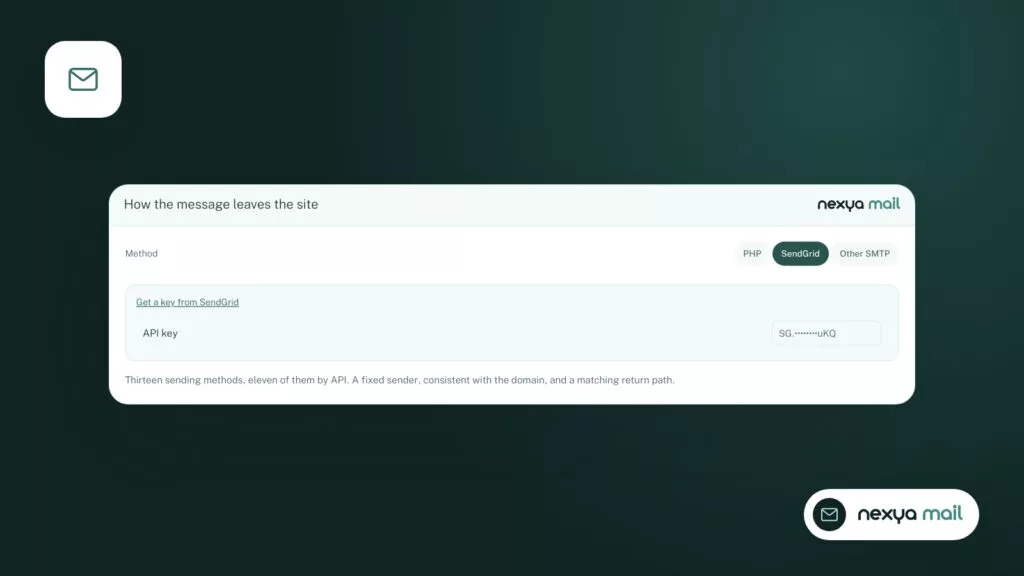
Sending via SMTP or API
The nexya Mail module replaces default sending. You choose a method: an SMTP server (your email provider’s or host’s), or a sending service connected via its API, such as Brevo, Mailgun, SendGrid, or Postmark.
SMTP is suitable when you already have a professional mailbox on the website’s domain. API is suitable when the site sends a high volume of emails, or when the host blocks outgoing SMTP ports. In both cases, every email from the site uses this route: forms, password resets, orders, and confirmations.
The Mail module is included in the free version, for as many sites as you want. Like any nexya module, it can be turned on and off from the hub; when turned off, it records nothing and none of its hooks run on the site.
- SMTP: the server address, port, username, and password provided by your email service.
- API: the key provided by the sending service.
- In both cases: a sender address on the website’s domain.
Fixing WordPress email delivery in four steps
-
1
Choose the sending method
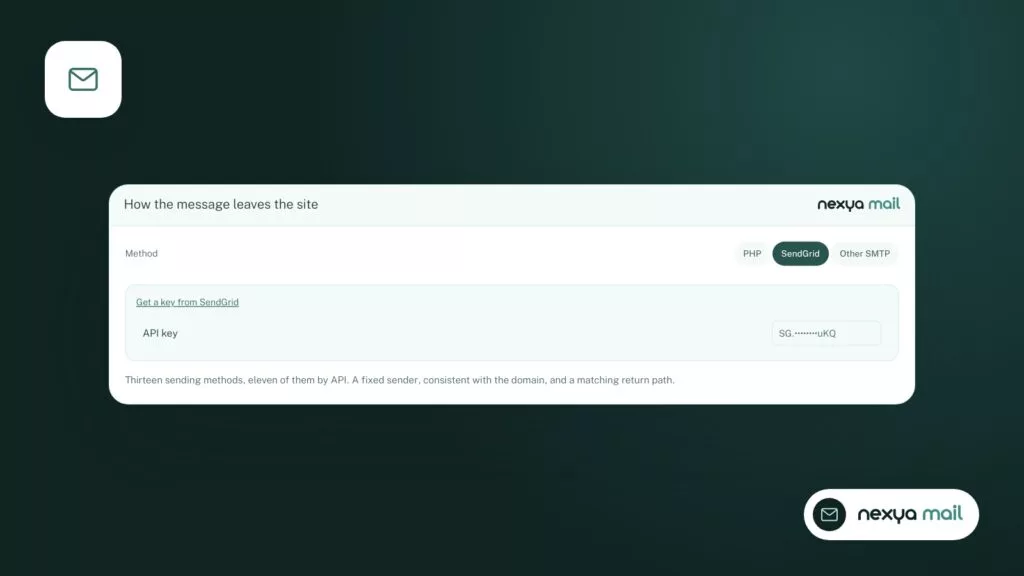
Turn on the Mail module from the hub, then choose SMTP or API. Enter the credentials provided by your email provider or the sending service key, and a sender address on the site's domain.
-
2
Send a test email
Send a test email to an inbox you check. If it arrives, the route works. If it doesn't arrive, the cause is already in the log.
-
3
Read the cause in the log
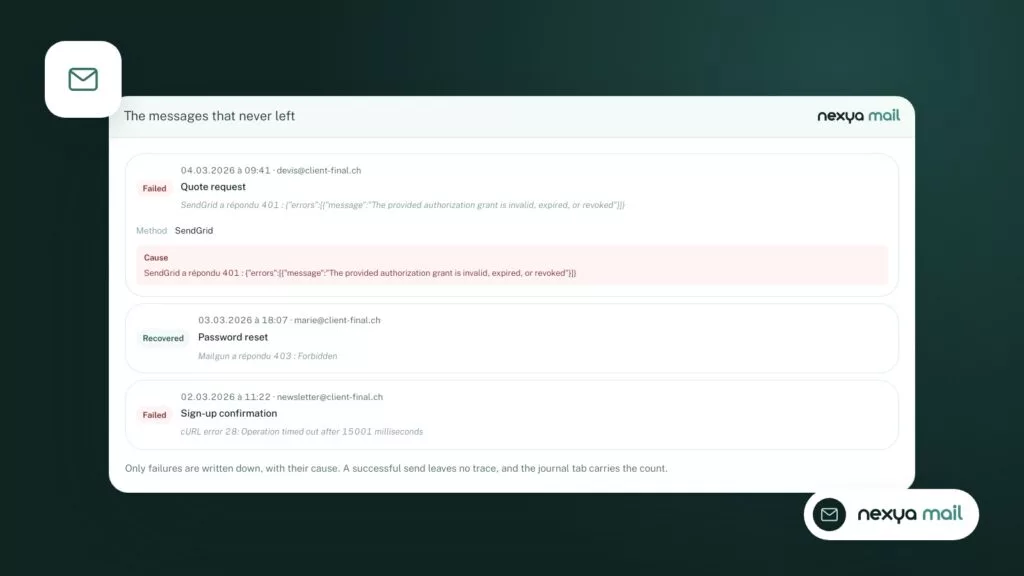
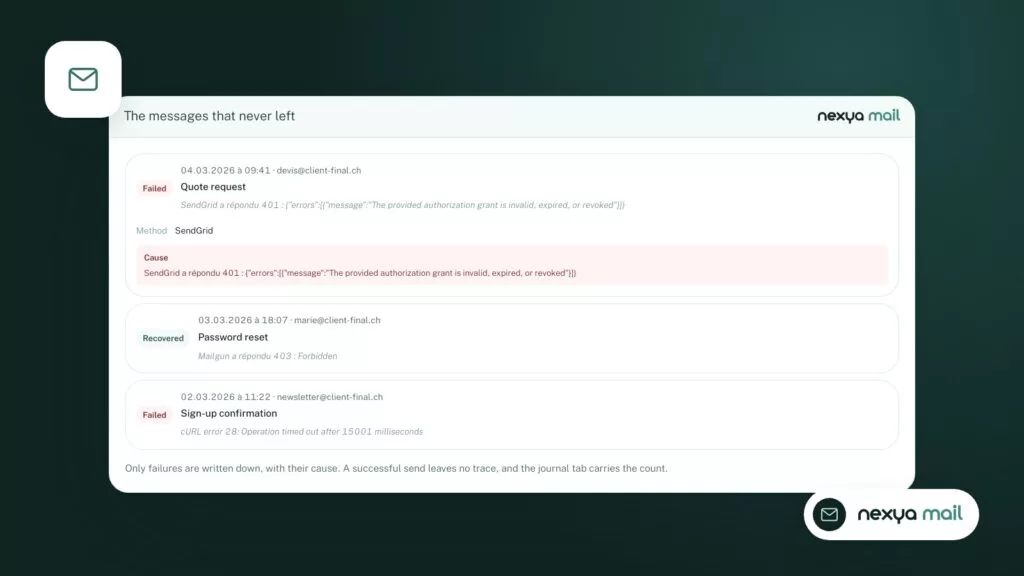
Open the sending log. Every failed message appears there with the reason returned by the server: fix the relevant setting or forward it to your web host or sending service.
-
4
Protect forms
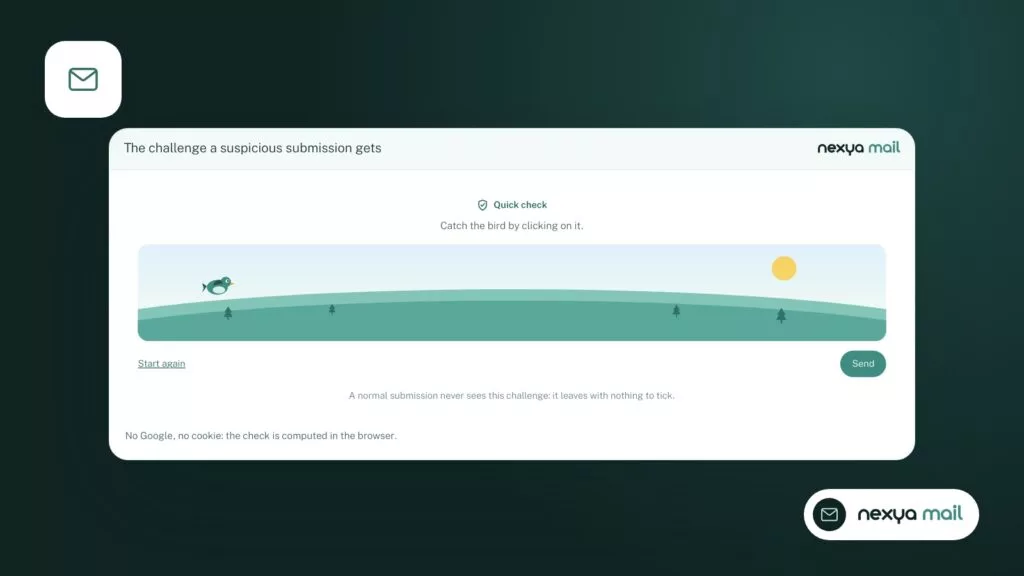
Enable the invisible captcha on comments, login, and forms. It replaces reCAPTCHA or Turnstile, without Google or Cloudflare and without checkboxes for the visitor.
The log: the exact reason for every failure
Changing routes isn’t enough if you don’t know what happens next. The Mail module keeps a delivery log and records every failed send along with its cause, exactly as returned by the SMTP server or sending service.
This is what is missing from most forum threads. “My emails are no longer sending” becomes a precise statement: a rejected username, an unauthorized sender address, or a quota reached. You then know who to contact: your host, your sending service, or the person who changed the mailbox password.
The module also allows you to send a test email. This is the first thing to do after configuring the method, and the first thing to repeat when a client reports a silent form: if the test goes through, the route works and you need to investigate the form or the recipient.
An email that fails without leaving a trace cannot be fixed. An email that fails with its cause is fixed in a few minutes.
Registration confirmations and newsletters
A double opt-in confirmation email is just like any other email: if it goes through the host’s sending function, it faces the same limitations. Once the Mail module is configured, it takes the same route as the rest and, if it fails, the failure appears in the log.
For newsletters, nexya Pro adds the Mailya module. It sends campaigns from your own server, in the background, at a pace your server can handle, without requiring a third-party account to be validated before the first send. Its subscription form uses the Email module’s captcha, a single address receives at most one confirmation email per hour, and any subscription where the domain cannot receive emails is rejected.
An honest clarification: if your newsletter is managed by another extension and its scheduler gets the time wrong, nexya does not fix that extension. The Mail module guarantees the sending route and the log, not another tool’s calendar.
nexya forms and the invisible captcha
A good portion of unsent emails originate from contact forms. Two causes commonly recur: the sending process itself, covered above, and a third-party captcha—reCAPTCHA or Turnstile—which blocks submissions without providing a clear message.
The Mail module includes an invisible captcha, free of Google and Cloudflare, placed on comments, login pages, and site forms. Visitors don’t need to check any boxes. It is free, just like the rest of the module.
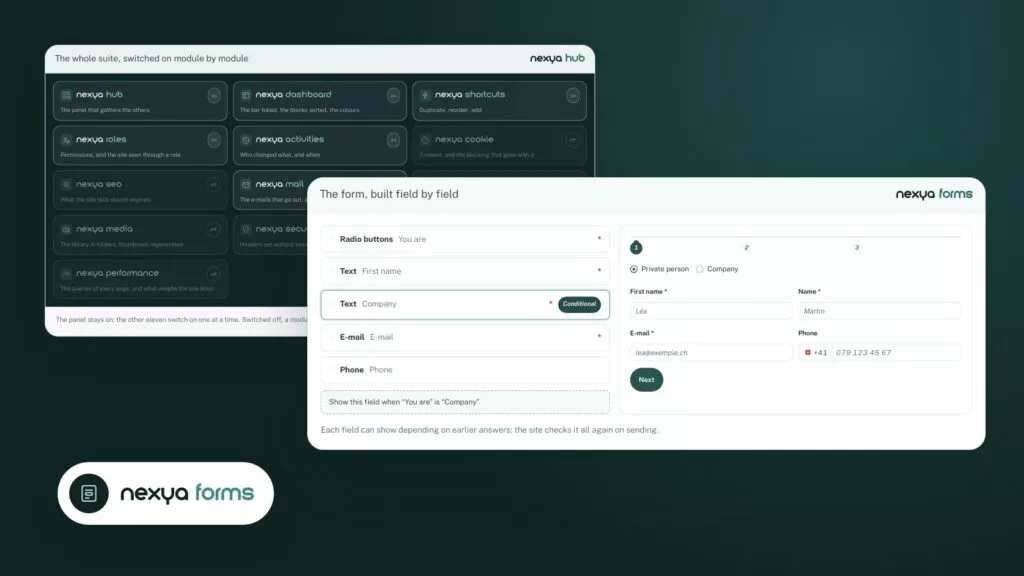
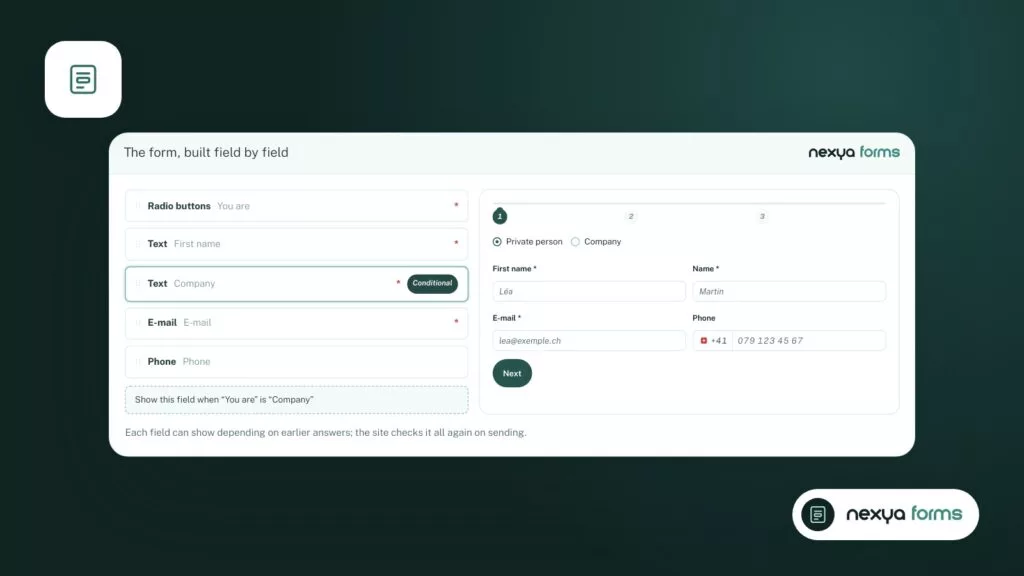
nexya Pro adds its own forms. They share a consistent look with styled dropdowns and calendars, and can be inserted via a block, an Elementor widget, or a shortcode. A form can send multiple emails, each with its own recipients, CCs, conditions, and an auto-reply to the visitor.
Entries are stored on the site, exportable to CSV or formatted PDF, with a configurable retention period in days. If a notification email fails, the visitor’s request is not lost: it remains in the entries, and the cause of the failure remains in the log.
- Multiple emails per form, with recipients, CCs, and conditions.
- An auto-reply sent to the visitor.
- Entries stored on the site, exportable to CSV or PDF.
What is free and what belongs to nexya Pro
To make WordPress emails go out and find out which ones aren’t delivered, the free version is enough: sending via SMTP or API, sending log with the cause of failures, test email, and invisible captcha.
nexya Pro adds a second sending server and failure alerts: if the primary server rejects a message, another takes over and you are notified, instead of finding out from a client. Pro also brings Mailya for newsletters and nexya forms. The free version does not contain any of this code; nexya Pro is delivered by Freemius after purchase and keeps the settings you’ve already made.
Regarding privacy, the extension sends nothing to a third party by default. The SMTP or API service you choose naturally receives your emails: that is its job.
FAQ
Why aren't my WordPress emails sending even though the site reports no errors?
WordPress hands the message over to the host's mail function and considers it sent. If the host blocks it or the destination mail server refuses it, nothing gets reported back. The Mail module's log records every failed send along with its cause.
Should you choose SMTP or API?
SMTP is suitable if you have a professional mailbox on the site's domain. A sending service's API is suitable if the site sends a lot or if the host blocks SMTP ports. The Mail module handles both.
My registration confirmation emails only arrive half the time. What should I do?
Set up an SMTP or API method, send a test email, and check the log: every confirmation that fails appears there with the reason given by the server.
Is the backup server included in the free version?
No. The second sending server and failure alerts are reserved for nexya Pro. SMTP or API sending, the log, the test email, and the captcha are free.
Are nexya forms free?
No, nexya forms are part of nexya Pro. The Mail module's invisible captcha, however, is free and also protects forms from other extensions present on the site.
The modules in this post
Try nexya Pro free for 7 days
Every module, forms, newsletters and the page cache, on your site. No commitment.