Key points
- A form inherits the theme's CSS: the browser inspector shows which rule wins and where it comes from.
- A consent checkbox that is too wide can be fixed with width: auto, scoped to the form container.
- An ineffective button CSS is either less specific than another rule, not loaded, or hidden by a cache.
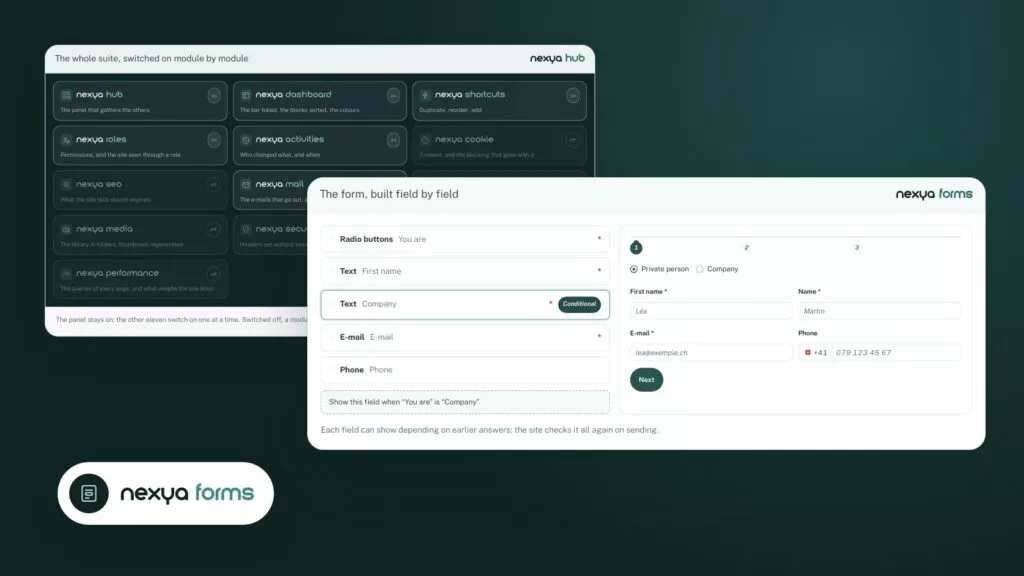
- nexya forms (Pro) applies a single style to all forms, with styled dropdowns and calendar.
- Since version 1.3.2, the submit button can have an icon, whose order follows RTL languages; the rest of the RTL styling is done in CSS.
Why the style of a WordPress form breaks
On the WordPress.org forums, the same question comes up every week in various forms: the consent checkbox takes up 90% of the width, the CSS added to the submit button does nothing on the site, error messages stay on the left on an Arabic site. Behind these symptoms, the style of a WordPress form obeys a simple rule: it inherits everything declared by the theme.
A theme often writes broad rules, such as “all fields at 100% width”. They target text fields, but also affect checkboxes and radio buttons. The form adds its own rules, and the most specific of the two wins, not necessarily the one written last.
Before fixing anything, open the page in your browser, right-click on the offending element and choose “Inspect”. The styles panel shows each applied rule, the file that declares it, and rules crossed out because another one won. That’s where the answer is, nine times out of ten.
What nexya forms supports
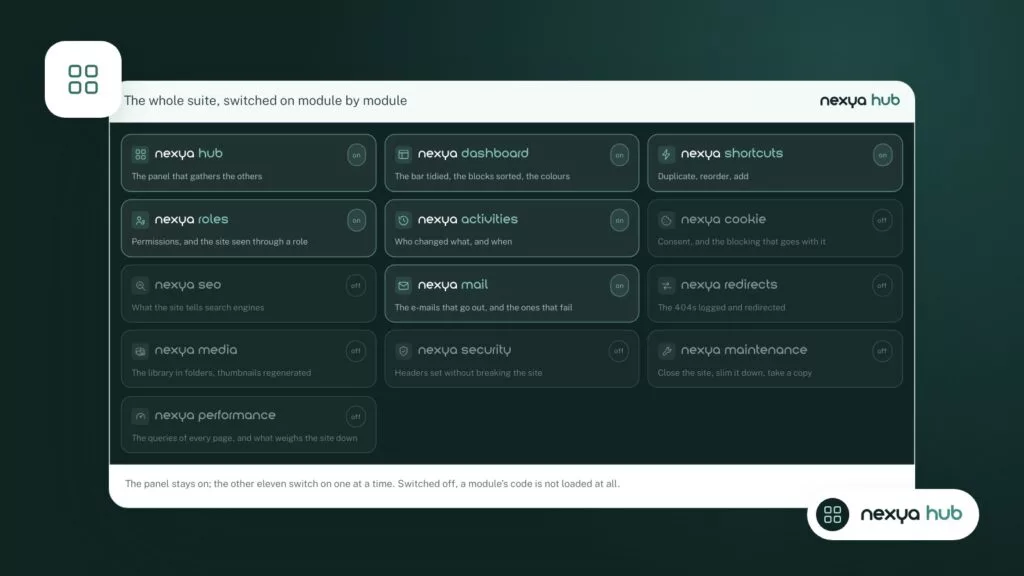
nexya forms is a nexya Pro module, sold on nexya.dev and delivered by Freemius after purchase. Like any nexya module, it is turned on from the hub, and as long as it is turned off, none of its hooks run on the site.
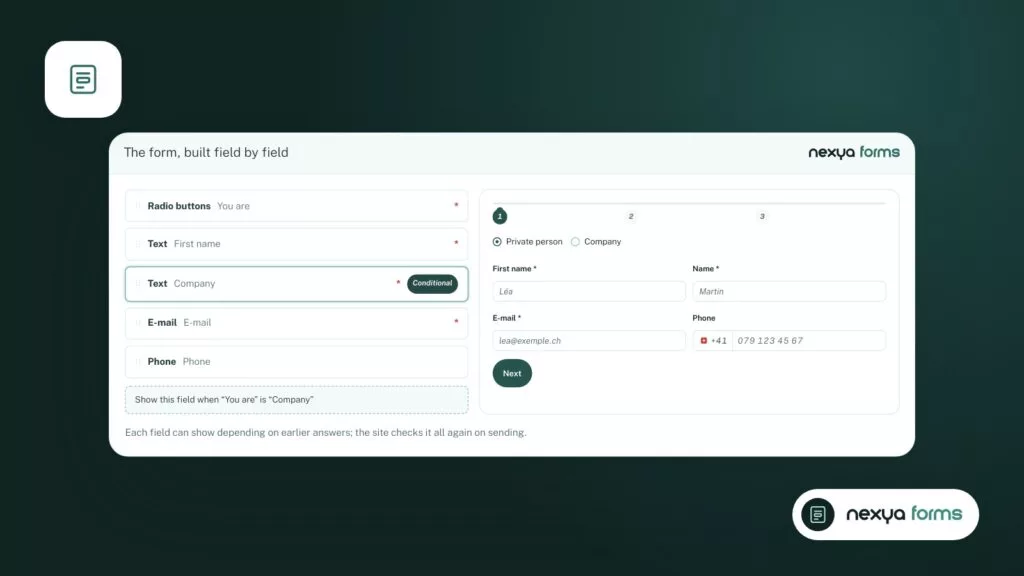
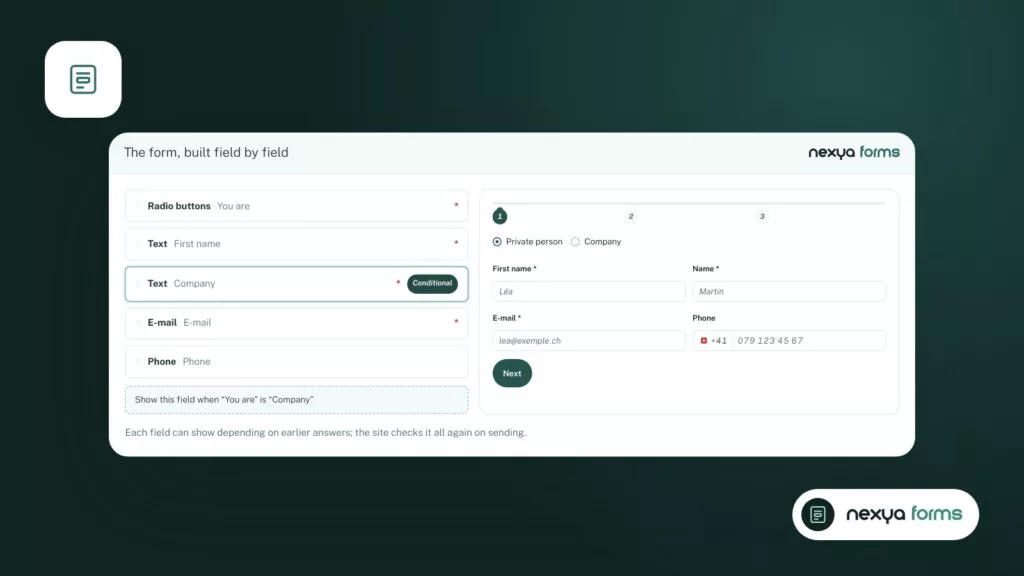
The module applies a single style to all forms on the site. You therefore do not need to redo the styling form by form, and a form added later will look like the others. Dropdown lists and the date picker calendar are also styled, instead of keeping the browser’s raw appearance, which varies from one device to another.
Since version 1.3.2, the submit button can have an icon before and/or after its label: one of sixteen proposed icons, or an image taken from the media library. The icon is centered on the text, and the order follows right-to-left languages.
For spam, the Mail module provides an invisible captcha for the site’s forms. It does not add a checkbox or a frame to style: there is nothing to style on this front.
The consent checkbox takes up the full width
This is the most frequent case. The theme declares a 100% width for input fields, without excluding checkboxes. Result: the box stretches, and the consent text is pushed to a new line or crushed.
The fix consists of returning checkboxes and radio buttons to their natural width, by limiting the rule to your forms so as not to break anything elsewhere. In the inspector, locate the class or identifier of the form container, then write a rule like this, replacing the selector with the one you noted:
- Container selector followed by input[type="checkbox"] and input[type="radio"]
- Properties: width: auto; and, if needed, flex: none; when the theme places the box in a flex row
- Then check the rendering on mobile, where theme rules often change
Changing a form's appearance, step by step
-
1
Turn on the form module
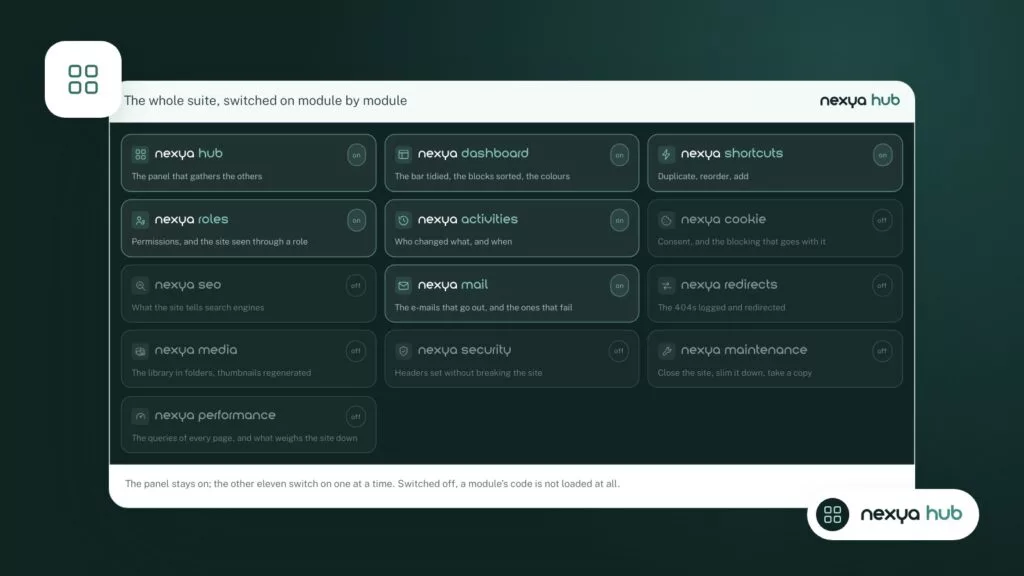
With nexya Pro installed, turn on nexya forms from the hub. The common style is then applied to all forms on the site.
-
2
Add the submit button icon
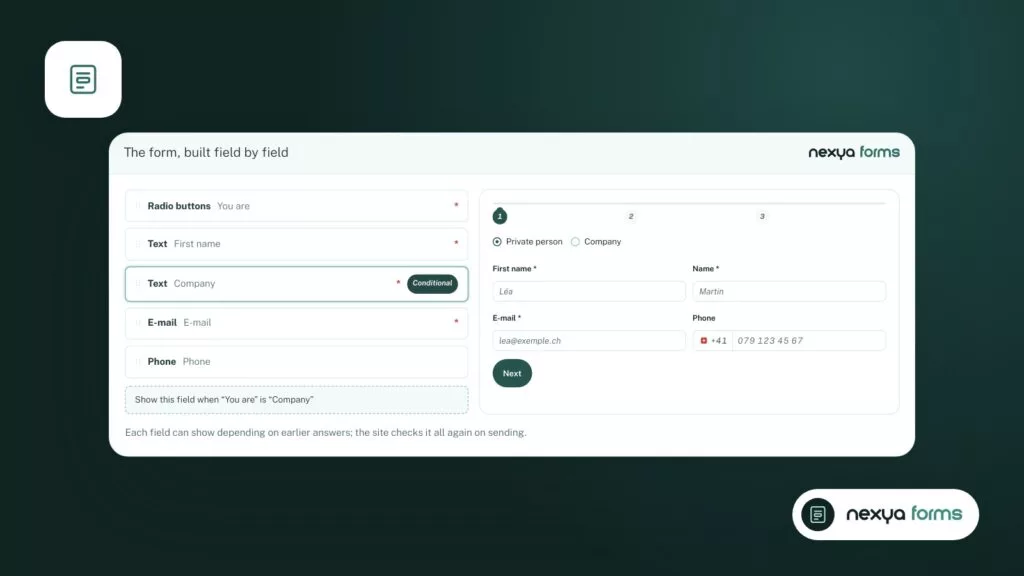
In the form editor, choose an icon before and/or after the button label, from a selection of sixteen, or an image from the media library.
-
3
Inspect what is still misaligned
On the published page, right-click on the badly displayed element and choose "Inspect" to see the winning theme rule and the file that declares it.
-
4
Fix in CSS, then clear the cache
Add a rule limited to the form container in Additional CSS (width: auto for checkboxes, text-align: start for RTL), clear the page cache, and check on desktop and mobile.
The submit button CSS does not apply
When a rule added to the button changes nothing on the site, the inspector gives the cause. Three situations come up repeatedly.
The rule is crossed out: another, more specific one wins. Add the form container selector in front of the button selector to gain specificity. Only use !important as a last resort, because it makes subsequent fixes more difficult.
The rule does not appear at all: the CSS is not loaded. It may have been placed in the wrong place, or an old version of the page is served by a cache. WordPress additional CSS is found in the customizer for classic themes, and in the site editor, under styles, for block themes. Then clear the page cache and reload without the browser cache.
The rule applies in the editor but not on the site: the editor preview and the public page do not always load the same stylesheets. Always test on the published page.
For an icon on the button, there is no need to write CSS with nexya forms: the setting has existed since version 1.3.2, and it handles centering and RTL language order itself.
Adjusting the form width
A form takes the width of the block containing it. If it seems too wide on a large screen, the cleanest way is to limit its container rather than each field: a maximum width (max-width) in pixels or characters, and automatic left and right margins to center it.
Known facts about nexya forms do not mention a dedicated width setting. This limit therefore arises in the layout itself (column, block group, builder section) or via a CSS rule on the container.
Forms in Arabic, Hebrew or Persian (RTL)
When the site is in a language written from right to left, WordPress adds the dir=”rtl” attribute to the page. Well-written elements follow on their own. Those that remain on the left almost always have a text-align: left rule or a fixed left positioning, declared by the theme or by the form.
What nexya forms announces for RTL is the order of the icon and the label on the submit button. There is no RTL setting announced for the rest of the form, nor any advanced validation message setting. If an error message remains incorrectly aligned, the fix goes through CSS.
The most sustainable solution is to replace left and right with the logical values start and end (text-align: start, for example), which follow the direction of the language. Otherwise, a rule limited to [dir="rtl"] followed by the message selector is enough.
Winning rules are not the last ones written, but the most precise ones.
FAQ
Is nexya forms free?
No. nexya forms is part of nexya Pro, sold on nexya.dev and delivered by Freemius after purchase. The other modules described in the free version remain free, on as many sites as you want.
Do you need to style each form separately with nexya forms?
No. The module applies a single style to all forms on the site, including dropdown lists and calendars.
Can you add an icon to the submit button?
Yes, since version 1.3.2: an icon before and/or after the label, to be chosen from sixteen or taken from the media library. It is centered on the text, and the order follows right-to-left languages.
Does nexya forms have a complete RTL setting?
No, no RTL setting is advertised, other than the icon order on the button. The alignment of validation messages is fixed in CSS, preferably with logical values like text-align: start.
Where to add my CSS on WordPress?
In Additional CSS: the customizer for a classic theme, or the site editor styles for a block theme. Then clear the page cache before checking.
The modules in this post
Try nexya Pro free for 7 days
Every module, forms, newsletters and the page cache, on your site. No commitment.