Key points
- Measure the TTFB of a page and that of a static file before touching the site.
- If the static file is also slow, the cause lies with the host: no plugin fixes that.
- The nexya Pro page cache clears itself, including after saving in Elementor, and also clears Cloudflare since version 1.2.31.
- An outdated page often comes from a caching layer that isn't notified: browser, host, CDN, or a second plugin.
- Database cleaning is free in the Maintenance module. Scheduled cleaning is part of nexya Pro.
Slow WordPress site: two similar problems
On the WordPress.org forums, the question of a slow WordPress site comes up often, and it almost always mixes two situations. In the first, the page takes several seconds before starting to display. In the second, it displays quickly, but in a version you have already modified.
The first case concerns the server response time. The second concerns a cache that was not cleared at the right time. The steps to take are not the same, and a page cache does not fix everything.
This article explains how to tell the difference, what the nexya Pro page cache handles and what it cannot do. It also shows what the free version already brings regarding the database.
Start by measuring: the time to first byte
Before changing anything, measure. The useful figure is called TTFB, for Time To First Byte: this is the time between the browser request and the first byte returned by the server. You can find it in the Network tab of the browser development tools by clicking on the first line, which is the document.
Take the measurement in incognito mode so you are not logged into the site, and load the same page twice in a row. Then compare with a static file from the same site, for example an image from the media library. This file does not go through WordPress.
These three figures are enough, most of the time, to know where the problem lies.
- The page is slow, the static file is fast: time is being lost in WordPress, its plugins, or its database.
- The static file is also slow: time is being lost before WordPress, at the host or on the network.
- The second visit is fast and the first is slow: caching works, but it rebuilds often.
When the slowness comes from the host
One of the forum threads describes a TTFB of about five seconds, while PHP and the database respond quickly. In a situation like this, the cause is most often upstream of WordPress: a saturated shared server, network configuration, a proxy, slow DNS resolution.
No plugin fixes what happens before WordPress starts, nexya no more than any other. A page cache saves WordPress work, but it does not shorten the path between the visitor and the server.
The right approach is to write to the host with your measurements: the page TTFB, the static file TTFB, and the time of the test. With these figures, support can see that the problem does not come from your code.
If a simple image file takes several seconds to arrive, the problem does not come from WordPress.
What the nexya Pro page cache does
The page cache is part of nexya Pro, sold on nexya.dev and delivered by Freemius after purchase. The free version does not contain the code. nexya Pro replaces the free plugin and keeps the same settings.
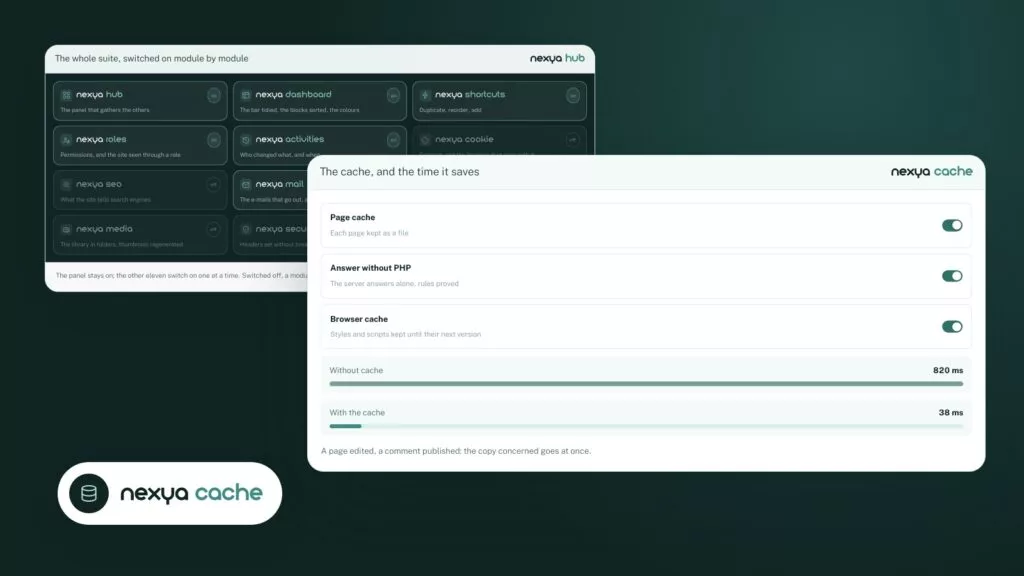
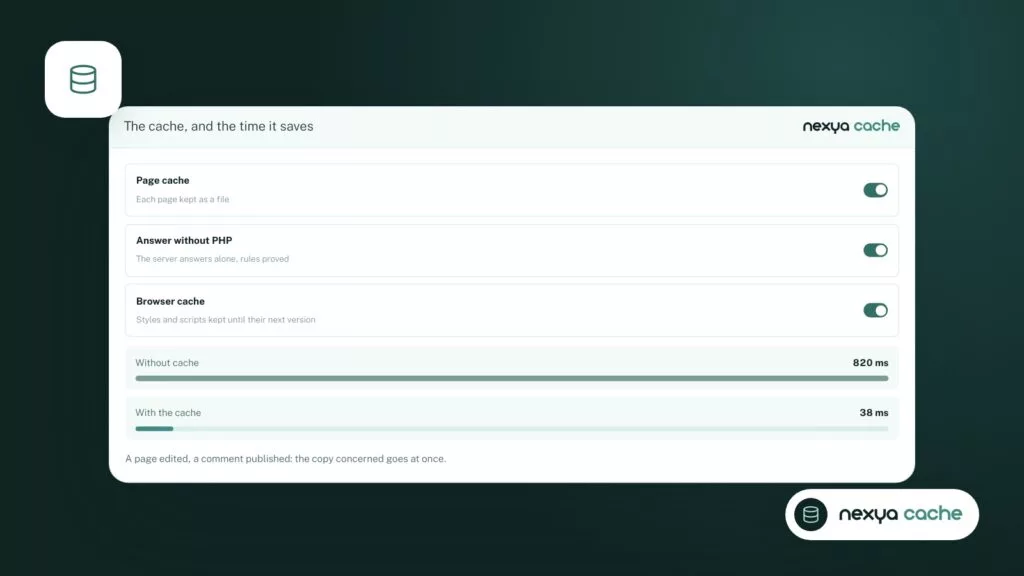
The principle is simple. Each page is kept as a file, then served to the next visitor before WordPress loads. When something modifies the page, the file is discarded. Purging is automatic, including when you save a page in Elementor.
Since version 1.2.31, the Cloudflare cache is cleared at the same time as nexya’s: entirely, or only for the addresses of the modified page. Since 1.2.34, the home page of a site that redirects according to the browser language is once again served from the cache. Only a first visit where the browser requests another language of the site goes through WordPress.
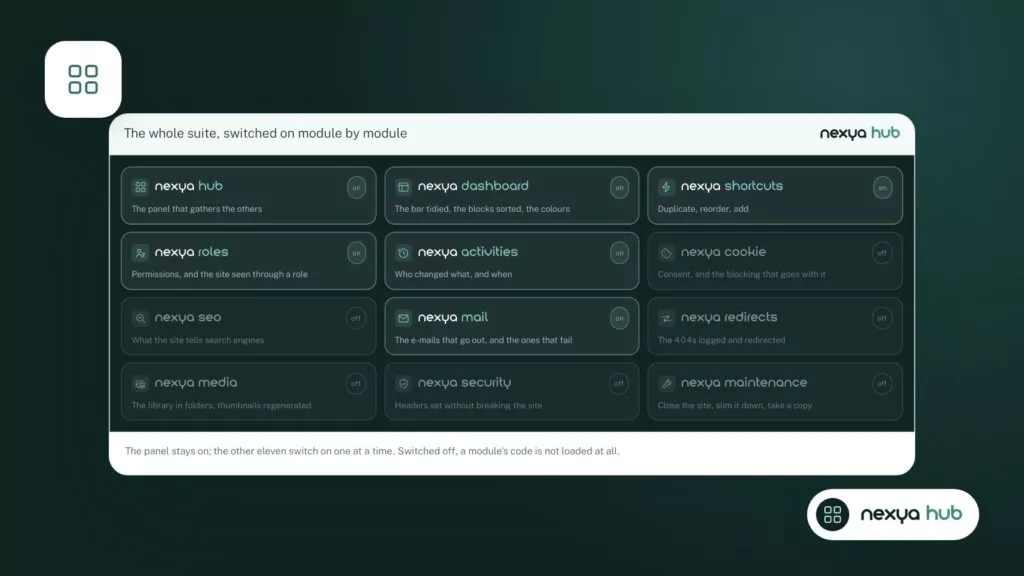
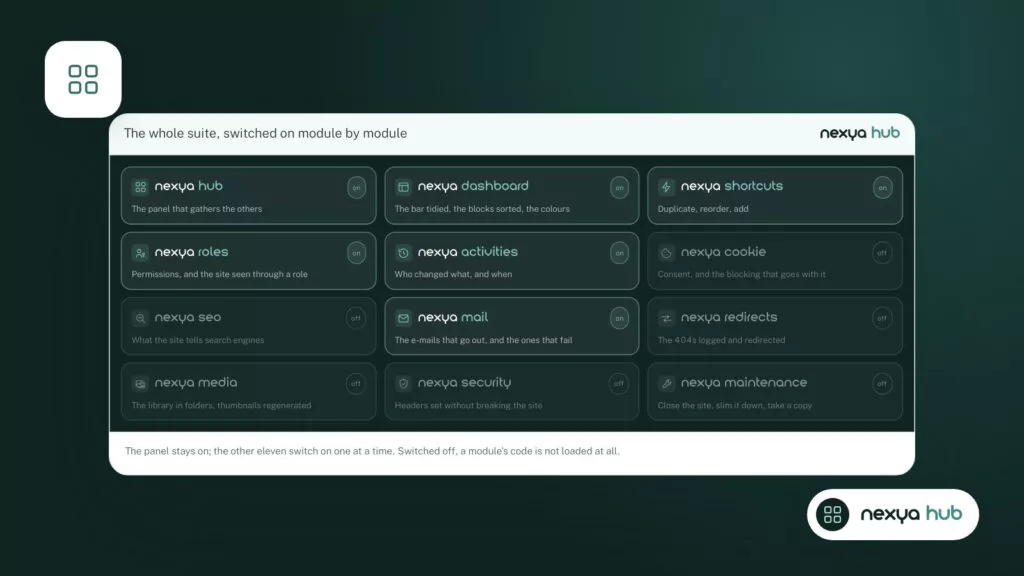
Like all nexya modules, the cache is turned on and off from the hub. As long as it is turned off, it records nothing and none of its hooks run on the site.
Putting the cache back in order, in four steps
-
1
Measure the TTFB
In incognito mode, note the TTFB of a page loaded twice, then that of an image from the media library. If the image is also slow, write to your host attaching these numbers.
-
2
Keep only one page cache
Clear and then disable any other page cache plugin. Then turn on the cache from the nexya hub.
-
3
Connect Cloudflare if the site uses it
With nexya Pro, Cloudflare's cache is cleared along with the site's, entirely or only for the modified page. Also check if the host adds its own cache.

-
4
Slim down the database
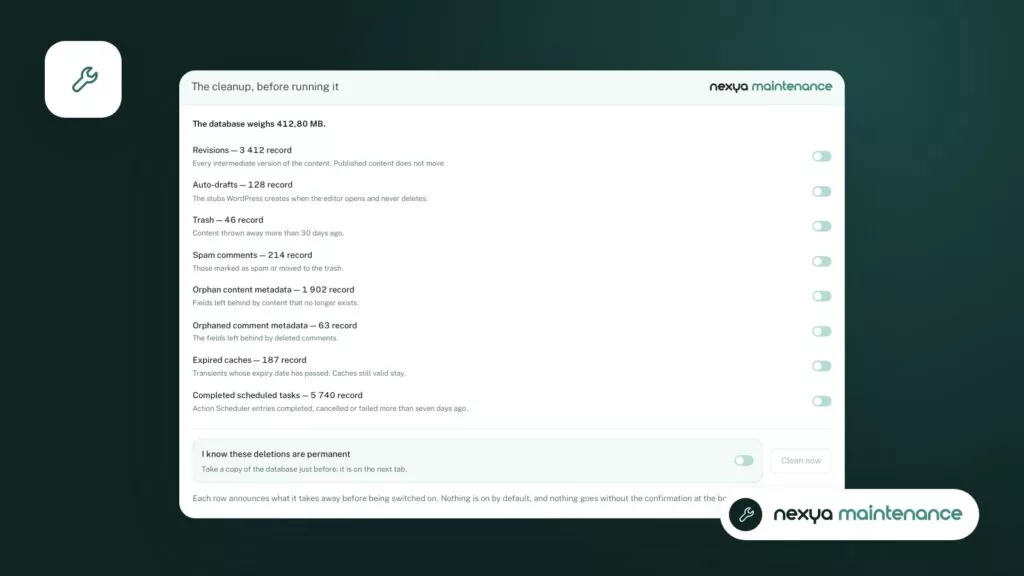
Export the database from the Maintenance module, then run the cleanup. Use the performance screen to identify what is weighing down the autoload.
The cache displays an old version: where to look
If visitors see an outdated page, it is generally because a cache layer was not notified of the change. There may be several on top of each other: the browser, a caching plugin, the server cache offered by certain hosts, and then a CDN.
Two page caching plugins active at the same time interfere with each other: each keeps its own copy, and clearing one does not clear the other. Keep only one. If you choose nexya’s, deactivate the other and clear it first.
Another forum thread talks about a shortcode that does not update. A page cache records the result of the page as is. A shortcode that displays changing information therefore remains frozen in the file until the next purge. This is the normal operation of a page cache, not a bug.
- Test in incognito mode to rule out the browser cache.
- Check if the host adds its own cache and how to clear it.
- If the site goes through Cloudflare, check that its purge is linked to the site’s.
- Keep only one page caching plugin.
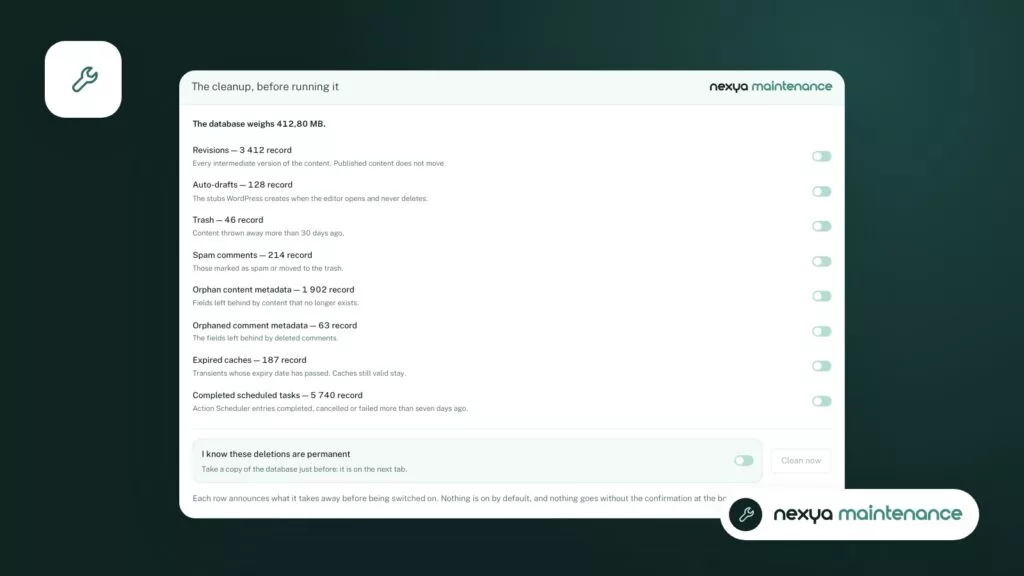
Lightening the database: the performance screen and cleanup
If measurements show that time is being lost in WordPress, also check the database. Certain options are loaded automatically on every page: this is autoload. Plugins deleted a long time ago sometimes leave data behind. The nexya performance screen helps identify what is weighing down autoload.
The Maintenance module is free, cleans the database, and can export it. Always make an export before cleaning, so you can roll back. Scheduled cleaning, which runs automatically at regular intervals, is part of nexya Pro.
A lighter database does not replace a page cache, and a cache does not replace a healthy database. Both complement each other. But neither fixes a host that is too slow.
FAQ
Is the page cache included in the free version of nexya?
No. The page cache is one of the three modules added by nexya Pro, sold on nexya.dev. The free version does not contain its code.
Do I need to clear the cache after editing a page in Elementor?
With the nexya Pro cache, no. The purge is automatic, including when you save in Elementor.
Does nexya's cache also clear Cloudflare?
Yes, since version 1.2.31: the Cloudflare cache is cleared at the same time as nexya's, entirely or only for the modified page's addresses.
Does a page cache fix a high TTFB?
It helps when time is wasted within WordPress. If the delay comes from the host or the network, as shown by a slow static file as well, the cache does not fix it.
The modules in this post
Try nexya Pro free for 7 days
Every module, forms, newsletters and the page cache, on your site. No commitment.