Key points
- nexya does not clean up malware: cleanup is done manually, with your host, a specialized tool, or a professional.
- Close the site and export the database before touching the files; the Maintenance module does both.
- Replace the core, plugins, and themes with official copies rather than searching for infected files one by one.
- Reinfection almost always comes from a still-open vulnerability or a forgotten backdoor; checking vulnerable plugins is free.
- Security headers, CSP, and the failed login limit are free; two-step verification and file fingerprinting with rollback are in nexya Pro.
Hacked WordPress site: what nexya does, and what it doesn’t do
A hacked WordPress site is often recognizable by specific signs: administrator accounts that nobody created, unknown PHP files in the media folder, redirections to sketchy sites, or an infection that returns a few days after a complete cleanup. These are the cases that come up most often on the WordPress.org forums.
Let’s be clear right away: nexya does not clean up malware. It has no anti-malware scanner and deletes no infected files. It steps in before and after the cleanup: it detects what has changed, closes known entry points, and alerts you if something moves again.
The cleanup itself is done manually, with your host, a specialized tool, or a professional. This article describes the order in which to proceed, and at what point nexya can help you.
The first hours: close, copy, notify
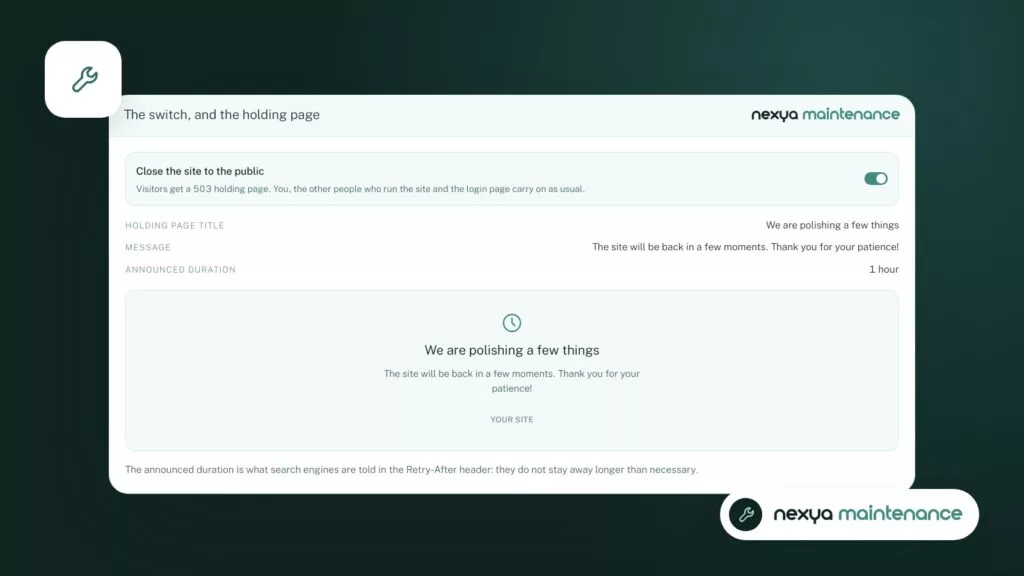
Before deleting anything, close the site to the public. The Maintenance module displays a waiting page to visitors while you work on the site while logged in. This way, your visitors are neither redirected nor exposed during the intervention.
Then take a copy of the database. The Maintenance module allows you to export the database. Even infected, this copy is useful: it keeps track of what the attacker modified, and it allows you to roll back if the cleanup deletes too much.
Finally, notify your host. They have access to server logs that WordPress doesn’t see, and they can tell you if other sites on the same account are affected. This is often where you find the answer to the question “how did they get in”.
Clean up: start over from files you know are clean
A webshell is a small PHP file that gives the attacker access to the server. It eagerly hides in wp-content/uploads, in a plugin folder, or under a name that mimics a WordPress file. If you delete them one by one, you will almost always forget one.
The safest way is to replace files rather than sorting through them:
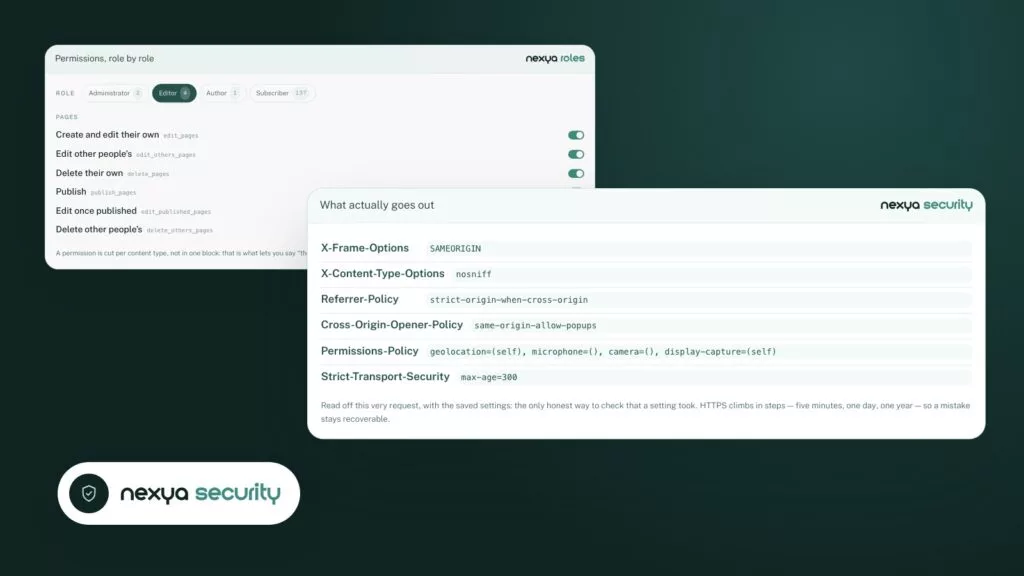
On this point, the Security module helps you. Since version 1.2.34, it compares core WordPress files every day with the originals published by wordpress.org. It lists every modified file, every missing file, and every PHP file that has no business being there, and sends you an email when it finds a new one. The comparison only covers the core: plugins, themes, and media remain for you to check yourself.
- reinstall the WordPress core from the official wordpress.org archive;
- reinstall each plugin and theme from its official source, and delete the ones you no longer use;
- look for PHP files in wp-content/uploads, where they normally have no business being;
- reread wp-config.php and the mu-plugins folder, two frequently forgotten places.
Administrator accounts created by the attacker
When administrator accounts reappear after being deleted, a backdoor is almost certainly still in place, in a file or in the database. Deleting these accounts is therefore not enough, but it still needs to be done, along with changing everything else that gives access to the site.
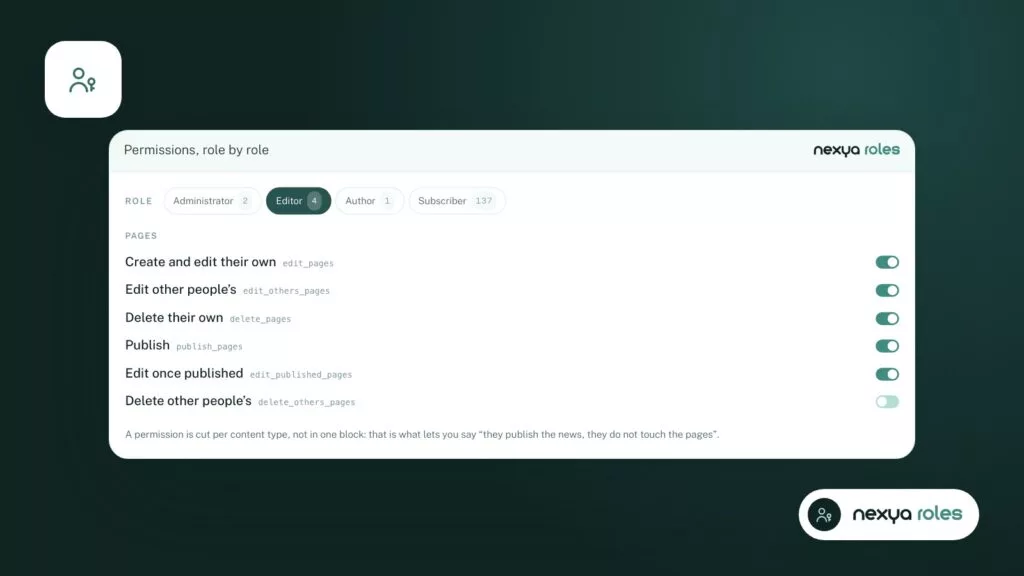
The Roles & Capabilities module organizes rights under the content type that creates them. You can see at a glance what each role can do, and more easily spot an ordinary role that has been given rights it shouldn’t have. You can also view the site through the eyes of a role without leaving your own account.
- delete unknown accounts and change the password for all administrators;
- renew the security keys in wp-config.php, which closes all open sessions;
- also change FTP or SFTP access, database access, and hosting account access.
Why the site gets reinfected after a complete cleanup
This is the most discouraging situation: everything has been cleaned up, passwords have been changed, and the infection returns. The usual causes are few.
Against the first cause, the Security module checks installed plugins against the list of known vulnerabilities. This check is part of the free version. nexya Pro adds an automatic daily scan.
A plugin flagged as vulnerable must be updated, or deleted if no fix exists. Just before each update, the Maintenance module keeps the previous version of the plugin. If the new version breaks something, you can restore it in one click.
- the flaw through which the attacker entered is still there, often in an outdated plugin or theme;
- a backdoor has survived, in the database, in a scheduled task, or in a forgotten file;
- another site on the same hosting account remained infected and is contaminating yours again;
- a compromised computer is transmitting the new passwords to the attacker.
If the entry point remains open, a cleanup won’t hold.
Securing the site: what the Security module implements
Once the site is clean, the Security module reduces attack vectors in several ways.
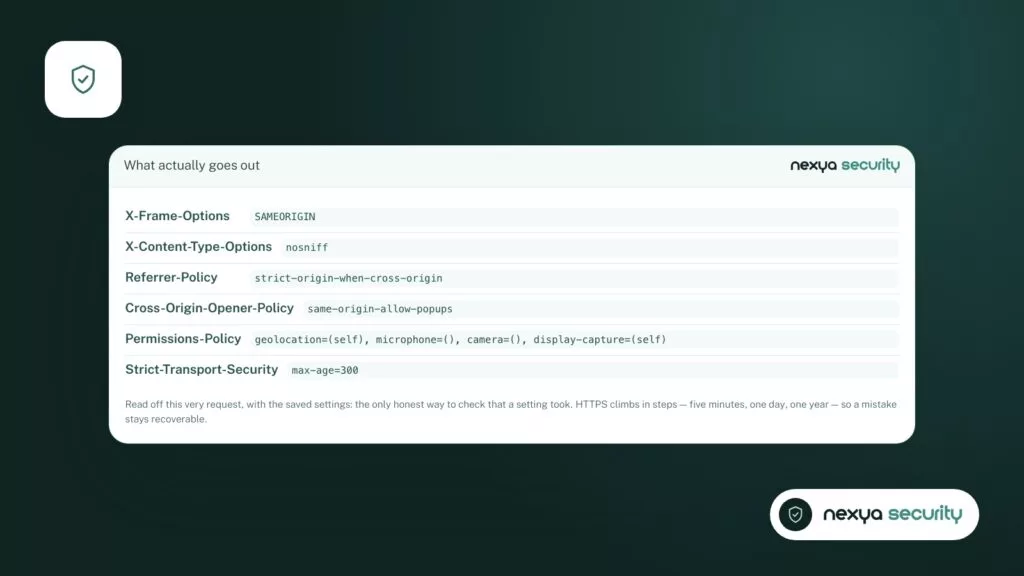
Security headers tell the browser how to handle site pages. They do not replace a cleanup, but they make exploiting certain visitor-side vulnerabilities more difficult.
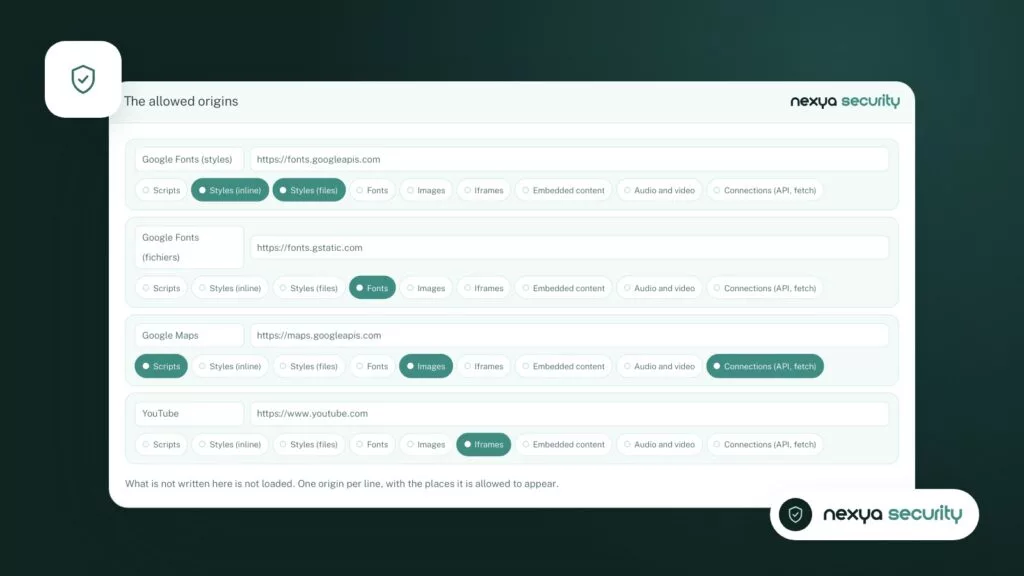
Content Security Policy (CSP) sets the list of origins from which the site can load scripts, styles, or images. If an injected script tries to load from a domain that is not in the list, the browser blocks it. Once you have set it up, browse the site to verify that your legitimate services are properly authorized.
The failed login limit blocks an address after several failures, for progressively longer periods. The real owner of the account unlocks it using a link received by email. An email also notifies you when an address is blocked, at a maximum of one per hour.
nexya Pro adds two-step verification, required for the roles you choose: a code generated by an authenticator app or received by email, along with backup codes. A stolen password is then no longer enough to open an administrator account.
Securing a hacked WordPress site with nexya, in four steps
-
1
Close the site during the intervention
In the Maintenance module, enable the maintenance page before touching the files, then export the database from the same module. Keep this copy off the server.
-
2
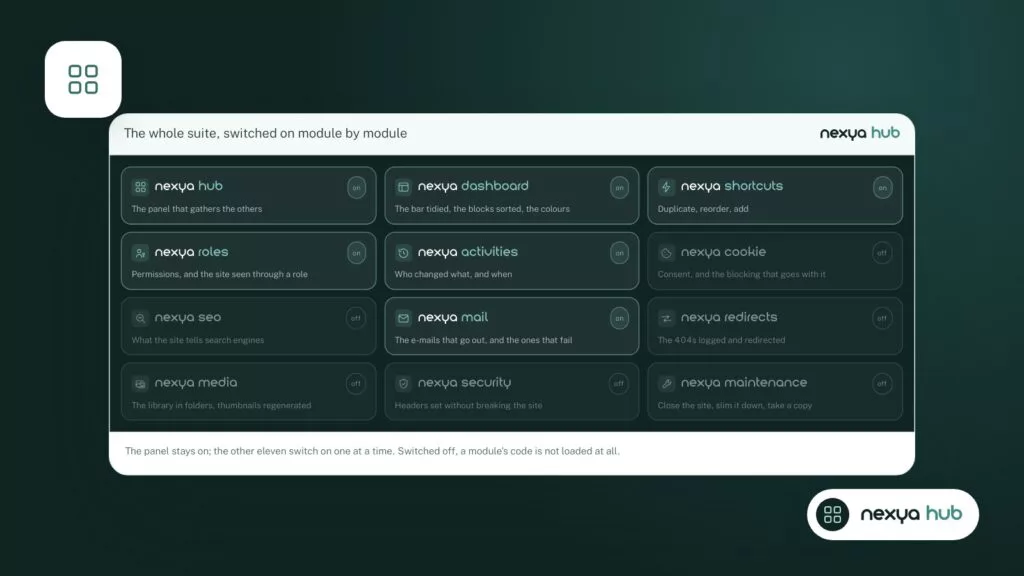
Activate the Security module from the hub
Enable Security in the hub. Read the list of plugins flagged as vulnerable, then the list of core files that differ from the originals on wordpress.org. Update or delete what is flagged.
-
3
Set up headers and Content Security Policy
Once the site is cleaned, enable security headers and Content Security Policy, then browse the site to verify that your legitimate services are properly authorized. The failed login limit is part of the same module.
-
4
Monitor modifications in the following weeks
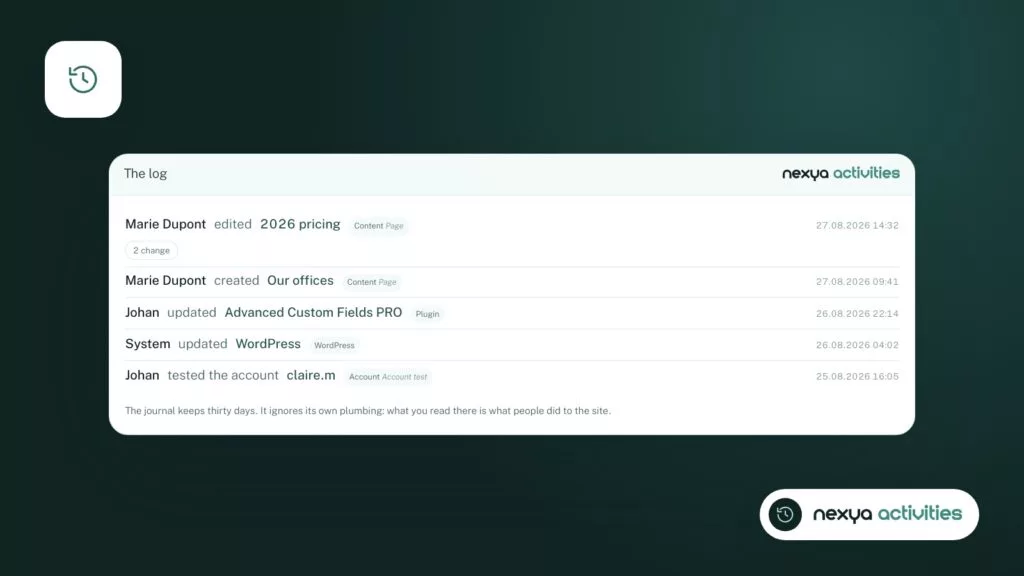
Enable the activity log and check it regularly: every modification appears there with its author and the state before and after. A modification that no one made should alert you.
After cleanup: monitoring without spending all your time on it
The activity log shows who changed what, with the state before and after the modification. In the weeks following the cleanup, this is where you will spot a change that no one on the team made.
nexya Pro adds file fingerprinting with rollback, as well as longer log retention.
Also keep backups off the server. A copy stored with the same host can be compromised at the same time as the site.
All these modules are activated and deactivated from the hub. A deactivated module records nothing on the site: you only enable what you need.
FAQ
Can nexya clean up my hacked WordPress site?
No. nexya does not have an anti-malware scanner and does not delete any infected files. It helps before and after the cleanup: it closes the site during the intervention, exports the database, lists modified core files, checks for vulnerable plugins, and sets up login protections.
Why do administrator accounts reappear after deleting them?
Generally, a backdoor remained in place, in a file or in the database, or the original vulnerability is still open. You must replace the files with official copies, renew the wp-config.php keys, and change all access credentials, not just WordPress passwords.
Is checking for vulnerable plugins free?
Yes. The Security module checks installed plugins for known vulnerabilities for free. nexya Pro adds an automatic daily check.
Can Content Security Policy (CSP) block legitimate elements?
It blocks anything coming from an unauthorized origin. After setting it up, browse the site and add the origins of your legitimate services to the list of allowed origins.
Does file comparison also check plugins and the uploads folder?
It focuses on WordPress core files, compared daily with the originals from wordpress.org. Plugins, themes, and the uploads folder still need to be checked by you.
The modules in this post
Try nexya Pro free for 7 days
Every module, forms, newsletters and the page cache, on your site. No commitment.