Key points
- A vulnerability check compares the name and installed version against a list of known vulnerabilities; an error in the list is enough to produce a false positive.
- An up-to-date version can also be genuinely vulnerable when no patch exists yet.
- The vulnerability report decides: affected versions, patched version, publication date.
- The nexya Security module checks installed plugins for free; nexya Pro adds daily scanning and file fingerprinting with rollback.
- The Maintenance module keeps the previous version of each plugin and theme before it is updated, and restores it with a single click.
WordPress plugin flagged as vulnerable: where does the alert come from
The issue comes up every week on the WordPress.org forums: a WordPress plugin is flagged as vulnerable even though the latest version is installed. The message cites a CVE, sometimes three flaws at once, and updating changes nothing. Before ignoring the alert or urgently uninstalling the plugin, you need to understand how it is generated.
A vulnerability check does not read your plugin’s code. It compares two things: the name and version of what is installed, and a public list of known vulnerabilities, where each flaw is linked to a plugin and an affected version range. When the two overlap, the alert is displayed.
The principle is simple and fast, but either side of the comparison can be wrong. The most frequent causes of an alert on an up-to-date version are as follows.
- The list is incorrect or outdated: the flaw has been fixed in the latest version, but the entry still says “all versions” or has a range that is too broad. This is the most common cause of false positives.
- Two plugins share the same identifier: a plugin or theme sold outside the WordPress.org directory may share its folder name with another and inherit its flaws.
- The version read is incorrect: some premium products declare a number in their header that does not match the one in their own update screen.
- The result dates from before the update: the tool has not yet re-run its check.
- The alert targets the wrong element: the flaw concerns an embedded library, or WordPress itself after a core update, and it is linked to a plugin.
False positive or unfixed flaw: the difference that matters
Not all alerts on an up-to-date version are errors. A vulnerability can be made public before the author has published a fix. In this case, the latest version is genuinely vulnerable, and the alert is correct.
To decide, open the flaw’s advisory in the database that publishes it, using its CVE reference or the link provided by the alert. Read three pieces of information.
If the advisory indicates a fixed version equal to or lower than yours, it is a false positive. If it indicates no fix, the vulnerability is open: you must take action while waiting for the author. If the advisory remains unclear, the plugin’s changelog and its support forum often settle the matter in a single line.
- The affected versions: “up to 7.5.1 inclusive” and “before 7.5.1” do not mean the same thing.
- The fixed version, or the mention that no fix exists yet.
- The publication date of the vulnerability, to be compared with the date of your version.
An alert on an up-to-date version means “verify”, neither “panic” nor “ignore”.
What nexya’s Security module checks
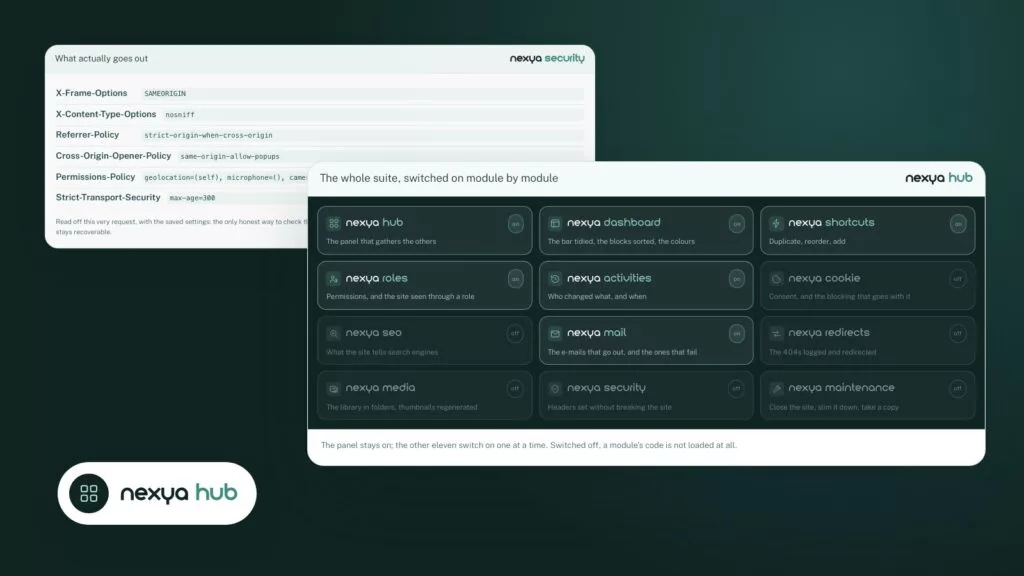
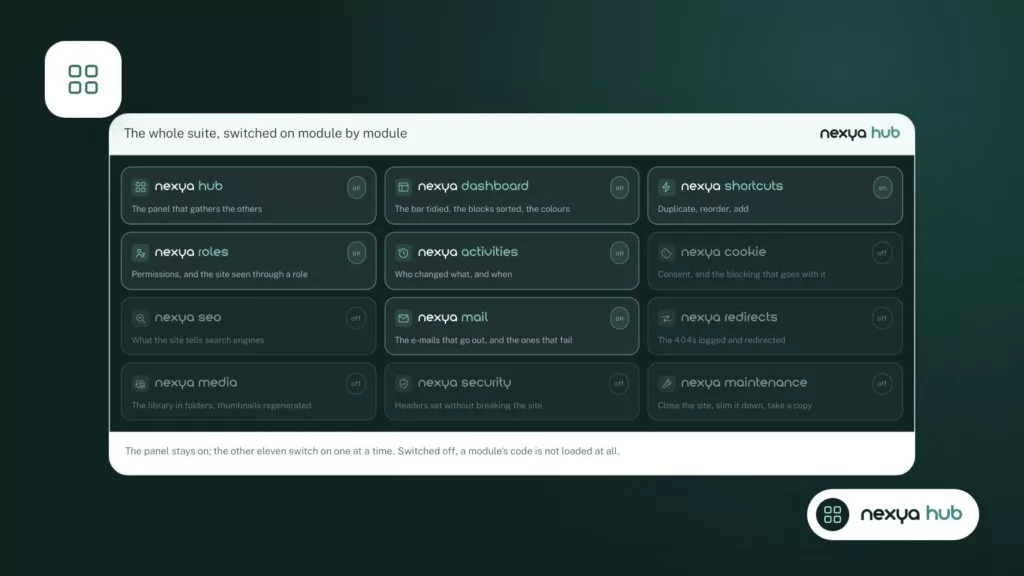
nexya brings together a WordPress site’s common tasks in a single administration panel. Each task is a module that you turn on or off from the hub. A turned-off module records nothing: none of its hooks run on the site.
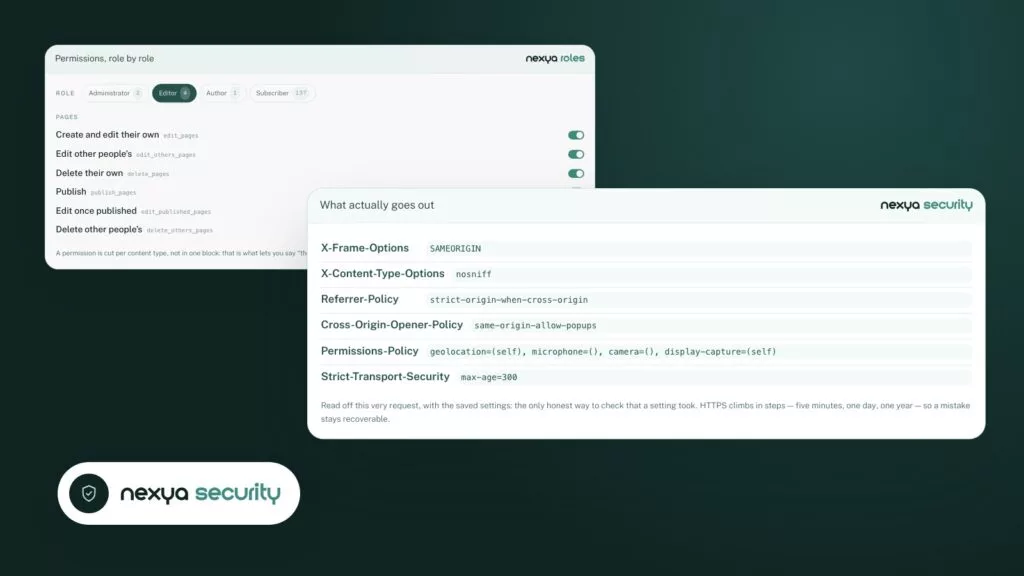
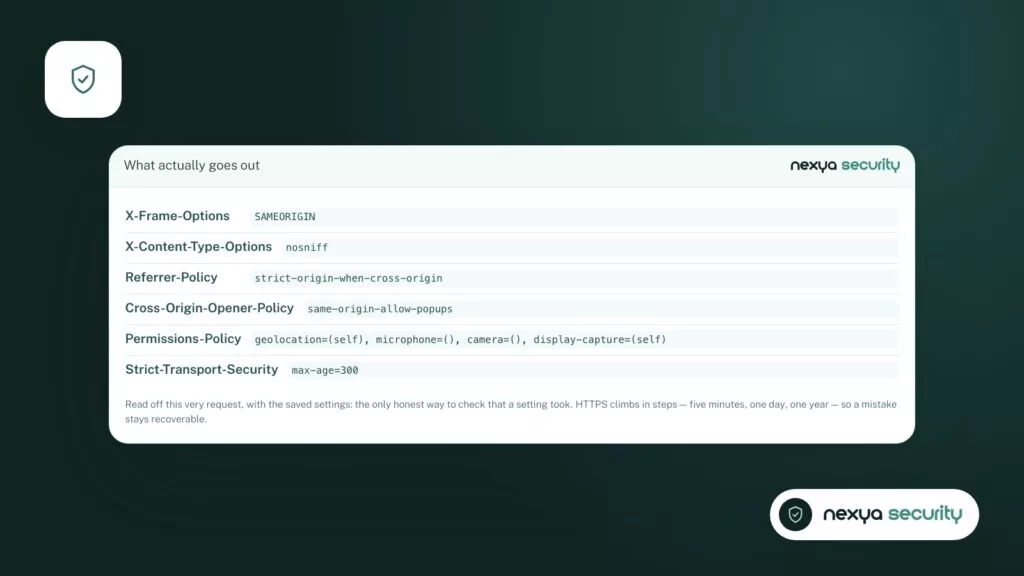
The Security module checks installed plugins against the list of known vulnerabilities. It also sets security headers, a content policy, and a limit on failed login attempts.
This check relies, like the others, on a list of known vulnerabilities. Therefore, it too can relay incorrectly filled-in entries. The method from the previous section applies as is: the vulnerability advisory and the installed version number are authoritative.
Everything that follows is free, on as many sites as you want, except what is marked Pro. The free version does not contain the code for Pro functions; nexya Pro is delivered by Freemius after purchase and uses the same settings.
- Free: verification of installed plugins against the list of known vulnerabilities, security headers, content policy, limit on failed login attempts.
- nexya Pro: a daily scan for vulnerabilities, and a file fingerprint with rollback.
- nexya Pro: two-factor authentication for the roles you choose.
Find out what changed, and when
An alert that appears right after an update raises two questions: did the version actually change, and who made the change? Start with the number displayed in the WordPress plugins list, and compare it to the one in the vulnerability advisory.
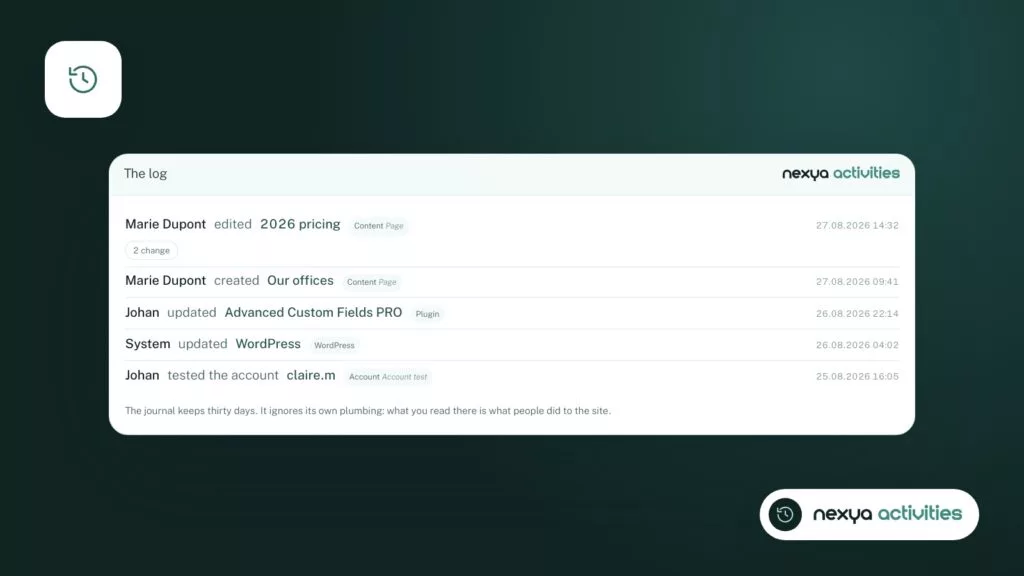
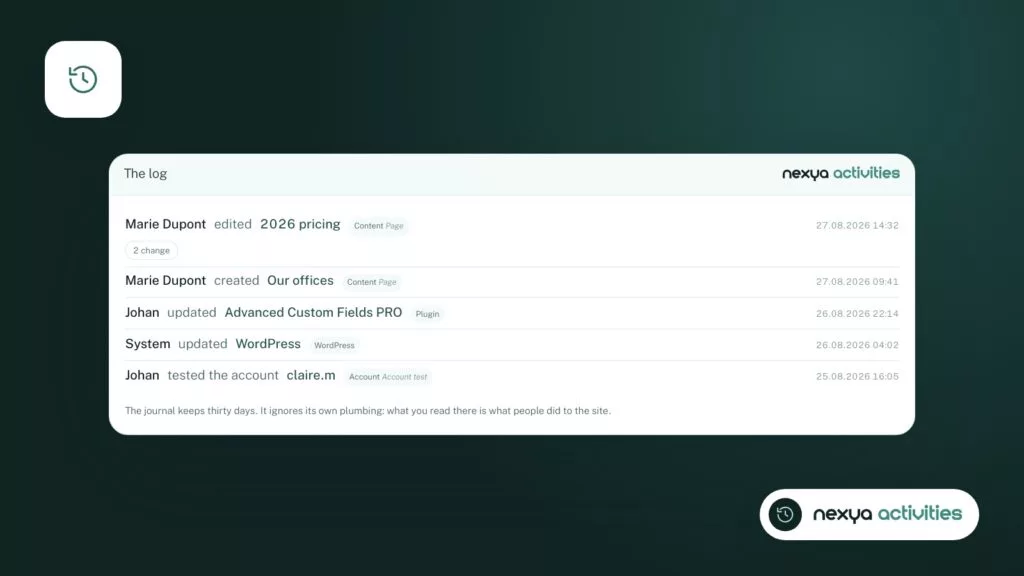
The Activity Log module keeps track of who changed what on the site, with the before and after. On a site managed by multiple people, this is the quickest way to find out what was touched, by whom, and at what time, without having to question the whole team.
If the numbers match a fixed version and the alert persists, let the tool re-run its check. An old result, calculated before the update, explains some of the messages that seem absurd.
Checking a vulnerability alert, step by step
-
1
Turn on the Security module
In the nexya hub, activate the Security module. It checks installed plugins against the list of known vulnerabilities. When turned off, it records nothing on the site.
-
2
Compare your version to the vulnerability report
Note the version number in the plugin list, open the vulnerability report and read the affected versions and the patched version. The activity log tells you who changed what, and when.
-
3
Update safely, or report the false positive
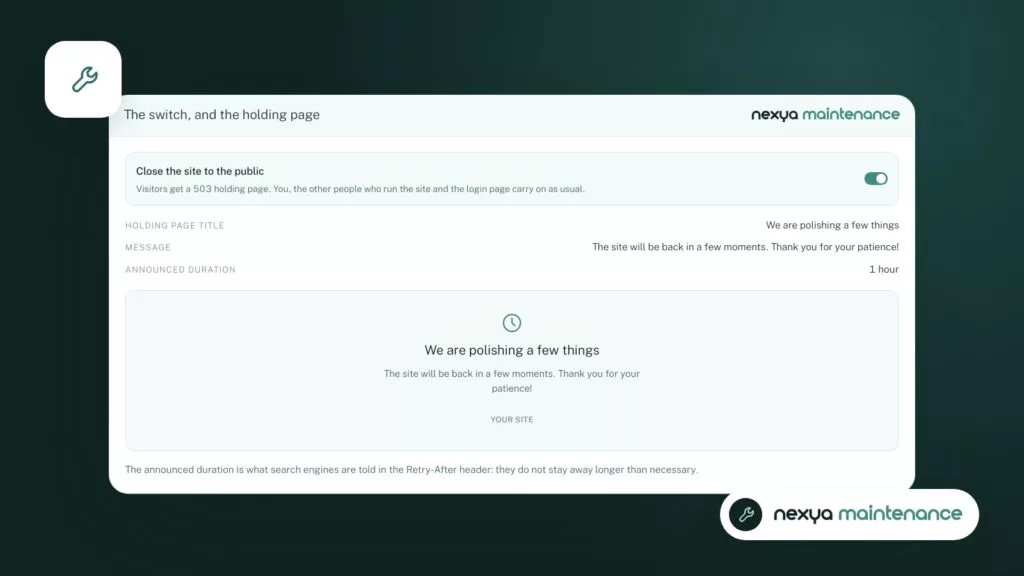
If a patch exists, update behind the Maintenance module's waiting page: the previous version is kept and can be restored with a single click. If the report is wrong, report it to the vulnerability database and to the author.
Fixing without breaking the site
What comes next depends on what the advisory says. In all three cases, the objective is the same: do not leave a real vulnerability open, and do not break a working site because of an unfounded alert.
A plugin update remains an intervention on a production site. The Maintenance module keeps the previous version of each plugin and theme right before it is updated, and restores it in one click. It also offers a maintenance page to close the site while the work is being done.
In nexya Pro, an update that breaks the site is automatically rolled back, and the administrator receives an email.
- Vulnerability with patch: update, check the site, then let the check run again.
- Vulnerability without patch: disable the plugin if you can do without it, or look for an alternative, and follow the author’s forum.
- False positive: report it to the vulnerability database and to the author, with your version number and the patch reference, then make a note of it for the team.
What nexya does not do
The Security module does not fix a list of vulnerabilities maintained by others, and it cannot guarantee that a public entry is accurate. It alerts you; reading the report remains your job.
nexya does not have a heavy anti-malware scan and does not clean a hacked site. It checks installed plugins against known vulnerabilities and, in Pro, checks file fingerprints. Multisite networks are not supported: on a network, the plugin remains turned off and indicates so.
FAQ
Why is my plugin reported as vulnerable when it is up to date?
Most of the time, the vulnerability database entry indicates a version range that is too broad or has not been updated after the patch. It also happens that the vulnerability is real and without a patch. The vulnerability report helps you decide.
Can the nexya Security module also display a false positive?
Yes. It checks installed plugins against the list of known vulnerabilities, and therefore depends on the accuracy of that list. The same verification method applies.
Is vulnerability checking free in nexya?
Yes, checking installed plugins against known vulnerabilities is free. nexya Pro adds daily vulnerability scans and file fingerprinting with rollback.
Can nexya clean a hacked site?
No. nexya does not have a heavy anti-malware scan and does not clean sites. It flags plugins affected by a known vulnerability and, in Pro, checks file fingerprints.
The modules in this post
Try nexya Pro free for 7 days
Every module, forms, newsletters and the page cache, on your site. No commitment.