Key points
- The Mail module log displays the exact cause of each failure: 401, quota exceeded, 500 error.
- A 401 error is fixed at the source, while a quota exceeded or a 500 error can be worked around with a second server.
- The second sending server and failure alerts are part of nexya Pro, not the free version.
- Choose a backup on another account or another provider, otherwise it will go down at the same time.
- You cannot disable a connection yet without deleting it: note down its settings before erasing it.
WordPress Backup SMTP Server: the problem discussed on forums
The question comes up often on the WordPress.org forums: the site sends its emails via Mailgun, Brevo, another provider, or an SMTP account. One day, sending fails. Messages are sometimes “401 Forbidden” or “450 4.7.1 monthly message limit exceeded”. Other times, the provider simply responds with a 500 error. Contact forms, orders, and password resets no longer go through.
Someone sums it up on the forum like this: the sending extension fails, and instead of falling back to something else, it blocks everything. What people are looking for then is a backup SMTP server for WordPress: a second sending route, used when the first one refuses.
To reach that point, you first need to know why the primary server is refusing. Only then do you decide whether a backup is enough or if the error needs to be fixed at the source.
Read the error before looking for a backup
The three errors mentioned above do not have the same cause. Nor are they fixed in the same way.
A 401 error means the provider does not recognize the credentials: revoked or mistyped API key, changed password, suspended account, or domain not yet validated with the provider. A backup server allows you to keep sending, but as long as the key is not fixed, the primary server will not start back up.
An exceeded quota, like “450 4.7.1 monthly message limit exceeded”, comes from your plan with the provider. The server works, but it refuses to send more before the end of the period. This is where a second server is most useful, provided it does not use the same account, and therefore the same quota.
A 500 error most often comes from the provider’s side, and it is frequently temporary. The backup is then used to lose nothing during the outage.
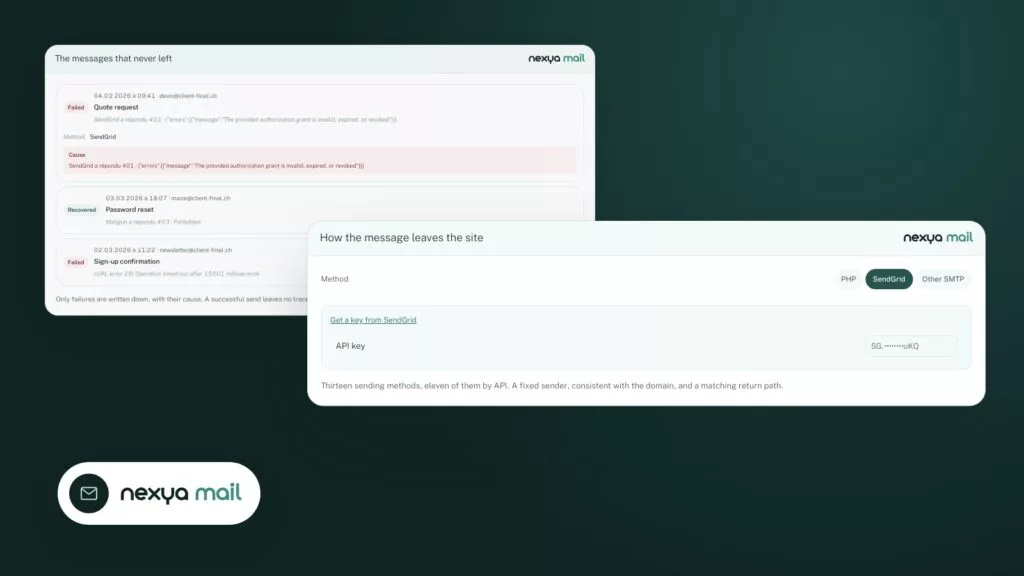
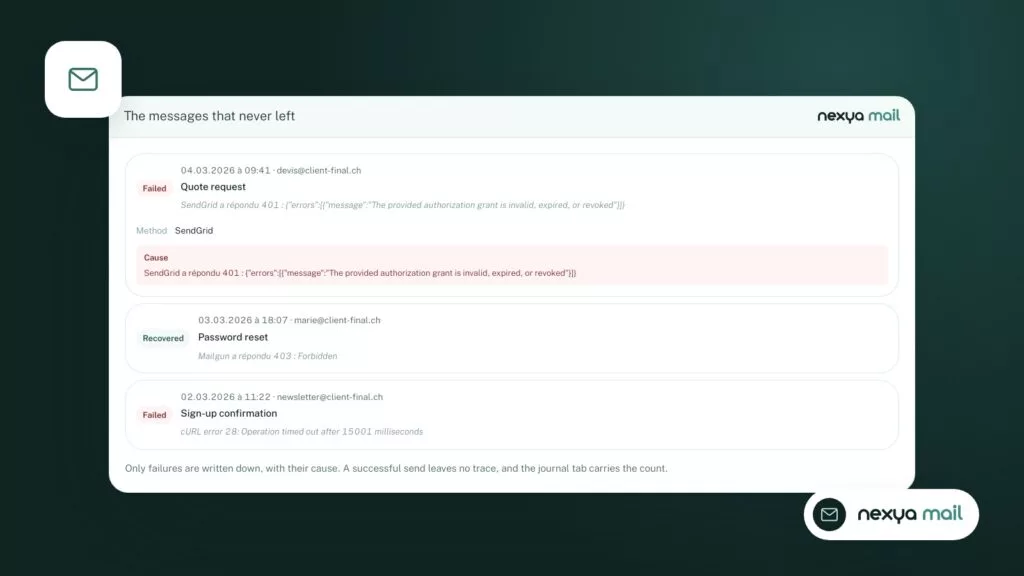
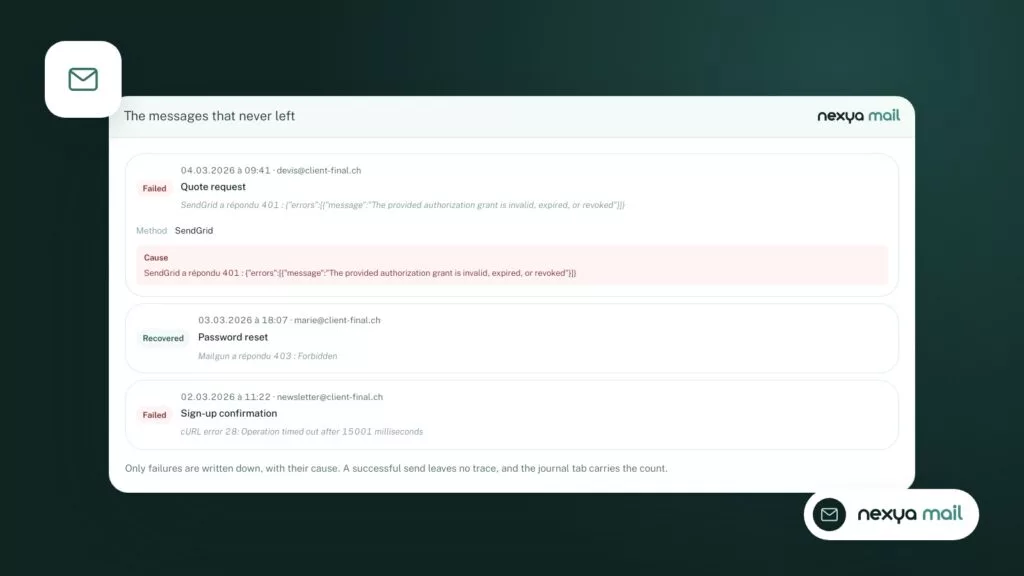
In nexya, the Mail module keeps a sending log. For each email that failed to go out, it displays the exact cause given by the server. This is where you can read the code and the message, instead of guessing from a form that no longer responds.
- 401: credentials refused, to be fixed with the provider or in the connection settings.
- Quota exceeded: plan limit reached, a second account or a second provider takes over.
- 500: error on the provider’s side, often temporary, the backup prevents losses.
What the free version of the Mail module does
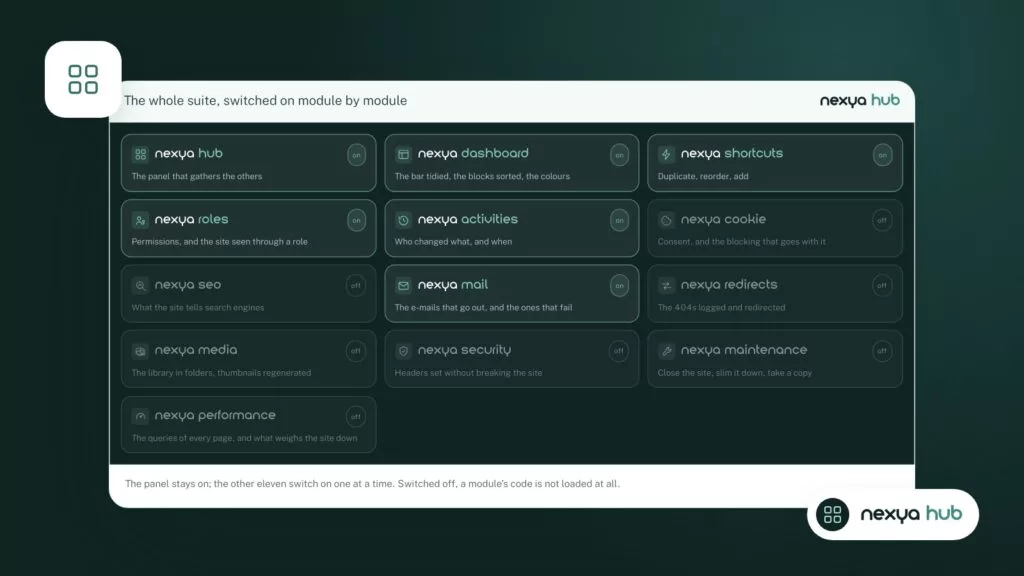
The Mail module is free, like the rest of nexya, and without any site count limits. It is turned on from the hub. As long as it is turned off, none of its hooks run on the site.
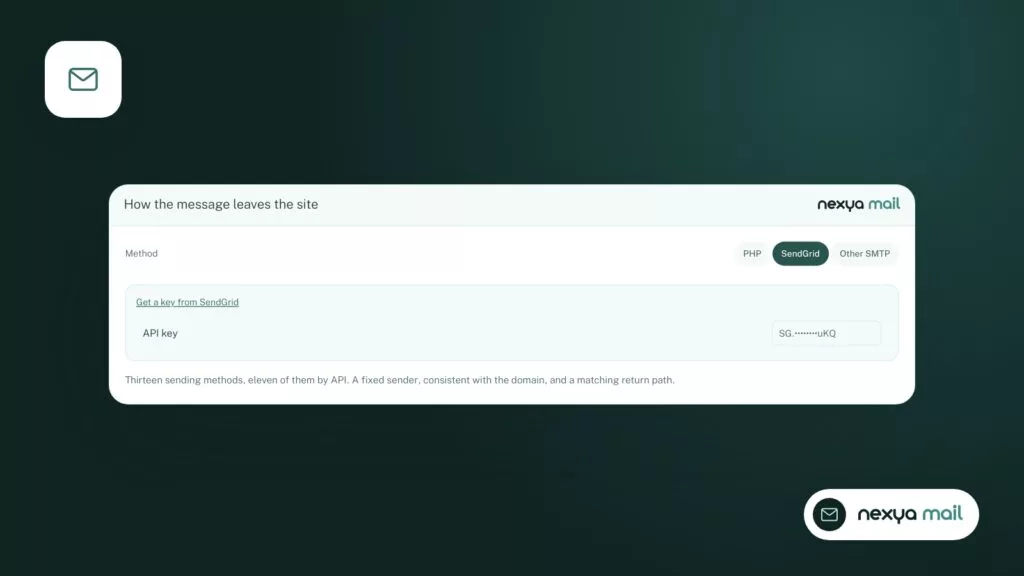
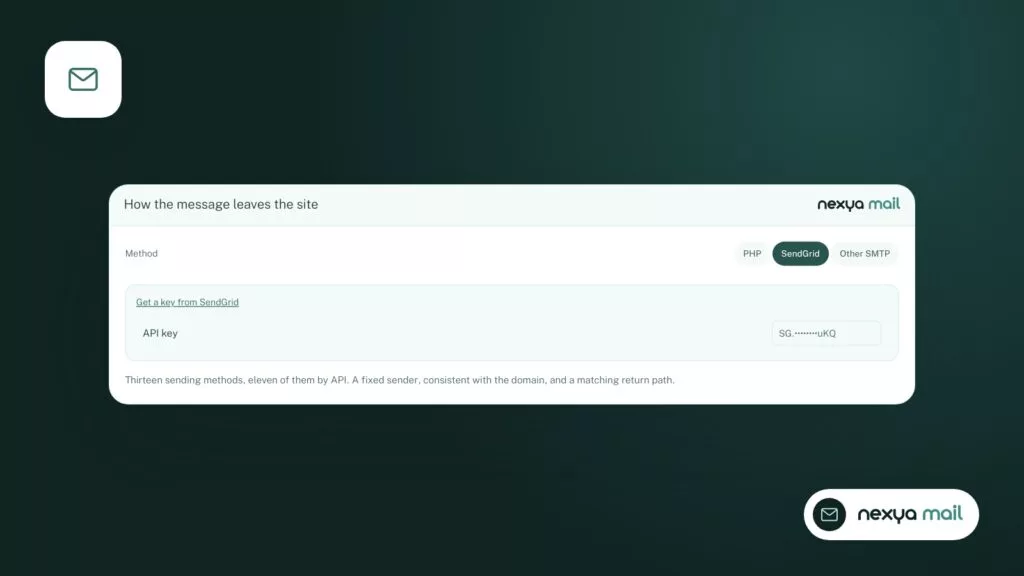
It offers three ways to send: an SMTP server, an API provider, or a Gmail or Microsoft 365 account connected via OAuth, with no password saved on the site. A test email verifies the connection as soon as it is configured.
The sending log gives the cause of each failure. For an isolated outage, this is often enough: you read the error, fix the key or change your plan, and then send a test email.
The free version, on the other hand, contains neither a second sending server nor failure alerts. This code is not in it at all; it is part of nexya Pro.
What nexya Pro adds: a second server and an alert
nexya Pro, sold on nexya.dev, adds a second sending server and failure alerts to the Mail module. When the primary server refuses an email, sending switches to the backup server, and an alert notifies you of the problem.
The message goes through anyway, and you know you need to check the primary server. This is exactly what the forum topics are asking for: no longer depending on a single provider, and not discovering the outage three days later through a customer who never received their confirmation.
nexya Pro is delivered by Freemius after purchase. It takes over from the free extension with the same settings: the primary connection already configured stays in place, you just need to add the second one. nexya Pro also keeps logs longer, which helps spot a recurring outage.
A backup server does not replace fixing the error: it keeps the site in a sending state while you fix it.
Setting up a backup sending server, step by step
-
1
Turn on the Mail module
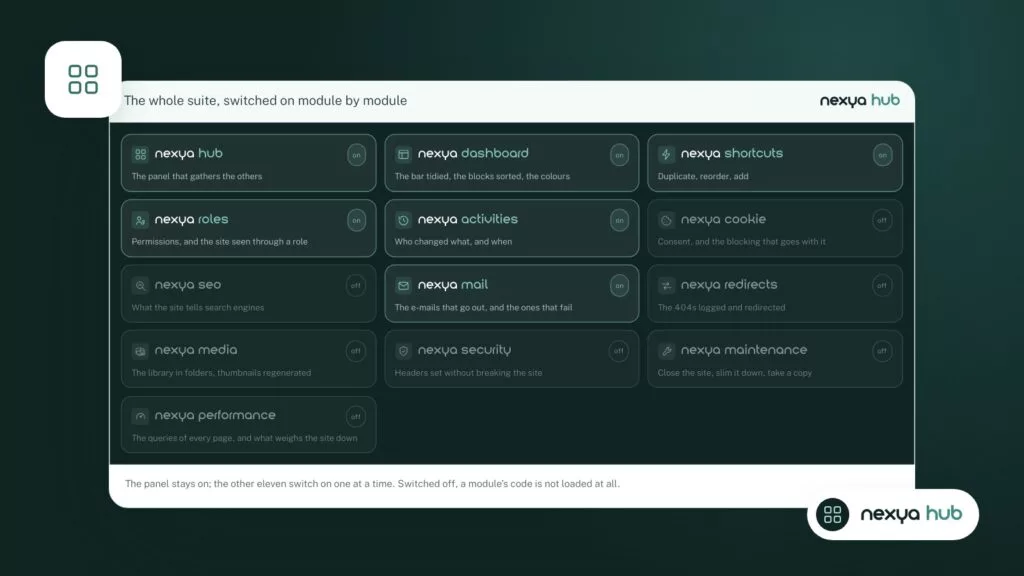
In the nexya hub, turn on the Mail module. As long as it is turned off, none of its hooks run on the site.
-
2
Reading the cause of the failure in the log
Open the sending log and note the server's code and message: 401, quota exceeded, or 500 error. Fix at the source whatever can be fixed, such as an API key or an unvalidated domain.
-
3
Check the main connection
Check the main sending method (SMTP, API provider, Gmail or Microsoft 365 with OAuth), then send a test email to confirm it is working again.
-
4
Add the second server with nexya Pro
With nexya Pro, add a second sending server on another account or another provider. If the main one fails, sending switches to this backup and an alert notifies you. Test it immediately with the test email.
Choosing the backup server wisely
A backup is only useful if it doesn’t go down at the same time as the primary server. A few simple rules help choose it.
Use another account, or better yet, another provider. Two connections on the same account share the same quota and the same credentials: an exceeded quota or a revoked key blocks both of them.
Vary the method if you can. For example, an API as primary and a Gmail or Microsoft 365 account connected with OAuth as backup, or SMTP with your host. All three methods of the Mail module can serve in either role.
Check the sender address. The backup server must have the right to send for your domain. Otherwise, the emails go out but risk landing in spam. The module does not check SPF, DKIM, or DMARC records: this must be checked with the provider and in the domain’s DNS zone.
Finally, test the backup once configured, using the test email, without waiting for the next outage.
- An account or provider different from the primary one.
- A different method if possible: API, SMTP, or OAuth.
- A sender domain authorized with the backup provider.
- A test email sent right upon configuration.
What nexya doesn’t do yet
One limitation directly concerns this case: you cannot disable a connection without deleting it. If you want to set the main server aside while sorting out a key issue, you must delete it and then reconfigure it afterwards. Before deleting a connection, make sure to note down its settings: host, port, username/identifier, key, or connected account.
The module’s known behavior also does not describe any automatic fallback to PHP’s mail() function. The intended fallback is a second server, which you configure yourself in nexya Pro.
The module also does not have a button to resend a failed email. The log states what did not leave and why. Resending is done from the original tool, for example by processing the request received via form again.
FAQ
Does the free version of nexya switch to another server in case of an error?
No. The free version sends via SMTP, via an API provider, or via a Gmail or Microsoft 365 account, and its log displays the cause of each failure. The second sending server and alerts are part of nexya Pro.
Is the backup server enough to fix a 401 error?
It allows sending to continue, but the 401 error comes from credentials refused by the main provider. You must fix the key, password, or domain validation for the main one to work again.
Can I use the same provider account for both servers?
This is not recommended. Two connections on the same account share the same quota and credentials: an exceeded quota or a revoked key will block both of them.
Can you pause a connection without deleting it?
Not for now. A connection cannot be disabled without being deleted. Note down its settings before erasing it to reconfigure it afterwards.
Does nexya fall back to PHP's mail() function when the provider fails?
The module's known behavior does not describe this fallback. The intended fallback is a second sending server, configured in nexya Pro.
The modules in this post
Try nexya Pro free for 7 days
Every module, forms, newsletters and the page cache, on your site. No commitment.