Key points
- In nexya, the llms.txt file is generated by the SEO module. AI is not required for it to exist.
- nexya's AI only works if a connector is plugged in: without a connector, nothing is sent to an AI service.
- An llms.txt file that changes on its own almost always comes from two active generators running at the same time. Keep only one.
- Turning off the SEO module in the hub stops generation by nexya, but also cuts off the sitemap, schema, and titles.
- An llms.txt that does not update is often an old copy kept in cache.
The WordPress llms.txt file: who is really writing it
On the WordPress.org forums, the same question keeps coming up in various forms: how to prevent a plugin from touching the WordPress llms.txt file, how to disable all AI functions, and why the file hasn’t been updated for months. These three issues share a common cause. It is not always clear which tool is producing the file, nor what the AI is actually doing on the site.
The llms.txt file is a small text file placed in the root directory of the site. It presents the site to language models, much like a sitemap presents it to search engines. It is not an AI feature in itself: it is simply a file published by the site.
At nexya, it is the SEO module that generates this file, along with the sitemap, schema, titles, and descriptions. Therefore, the file falls under SEO. The AI does not need to be active for it to exist.
The first logical step is to separate two topics that forums often confuse: the llms.txt file on one hand, and AI functions on the other. They are controlled in two different ways.
nexya’s AI only runs if you connect a connector
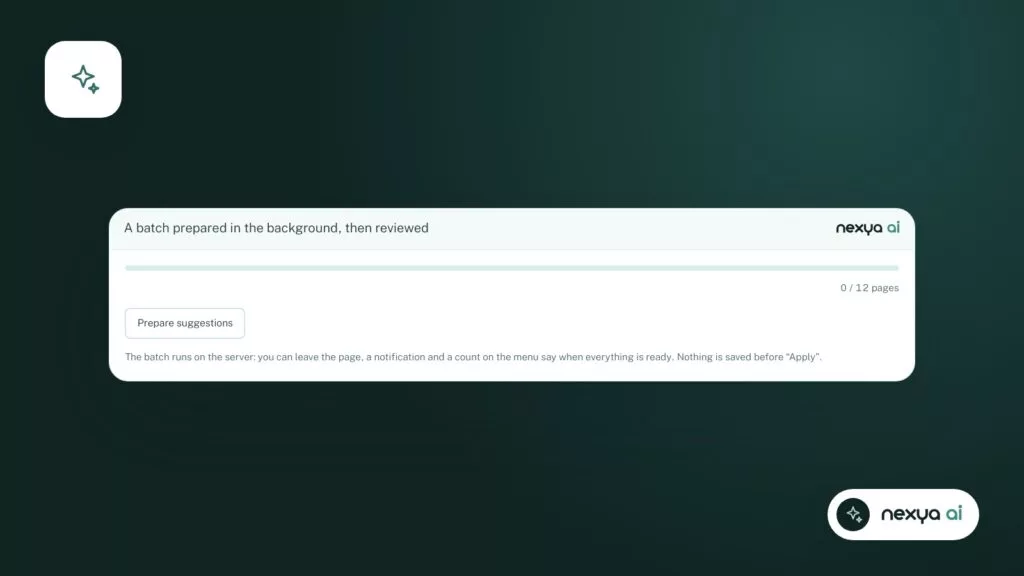
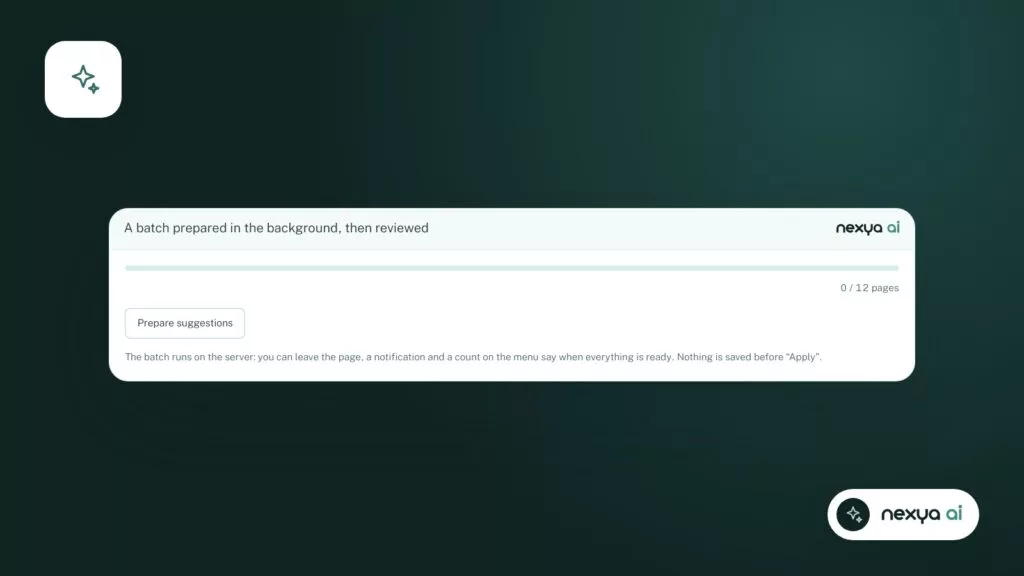
In nexya, AI is optional. It only works if you plug in a connector. Without a connector, no AI function runs and no requests are sent to an AI service.
This aligns with a broader rule of the plugin: by default, nexya sends nothing to third parties. Features that use the network, and what they send, are listed in the External services section of the readme. AI suggestions have been listed there since version 1.3.1.
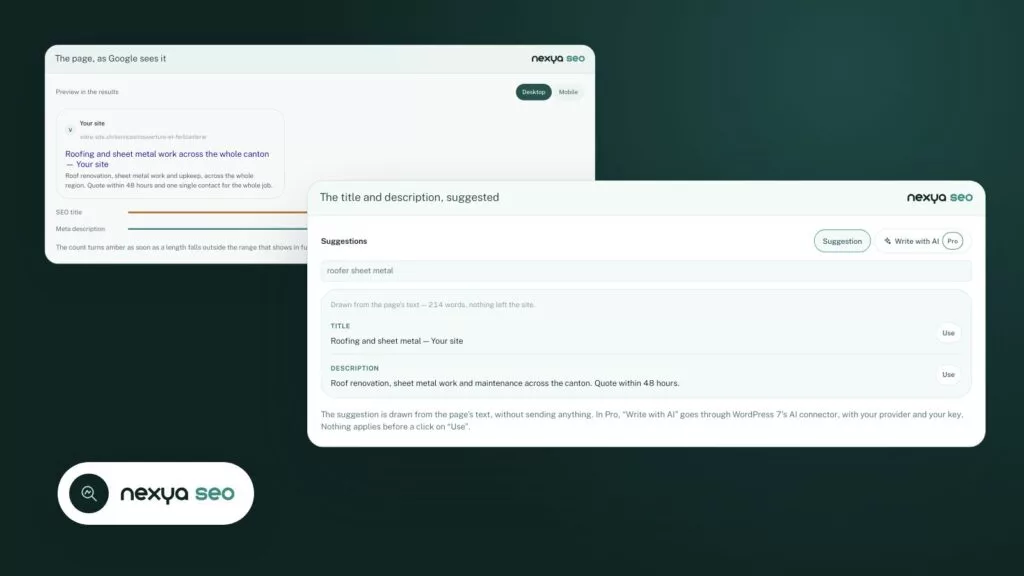
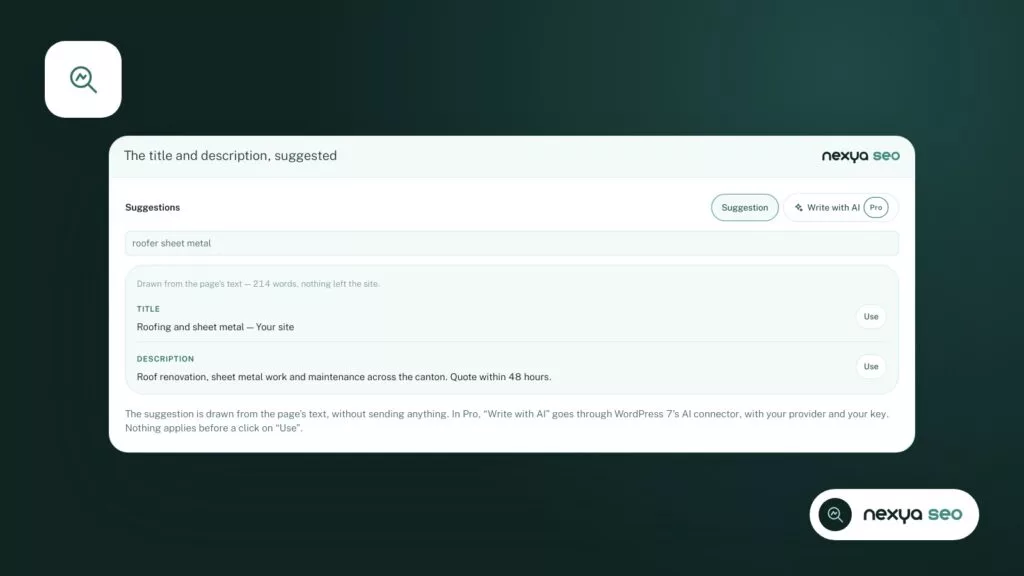
The SEO module also offers a title and description derived from the page text. This is a writing aid: you remain free to accept, modify, or ignore it. Nothing is published unless you save it.
To disable all AI functions, you don’t need to hunt for a hidden checkbox on every screen. You simply need not to connect a connector, or to remove the one that is currently in place.
Without a connector, nexya’s AI does nothing and sends nothing.
Completely turning off AI features
If a connector has been plugged in, by you or a colleague, remove it. The AI features will then stop: there is no longer any service to send anything to.
Next, check the site’s other plugins. Many SEO plugins, page builders, and writing tools now embed their own AI with their own settings. In the “how to fully disable AI features” thread, the difficulty stemmed precisely from a plugin whose AI remained active in multiple places. Turning off nexya’s AI does not turn off the AI of other plugins.
To take stock, note down for each active plugin whether it offers AI, and where its settings are located. This is a one-time task. If the same task, such as SEO titles or the sitemap, is handled by both nexya and another plugin, keep only one. This is the safest way to avoid duplicates.
- Remove nexya’s AI connector if there is one.
- List the other plugins that embed AI.
- For each task, keep only a single tool.
Regaining control over llms.txt and AI in four steps
-
1
Check what /llms.txt serves
Open your site's address followed by /llms.txt, in a private window or with a parameter like ?v=2. Note the content displayed, then make a list of active extensions that claim to generate this file.
-
2
Keep only one generator
If multiple tools produce llms.txt, choose one. Disable file generation in the others, or remove them if they serve no other purpose.
-
3
Leave the AI unplugged
Without a connector, nexya's AI does not work. If a connector is plugged in and you do not want it, remove it. Also check the AI settings of other extensions.
-
4
Turn off the SEO module if you do not want any llms.txt
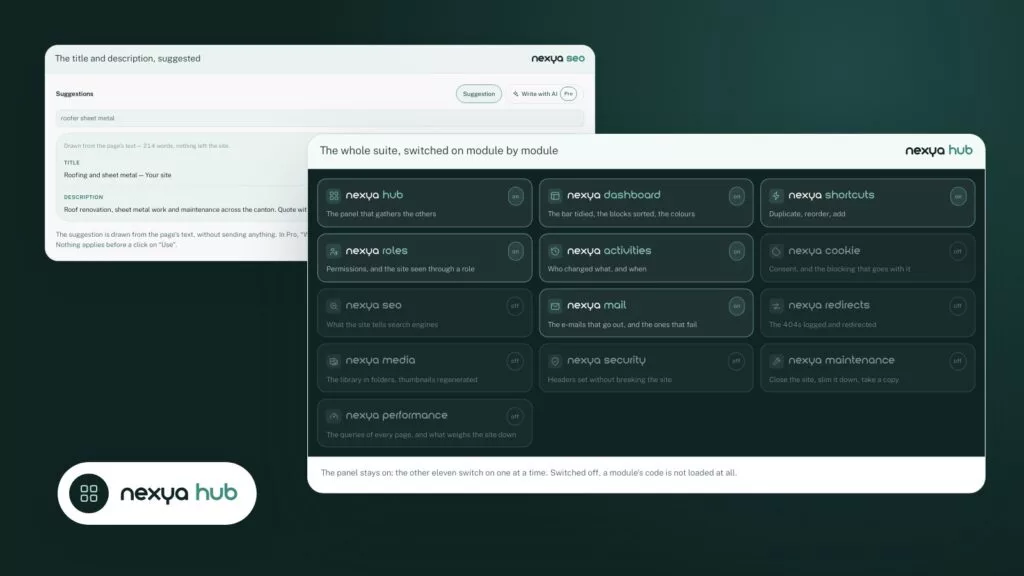
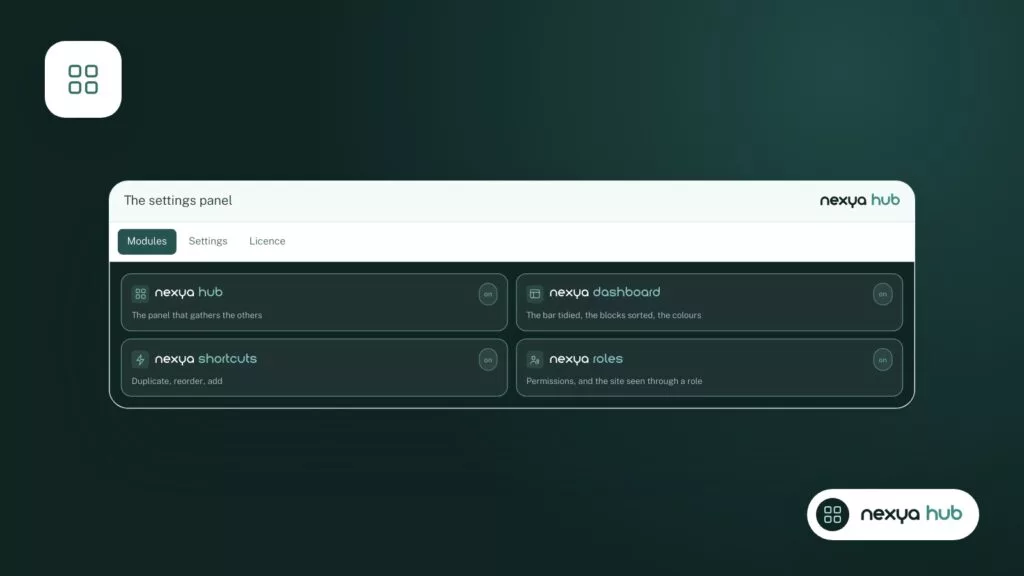
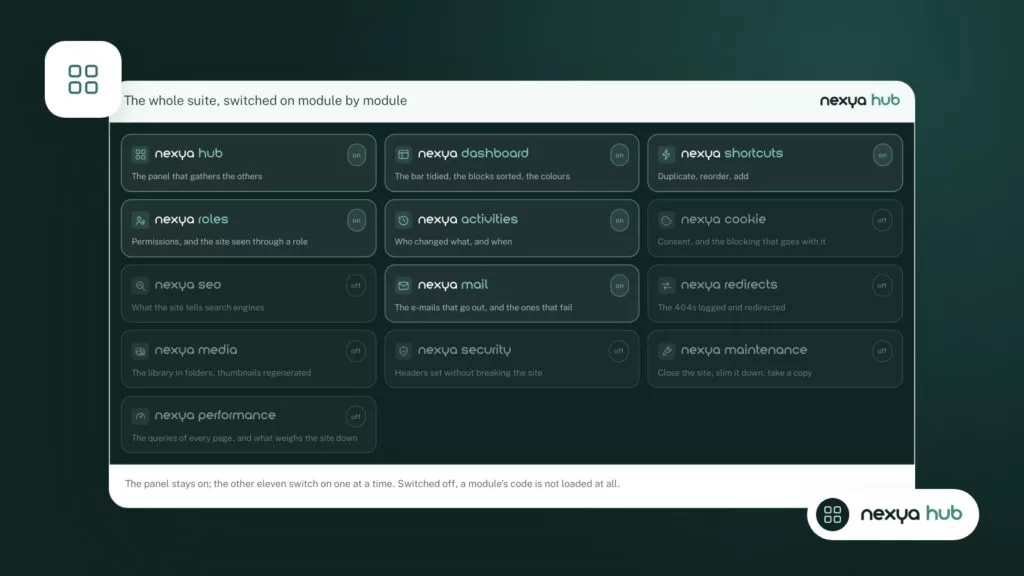
In the hub, turn off the SEO module: a turned-off module saves nothing and nexya no longer generates the file. Make sure another tool handles the sitemap, schema, and titles if you need them.
Preventing any other plugin from rewriting llms.txt
The thread “llms.txt: how to stop AISEO from touching it ever” describes a common case: two tools each produce their own version of the file, and the one you see depends on which ran last. You fix the file, a plugin rewrites it, and you no longer know where the content came from.
There is no universal setting to lock a file against all plugins. The solution that works is to have only a single generator. If you entrust the llms.txt file to nexya, disable llms.txt generation in the other plugin, or remove that plugin if it serves no other useful purpose.
Conversely, if you prefer another plugin to handle it, or wish to publish no llms.txt at all, turn off nexya’s SEO module. In the hub, a turned-off module registers nothing: none of its hooks run on the site. nexya will then no longer generate this file.
Please note: turning off the SEO module also disables the sitemap, schema, titles, and descriptions managed by nexya. If you rely on them, you will need another tool to take over. Otherwise, leave the module on and remove the other generator instead.
A single generator for the same file is the only reliable protection.
An llms.txt file that doesn’t update
Another complaint from the forums: “llms.txt do not refresh for 3 months”. You publish pages, and the file doesn’t budge. Before blaming the generator, check what you are actually looking at.
A caching layer may serve an old copy of a text file: server cache, a CDN like Cloudflare, or browser cache. To check this, open the file’s URL by adding a parameter, for example /llms.txt?v=2, or open it in a private window. If the version you get is newer, the file is indeed up to date and the cache is holding onto the old one.
In this case, clear the relevant cache. With the nexya Pro page cache, the Cloudflare cache is cleared at the same time as nexya’s: entirely, or only for the URLs of the modified page. For a host cache, use your hosting provider’s control panel.
If the old version persists even without cache, go back to the previous step: there are probably two generators, and the one displayed is not the one you think.
What this guide does not promise
This guide sticks to what nexya documents. The llms.txt file is part of the SEO module, and the AI only works if a connector is plugged in. The SEO module switch in the hub remains the guaranteed way to stop the file generation by nexya.
If you are looking for finer tuning, such as excluding certain pages from the file or setting its update frequency, check your version’s SEO module settings before relying on it. We prefer not to promise an option here that the documentation does not describe.
nexya also cannot act on other extensions: their AI and files depend on their own settings. Finally, the plugin does not work on multisite networks: it remains disabled there and indicates so.
FAQ
Is the llms.txt file an AI feature?
No. It is a text file that the site publishes to introduce itself to language models. In nexya, it is generated by the SEO module, whether the AI is connected or not.
How to disable all nexya AI features?
Do not plug in a connector, or remove the one that is in place. Without a connector, nexya's AI does not work. Also remember to check other extensions that have their own AI.
Does nexya send my page content to an AI service?
Not by default. nexya sends nothing to a third party until you activate a feature that goes over the network. AI suggestions are one of them and only exist with a connector plugged in. The external services concerned are listed in the readme.
How to publish no llms.txt file at all?
Turn off the SEO module in the hub, and make sure no other extension produces the file. Note that turning off the SEO module also cuts off the sitemap, schema, and titles managed by nexya.
My llms.txt shows an old version, what should I do?
Open the address with a parameter, for example /llms.txt?v=2, or in a private window. If the version is newer, clear the server or CDN cache. Otherwise, look for a second active generator.
The modules in this post
Try nexya Pro free for 7 days
Every module, forms, newsletters and the page cache, on your site. No commitment.