Key points
- The cost of a plugin is paid with every update: versions to track, potential conflicts, vulnerabilities.
- nexya groups common tasks into a single plugin, and a disabled module executes no hooks.
- Before an update: clean the database, export it, display the maintenance page.
- After: the activity log shows what has changed, with "before" and "after" values.
- The Security module checks installed plugins against known vulnerabilities, for free.
What an extension costs once installed
Updating WordPress plugins is not difficult in itself: a single click in the Plugins screen is enough. What costs is everything surrounding that click. Each extension has its own author, release schedule, way of naming its settings, and way of displaying its notices in the administration area.
An extension installed for a single need—a redirection, a security header, a cookie banner—remains your responsibility afterwards. You have to monitor it, read what changes from one version to another, and check that it is still maintained and free of any known vulnerabilities.
Multiply that by fifteen or twenty extensions, and then by the number of sites you manage. Maintenance becomes a regular chore that is frequently put off.
Why updates become a job in their own right
The risk does not come from a single extension, but from how they interact. Two tools that touch the same place—for example, two extensions that each write tags into the page header—might work fine separately yet interfere with each other when combined. An update to one is often enough to trigger the issue.
Then there are abandoned extensions. They keep running, no longer receive patches, and nobody notices until a vulnerability is publicly disclosed.
Finally, when something breaks after a series of updates, the question is always the same: what changed, and who changed it? Without a log, you are searching blindly.
- More extensions mean more versions to track.
- More authors mean more different ways of doing the same thing.
- More active code means a larger surface area exposed to flaws.
The cost of an extension is not paid upon installation; it is paid with every update.
A single plugin for everyday tasks
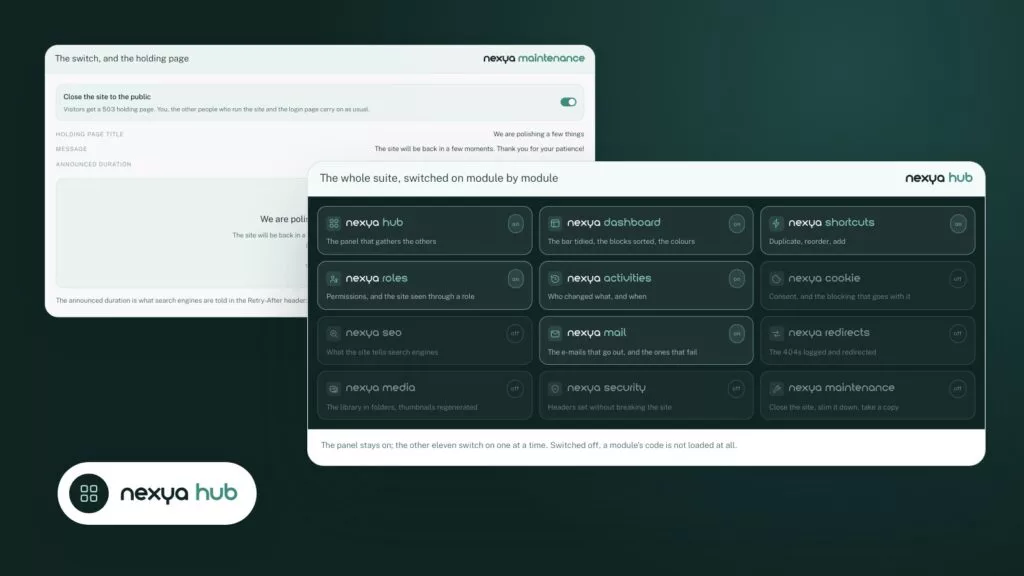
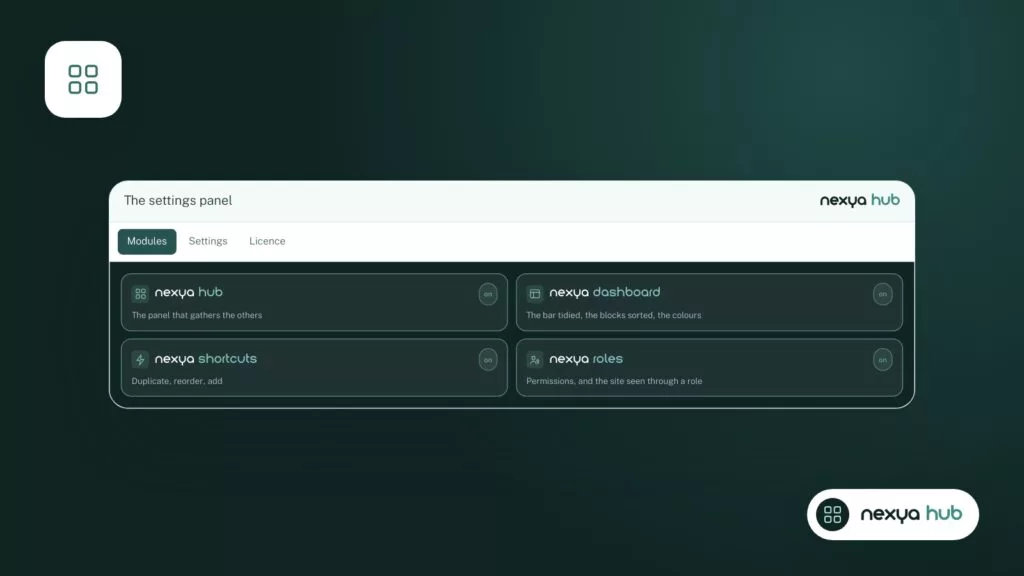
nexya brings everyday tasks together under a single administration panel. Each task is a module that can be turned on or off from the hub. A disabled module records nothing: none of its hooks execute on the site.
For maintenance, this changes two things. First, several needs that each used to require an extension are now covered by a single plugin, meaning only one update to track. Second, you only activate what the site actually needs, without leaving unused code running.
Here are the tasks handled by the free modules, which often rely on separate extensions otherwise:
- SEO: titles and descriptions, sitemaps, schema, llms.txt.
- Cookies: consent banner, third-party scripts held back until consent is given, and a scanner to detect them.
- Mail: SMTP or API provider, sending log, test message, invisible CAPTCHA.
- Redirections: exact redirects and 404 log with hit counts.
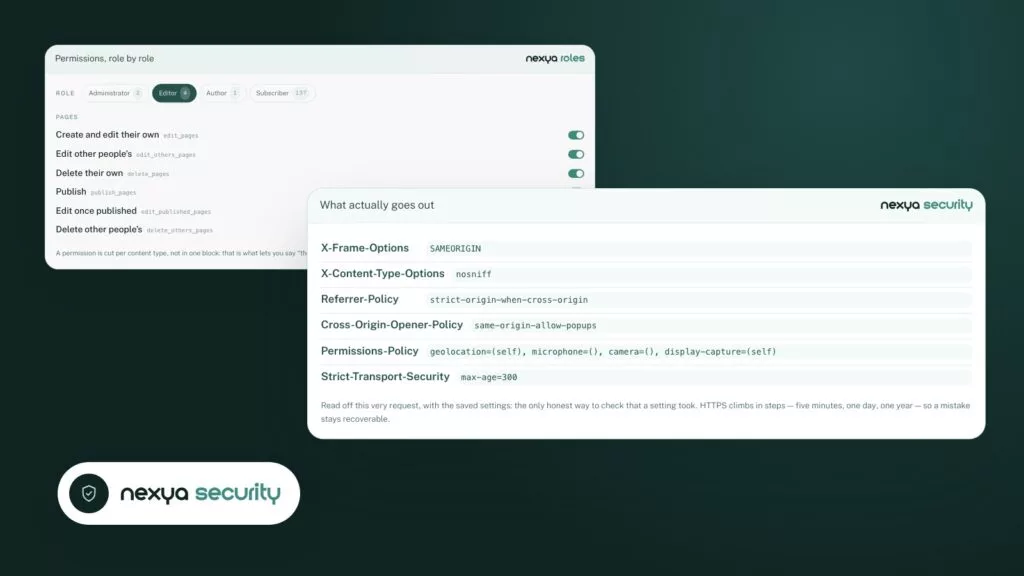
- Security: security headers, content policy, installed extension check.
- Maintenance, activity log, custom fields, translation, media, roles, and shortcuts.
Before updating WordPress plugins: close, lighten, back up
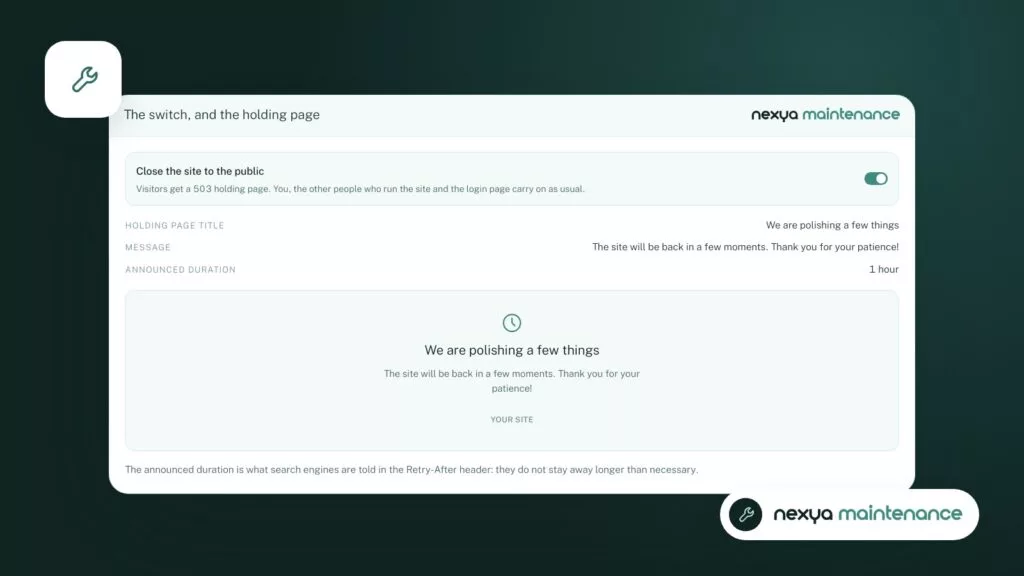
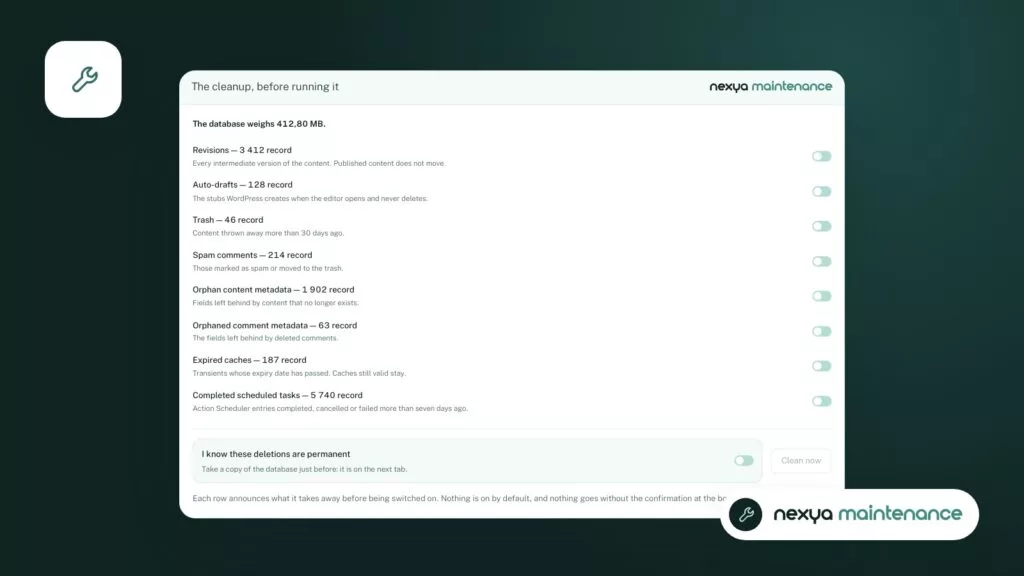
A major update requires preparation. The Maintenance module groups three useful actions for this moment: a holding page for visitors, database cleanup, and a database export.
The order is simple. You clean the database to make it lighter, you take a copy using the export, and then you display the holding page for the duration of the work. If an update causes an issue, visitors do not see a half-broken site, and you have a recent copy of the database close at hand.
With nexya Pro, database cleanup can be scheduled, so you do not have to remember to do it every time.
Afterwards: knowing what changed
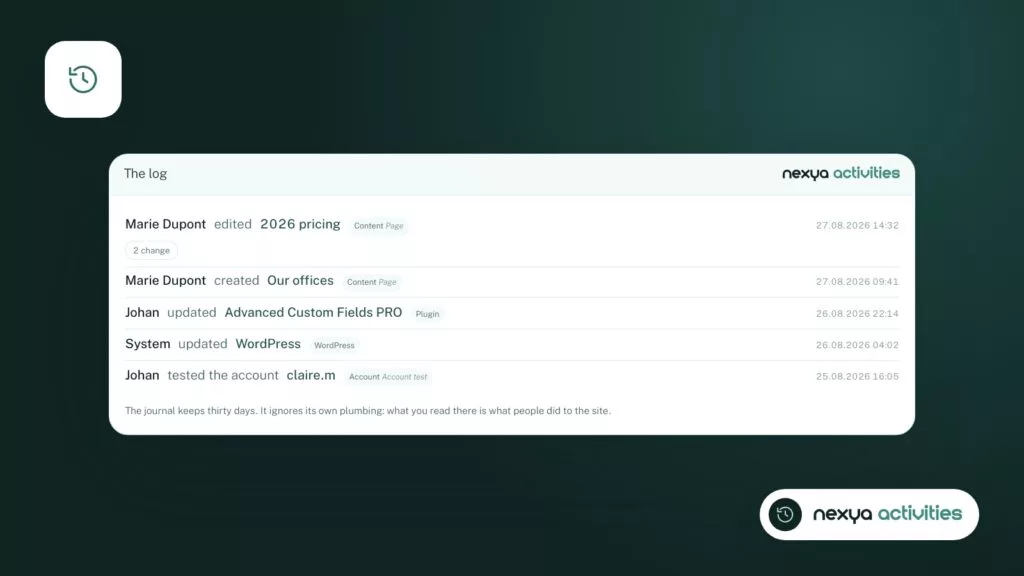
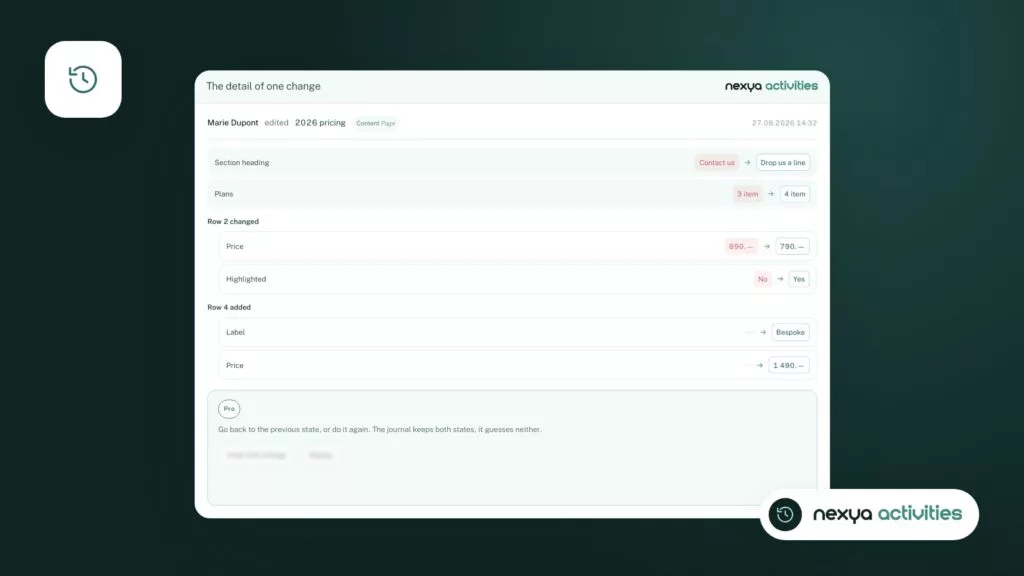
The activity log records who modified what, along with the previous and new values. After a series of updates, you know what moved on the site and by whom, rather than trying to piece it together from memory.
This is also useful when multiple people work on the same site. If a setting changed between two interventions, the log entry shows it, along with the old value so you can restore it.
With nexya Pro, a modification can be undone directly from the log, and log retention periods are longer.
A four-step update routine
-
1
Make an inventory
List your plugins and spot those whose task matches a nexya module: SEO, cookies, emails, redirects, security headers. Turn on the module in the hub, reapply the settings, then deactivate the old plugin.
-
2
Lighten and copy the database
In the Maintenance module, clean the database and then export it. Next, display the maintenance page for the duration of the intervention.
-
3
Update, then review the log
Run the updates in WordPress. Then open the activity log to see what has changed, with the before and after values.
-
4
Check the remaining plugins
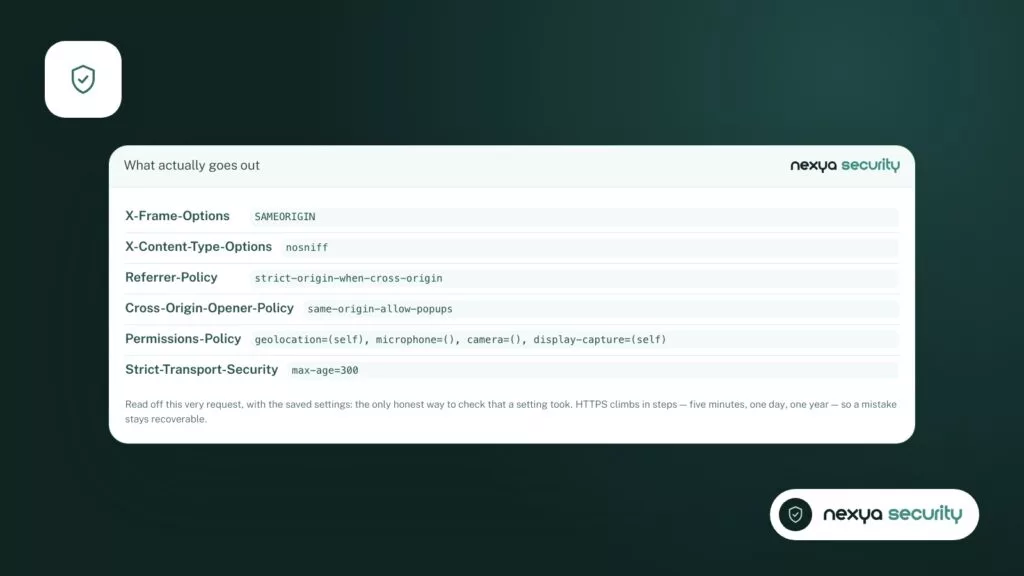
In the Security module, check installed plugins against known vulnerabilities. Update or replace the flagged ones, then remove the maintenance page.
Monitoring the remaining extensions
Even with nexya, you will keep other extensions: a page builder, a shop, a business tool. The Security module checks installed extensions against known vulnerabilities. This lets you know which ones require a prompt update or replacement.
The same module sets security headers and a content policy—two settings often delegated to yet another extension.
With nexya Pro, vulnerability checks run daily, and a file fingerprinting system detects changes in the site’s code, with the ability to roll them back.
The plugin sends nothing to third parties by default. Functions that use the network, and what they send, are listed in the external services section of the plugin.
What is free, what is Pro
All the modules mentioned in this article are free, on as many sites as you want: hub, maintenance with holding page, database cleanup and export, activity log, vulnerability check, security headers.
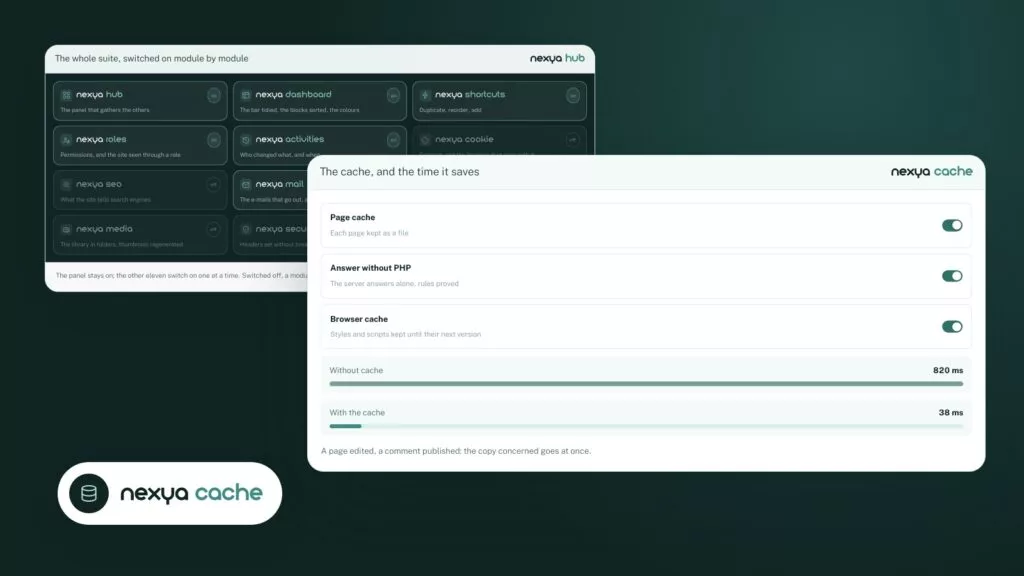
nexya Pro, sold on nexya.dev, adds the repetitive part: daily vulnerability checks, file fingerprinting with rollback, log rollback, scheduled database cleanup, and longer log retention. It also adds two modules, Mailya for newsletters and a page cache.
The free version does not contain this code. nexya Pro is delivered by Freemius after purchase and takes over from the free plugin while keeping the same settings. So you have nothing to reconfigure.
FAQ
Does nexya update my other plugins for me?
No. nexya reduces the number of plugins to track, helps prepare the update with the Maintenance module, keeps track of changes in the activity log, and checks installed plugins against known vulnerabilities. Updates are done as usual in WordPress.
Does a module I don't use slow down the site?
A disabled module records nothing: none of its hooks execute on the site. Only modules turned on from the hub are active.
Is the vulnerability check free?
Yes, checking installed plugins is part of the free Security module. nexya Pro adds a daily check and file fingerprinting with rollback.
Does it work on a multisite network?
No. On a multisite network, the plugin remains deactivated and indicates so.
If I upgrade to nexya Pro, do I have to reconfigure everything?
No. nexya Pro takes over from the free plugin with the same settings.
The modules in this post
Try nexya Pro free for 7 days
Every module, forms, newsletters and the page cache, on your site. No commitment.