Key points
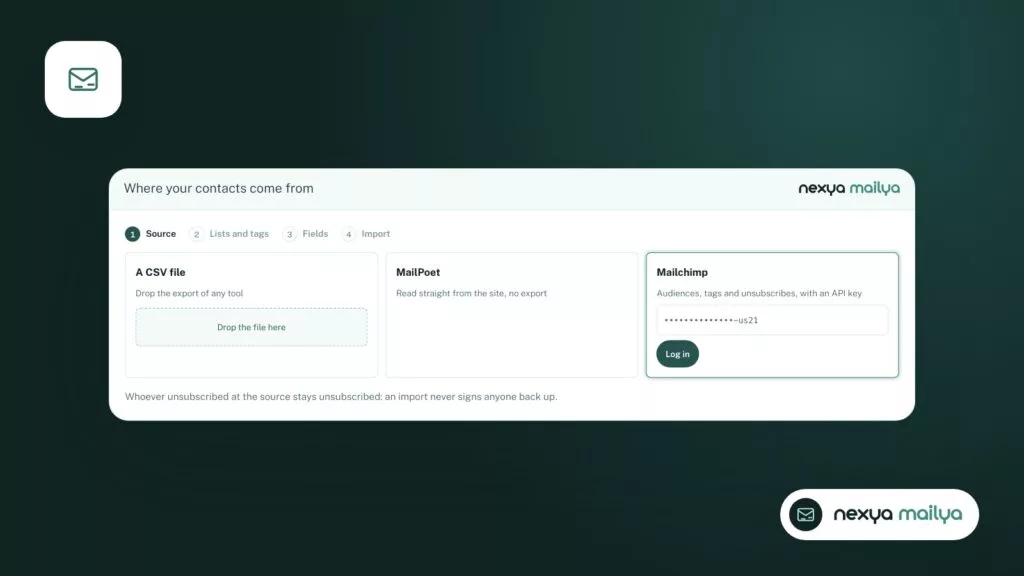
- Mailya imports from Mailchimp (API key), MailPoet (on site), or a CSV file.
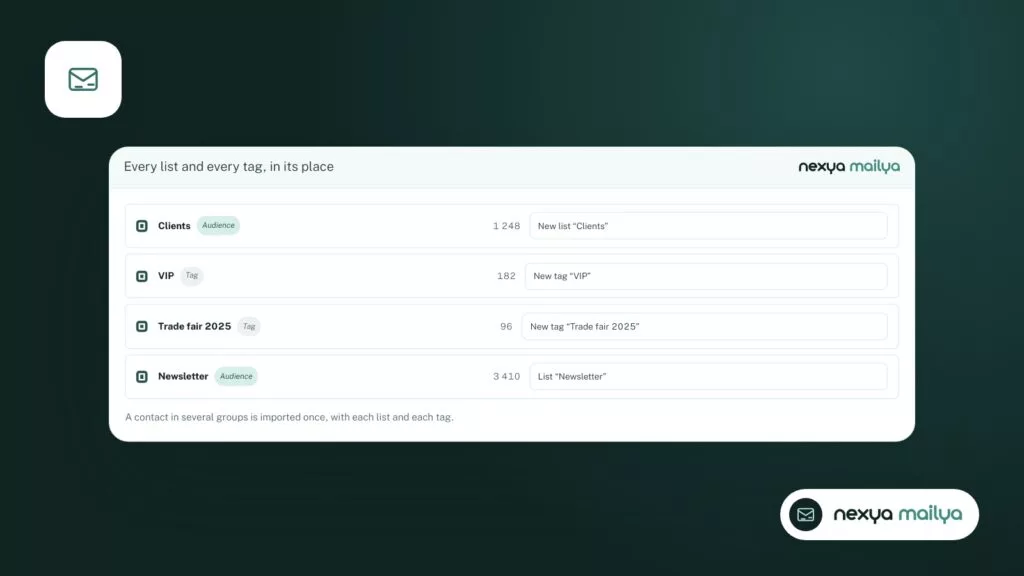
- Each list or tag becomes a Mailya list, an existing list, or a tag.
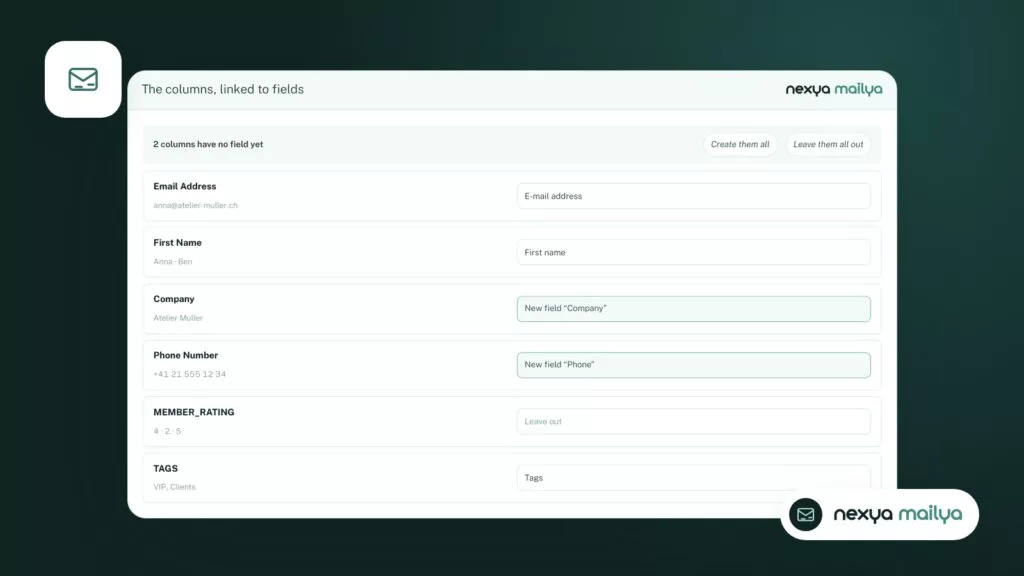
- Unknown columns become fields, usable as tags in messages.
- An import never re-registers an unsubscribed user.
- A campaign is sent to lists, tags, or only those in a list and with a tag.
Looking for a Mailchimp alternative is often the same old story: a growing list, a growing bill, and newsletters about articles published on a WordPress site that you never actually see from your sending tool. Bringing sending back into WordPress solves both problems at once. But the real hurdle isn’t the editor: it’s the contacts.
Years of lists, manually applied tags, fields like company or phone number, and one column that matters more than the rest: the people who said no. An import that re-registers them means a spam complaint, and in Switzerland and Europe alike, a FADP and GDPR issue. Mailya starts right there.
What Mailya brings over from Mailchimp, MailPoet, or a file
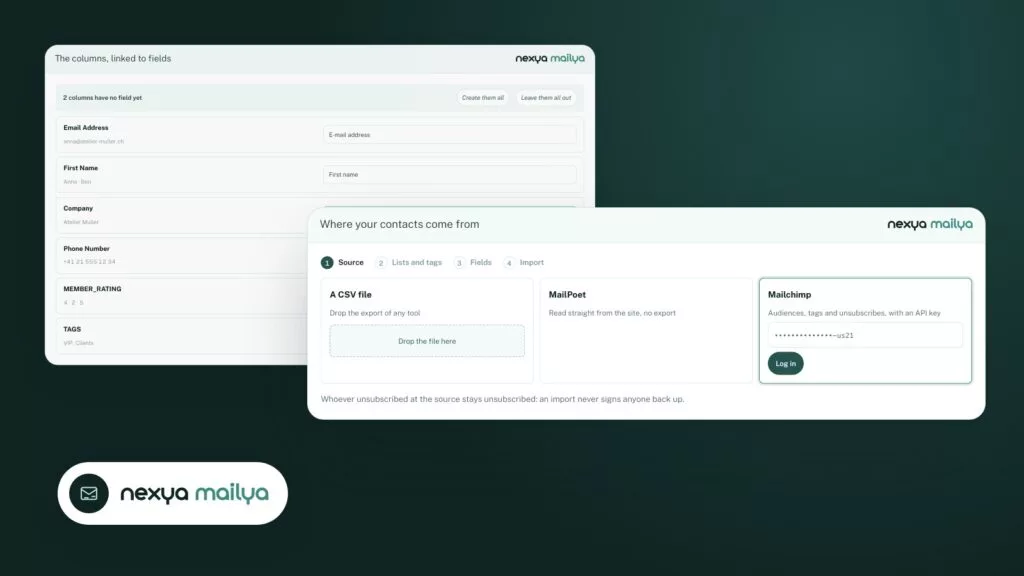
Mailya › Import reads three sources. Mailchimp, using an API key you create in your profile: your audiences, their tags, fields, and the status of each member are read directly, without an export. The key is only used for the duration of the import, and then forgotten. MailPoet, if installed on the same site: its lists, tags, and custom fields are read from its database, and MailPoet remains as is. And a CSV file from any tool: Brevo, a spreadsheet, or the standard Mailchimp export.
In any case, the import takes place across four screens: the source, the lists and tags to bring over, field mapping, and then batch importing with a progress bar. A final summary shows new contacts, those that were completed, those who remain unsubscribed, and discarded invalid addresses.
Lists, tags, and fields: keep everything, but your way
Each original list or tag becomes, by choice, a new Mailya list, a list you already have, or a tag on the contacts. The name remains editable: “subscribed_members_export” can become “Customers”. A contact present in multiple groups is imported only once, and receives each list and each tag.
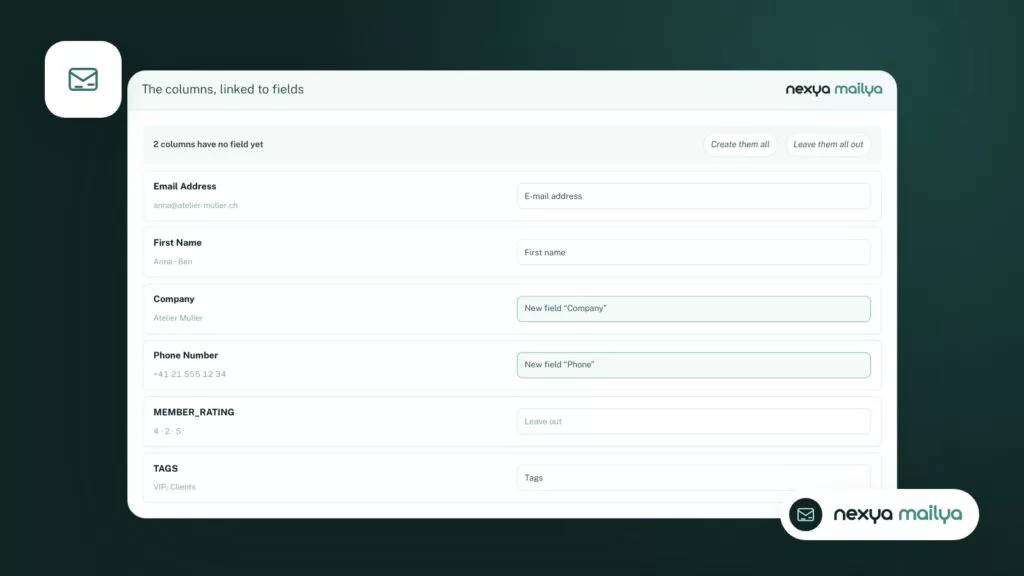
For columns, Mailya already suggests the right mapping: email, first name, and last name are recognized in English, French, or German. Columns it doesn’t recognize become custom fields — company, phone, city — with a readable name, and the technical columns from the original tool are discarded. Two buttons allow you to create everything or leave everything aside, then correct line by line.
- Each field becomes a tag in your messages: {{company}}, {{phone}}.
- A contact already in Mailya is updated, not overwritten, unless you check the replacement option.
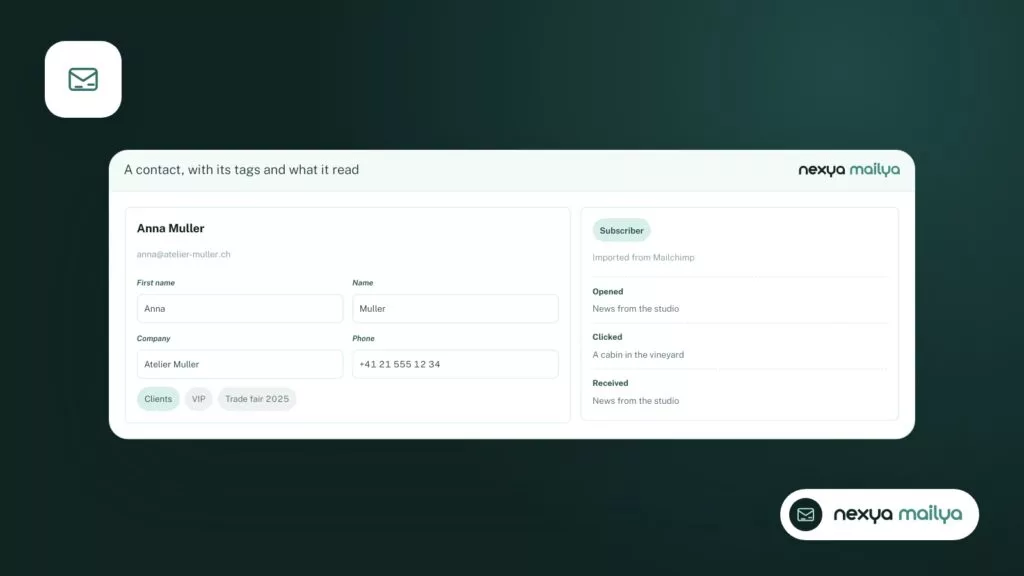
- Each contact has their own profile: fields, tags, lists, and their activity regarding each message received.
Switching from Mailchimp to Mailya in four steps
-
1
Choose the source
In Mailya › Import, paste your Mailchimp API key, choose MailPoet if it is on the site, or drop a CSV file.
-
2
Choose lists and tags
Check what you want to bring over and decide for each group: new list, existing list, or tag, with the name of your choice.
-
3
Link fields
Check the suggested link for each column, create the fields you need, and leave the rest aside.
-
4
Import and check
Launch the import, read the summary, then open a few contact files before your first campaign.
Unsubscribers stay unsubscribed
This is the non-negotiable rule: an import never re-registers anyone. A member marked as “unsubscribed” or “cleaned” in Mailchimp, or an unsubscribed subscriber in MailPoet, arrives as unsubscribed in Mailya. And a contact who had already unsubscribed in Mailya stays that way, even if the imported file says otherwise.
For subsequent mailings, Mailya adds an unsubscribe link and the one-click unsubscribe header to each message that Gmail and Yahoo require of mass senders. Messages are sent via the sending method configured in the Emails module, at the pace your host allows.
An import that re-registers unsubscribed users costs more than it’s worth: the trust of your readers and the reputation of your domain.
Send to a list, a tag, or both
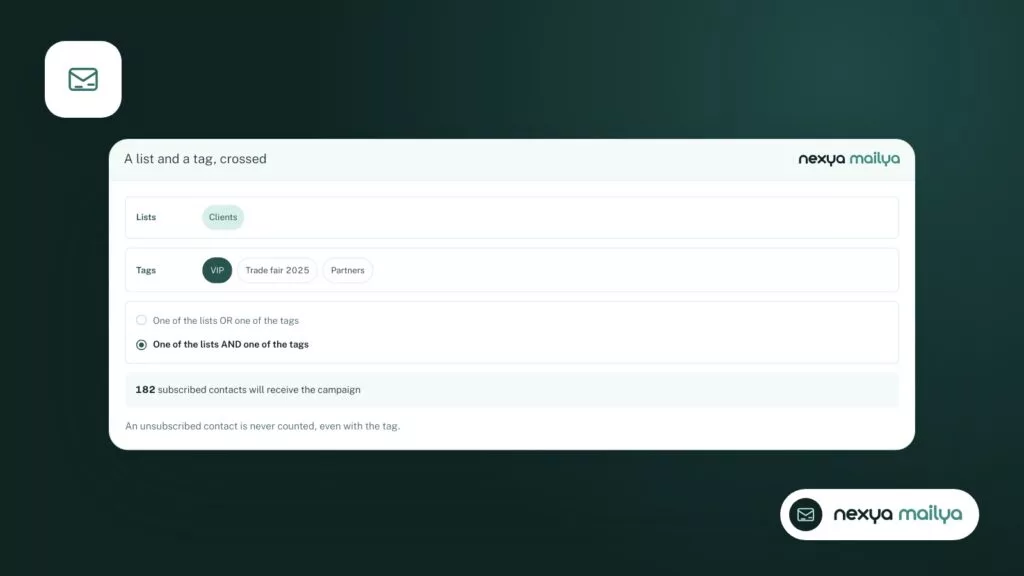
Once the contacts are in WordPress, a campaign is sent to lists, tags, or their intersection. Two ways to combine them: all contacts in one of the lists or with one of the tags, or only those in one of the lists and with one of the tags — for example, your customers who have the “VIP” tag. The number of subscribed recipients is displayed before sending.
As for the editor, it remains Mailya’s: sections, your articles inserted from the site, and an AI that can write the newsletter based on your latest publications. A “Correct” button reviews each paragraph for spelling and grammar, showing every modified word with the option to undo.
Before canceling Mailchimp
Keep your subscription while you verify the import: compare the number of subscribers and unsubscribers, open a few contact profiles, send a test campaign to yourself. Mailya is a nexya Pro module; a seven-day trial allows you to go through this entire process before making a decision.
FAQ
Do I need to export my contacts from Mailchimp?
No: with a Mailchimp API key, Mailya reads your audiences, their tags, their fields, and the status of each member directly. CSV export remains possible if you prefer.
Will my unsubscribed contacts receive my newsletters?
No. A member who is unsubscribed or cleaned at the source arrives as unsubscribed in Mailya, and an import never re-subscribes anyone.
Are Mailchimp tags kept?
Yes. Each tag can become a Mailya tag on contacts, or a separate list. You choose for each one.
Can I import from MailPoet?
Yes, if MailPoet is installed on the same site: its lists, tags, and custom fields are read directly, without export.
The modules in this post
Try nexya Pro free for 7 days
Every module, forms, newsletters and the page cache, on your site. No commitment.