Key points
- An SEO title that does not save is rarely lost: compare the field, the page source code, and the result in Google.
- Keep a single extension for titles and descriptions. A turned-off nexya module executes no code.
- After an update that breaks the SEO screen, the Maintenance module restores the previous version of the extension in one click.
- On a multilingual site with nexya Translate, each language has its own version of the page, and therefore its own title.
- nexya supports neither WooCommerce nor multisite networks.
SEO title not saving: what’s really happening
When an SEO title doesn’t save, WordPress usually received the value just fine. Something else is failing: a second plugin is overwriting the field, a script is preventing the screen from loading, a different language version was edited than the one being viewed, or a cache is still serving the old page. On WordPress.org forums, this question comes up about twenty times in six weeks, involving Yoast, All in One SEO, and others.
Before changing anything, you need to know where to look. Three places are enough: the field in the admin area, the source code of the published page, and the result in Google. If the field keeps the correct value but the source code shows the old one, the issue is happening after saving. If the field empties as soon as you save, it’s happening before.
The five causes below cover most reported cases. Go through them in order: the first ones are the most frequent and easiest to rule out.
- Two plugins, or a plugin and the theme, are each writing a title.
- A plugin causes a script error, and the SEO screen fails to load.
- A recent update broke settings saving.
- On a multilingual site, the modified version isn’t the one being consulted.
- A page cache, or Google itself, is still displaying the old title.
Two SEO plugins fighting for the same title
This is the most common cause. Yoast and All in One SEO installed at the same time, or an SEO plugin combined with a theme or page builder that has its own title fields: each writes its own title tag and meta description, and the last one to run wins. You save in one, the page displays what the other decided.
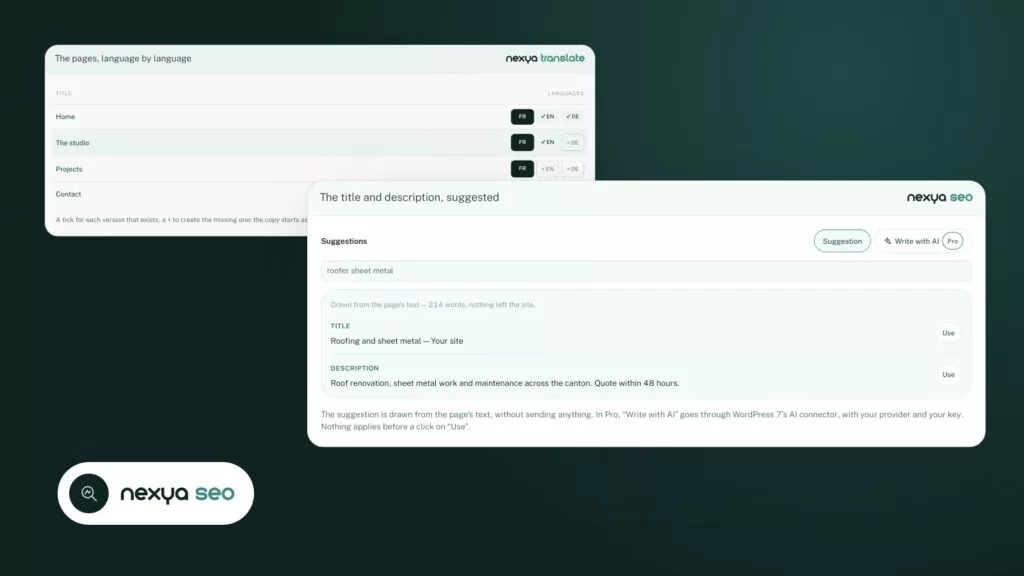
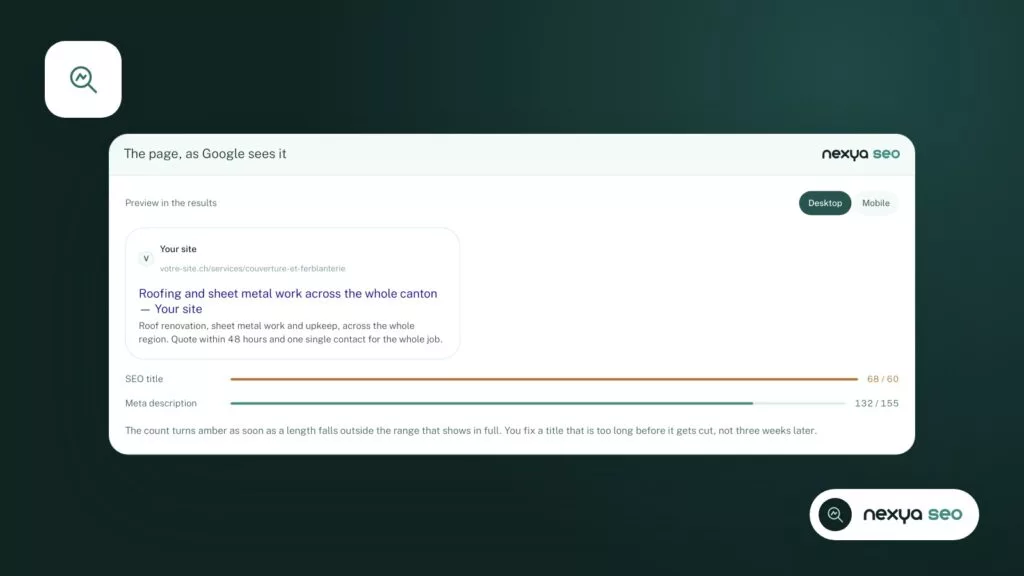
The remedy is simple: a single tool manages titles and descriptions. The nexya SEO module does this job. It manages titles and descriptions, provides a suggestion pulled from the page text, and also generates the sitemap, schema, and llms.txt file. It is built to replace an SEO plugin, not to be added alongside one.
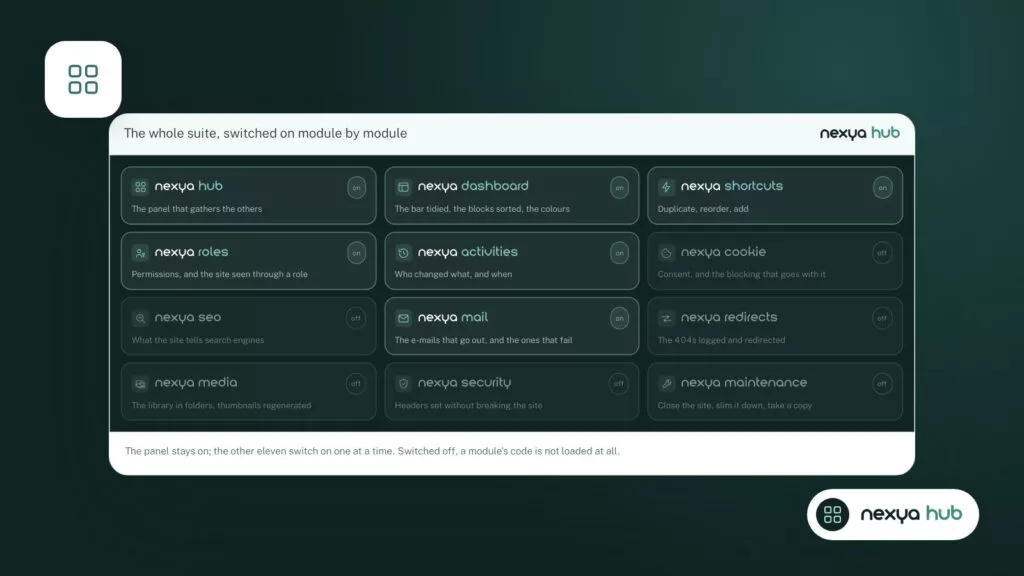
If you prefer to keep your current plugin, leave the SEO module turned off in the hub. With nexya, a turned-off module saves nothing: none of its hooks run on the site. Therefore, it cannot conflict with another plugin.
A single tool writes the page title. The second one brings nothing and risks overwriting the first.
Correcting an SEO title that doesn't save, step by step
-
1
Keep a single SEO tool
In the nexya hub, turn on the SEO module only if no other extension manages titles. Otherwise, leave it turned off: it will execute no code.
-
2
Write the title and description on the page
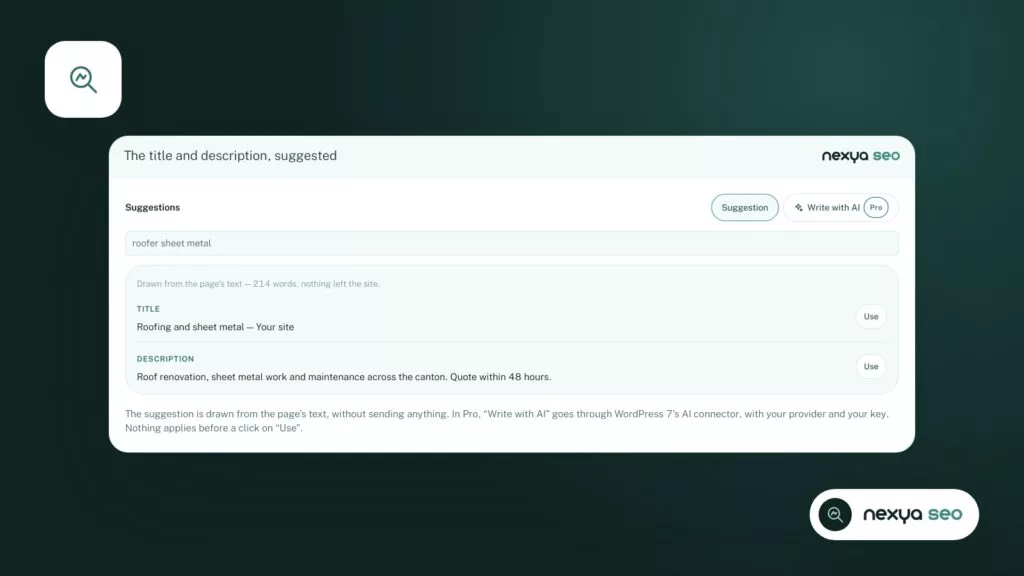
Open the page, start from the suggestion drawn from its text, adjust it, and then save. Reload the screen to check that the value has stuck.
-
3
Check the correct language version
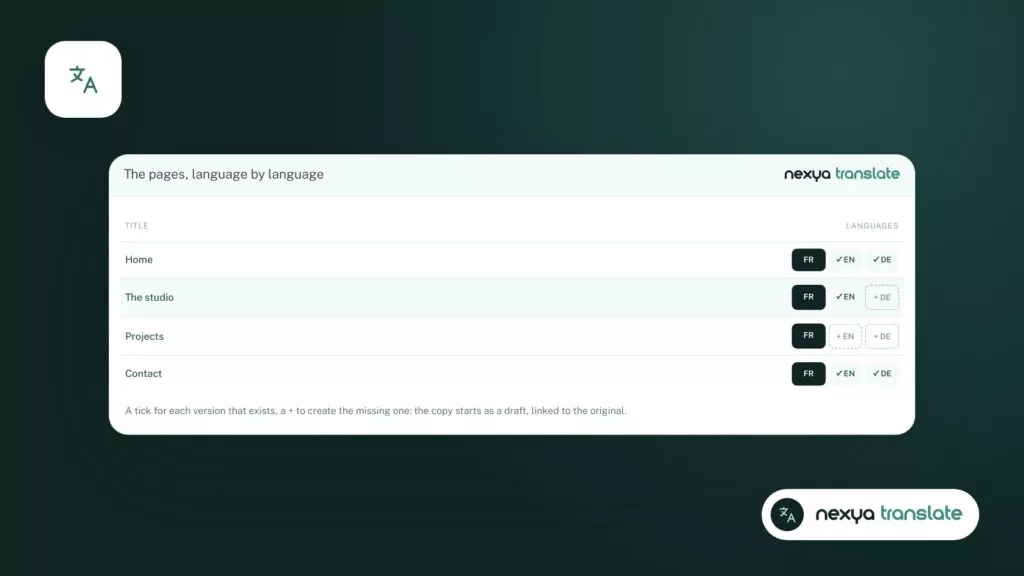
On a multilingual site, open Translate's page list and also correct each translation, for example the /en/ version.
-
4
Control the published result
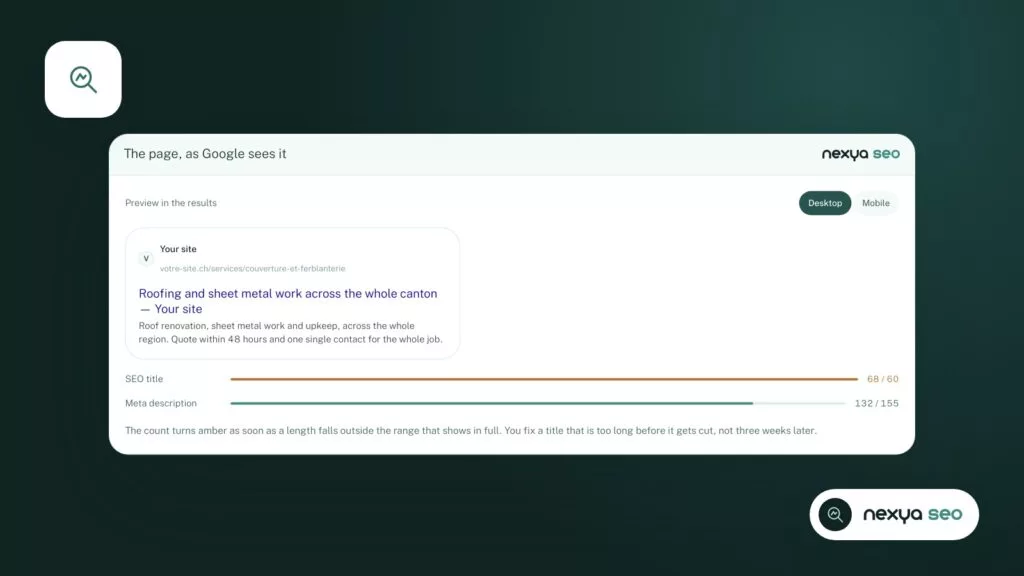
Compare the preview in Google with the source code of the live page. If the old title still displays, clear the page cache and, if applicable, Cloudflare's.
SEO screen won’t load: finding the blocking plugin
When the SEO panel stays empty or the save button stops reacting, a script error in another plugin often blocks the entire edit screen. The field is then never sent to the server.
The method remains the same regardless of the tool: on a copy of the site if possible, deactivate plugins one by one and try again after each deactivation. The one that unblocks the screen is at fault. With nexya, each module can be turned off separately from the hub, allowing you to run the same test module by module.
If the problem appeared right after an update, as in several forum threads, the Maintenance module comes in handy. It keeps the previous version of each plugin and theme right before its update, and restores it in one click. This feature is free. In nexya Pro, an update that breaks the site is also automatically rolled back, and the administrator receives an email.
Multilingual site: the title is saved, but in another language
On a multi-language site, many titles “that don’t save” were actually saved, but on a different version than the one being viewed. You fix the French page, then you open /en/ and find the old title again.
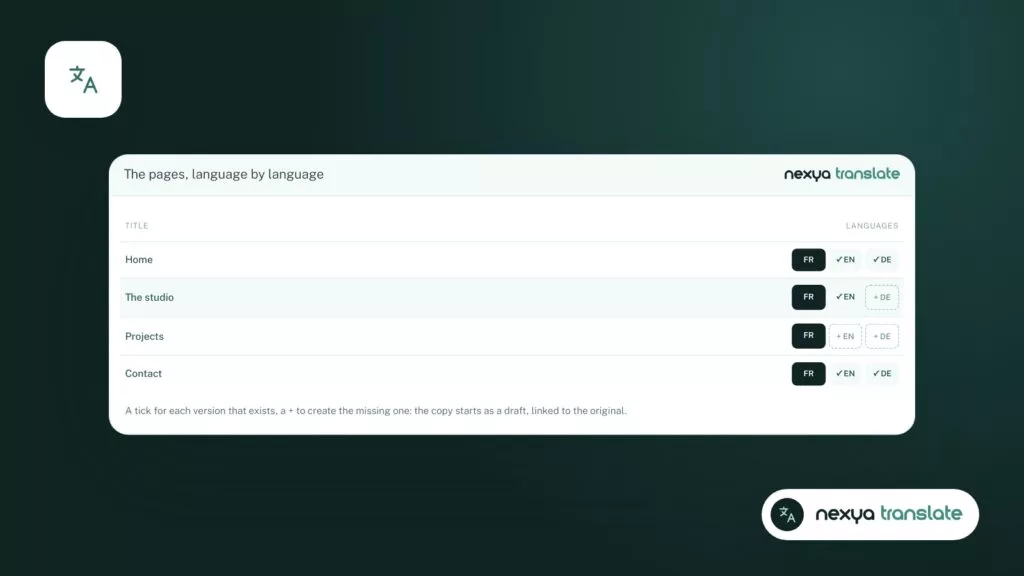
With nexya Translate, each page is linked to its translations, and each language has its own URLs, such as /en/. Each version is a page in its own right: what you write on the French page stays on the French page. To fix the English title, you must open the English version. The page list shows the languages for each, making it easy to see at a glance which version exists and which one you are editing.
The translation editor displays next to the original and handles blocks, Elementor, as well as ACF and NCF fields. You therefore see both versions side by side instead of switching back and forth between tabs.
Two details avoid further duplicates. Translate does not add its own hreflang links when another plugin is already adding them. And saving Translate settings clears the page cache and sitemap. For a site moving from WPML or Polylang, the transition happens in one click, and URLs are preserved: every URL that changes receives a 301 redirect in the Redirections module.
A title corrected in French does not change anything on the /en/ page: each language has its own version, linked to the others.
Cache and Google are still displaying the old title
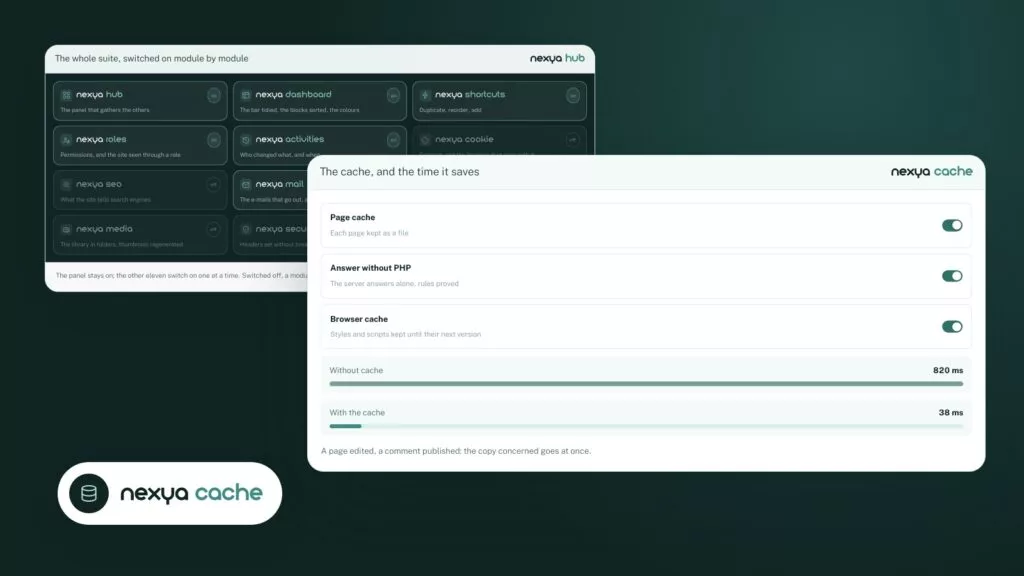
If the admin field and source code are correct, but visitors see the old title, the cache is serving it. A page cache keeps a copy of the page and sends it back as-is until cleared.
The nexya Pro page cache clears itself automatically when content changes, including upon saving in Elementor. It does not clear the Cloudflare cache: if your site goes through Cloudflare, clear it there as well.
Then there is Google. nexya cannot force indexing, and Google takes some time to re-read a page. It also happens to rewrite a title or a description that it considers distant from the content. To limit this risk, start from the SEO module’s suggestion: it is drawn from the page text, so it is close to what Google reads there. The sitemap generated by the module then helps it find modified pages.
What nexya covers, and what it does not cover
The SEO, Translate, Maintenance, and Redirects modules are free, for as many sites as you want. The page cache is part of nexya Pro, sold on nexya.dev. By default, the plugin sends nothing to a third party.
Two limits, to be clear. Multisite networks are not supported: on a network, the plugin remains turned off and indicates so. And nexya does not cover WooCommerce. Titles and descriptions of product pages, as well as SEO settings specific to a shop, are not handled here. They remain the responsibility of WooCommerce or an extension made for it.
FAQ
Why does my meta description revert to the old value after saving?
Most of the time, a second extension or the theme writes its own description and overrides yours. Keep a single SEO tool active, then check the page source code.
I corrected the title, but the English version still displays the old one. What should I do?
With nexya Translate, each language has its own version of the page, linked to the others. Open the /en/ version and correct its title there.
Can nexya's SEO module coexist with Yoast?
It is made to replace it. If you keep Yoast, leave the SEO module turned off: a turned-off module executes no code on the site.
Can nexya force Google to display my new title?
No. The module provides titles, suggested descriptions, the sitemap, and schema, but Google decides when to re-read the page and what it displays.
Does nexya handle SEO for WooCommerce products?
No, nexya does not cover WooCommerce. A shop's SEO settings remain the responsibility of WooCommerce or an extension made for it.
The modules in this post
Try nexya Pro free for 7 days
Every module, forms, newsletters and the page cache, on your site. No commitment.