Key points
- Most broken sitemaps come from two generators active at the same time: keep only one and submit a single address.
- Incorrect addresses in the sitemap use the address WordPress thinks it has: check general settings and the database after a move.
- A delayed sitemap is often an old copy served by a cache. Clear it before looking any further.
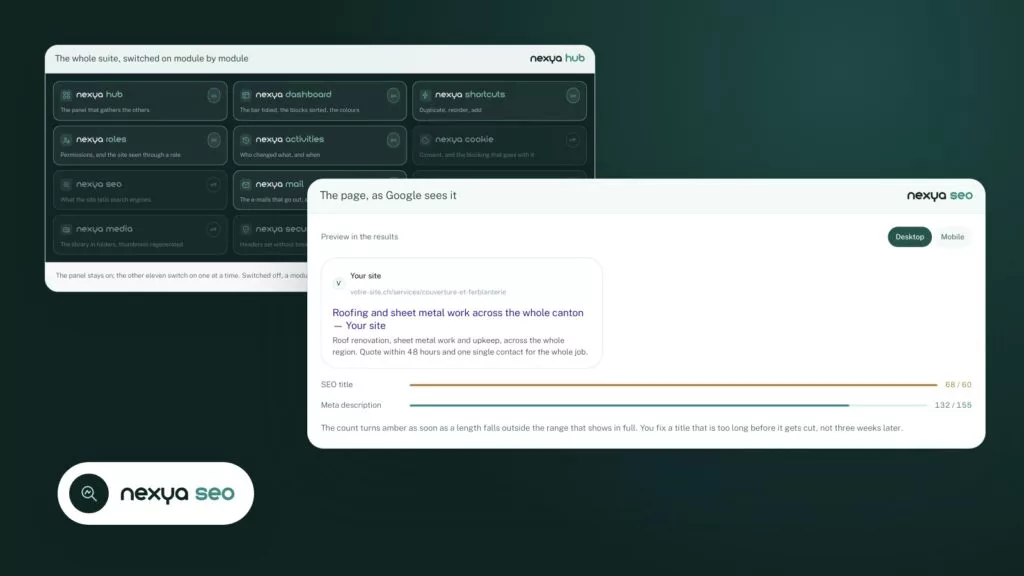
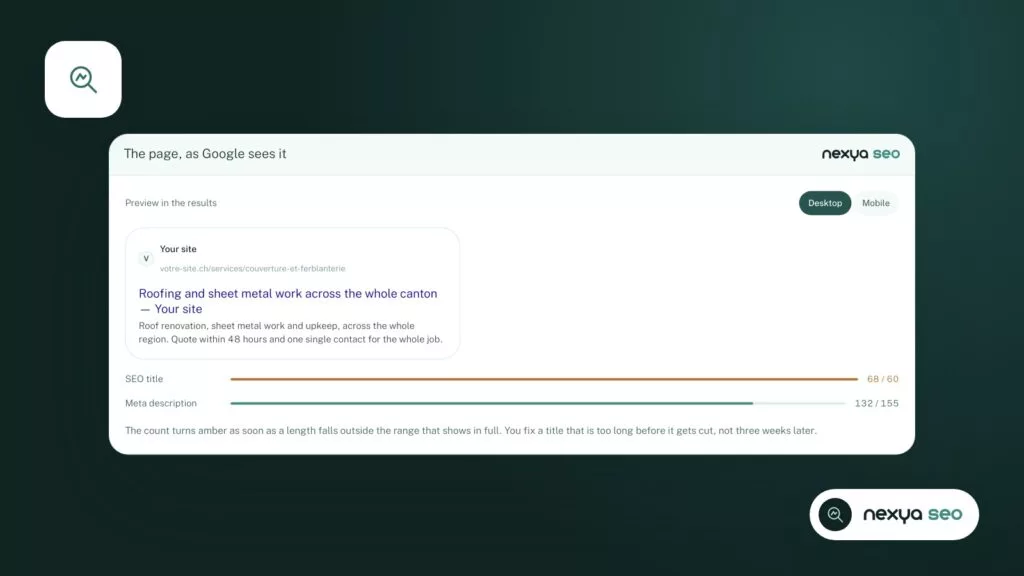
- nexya's SEO module generates the sitemap and notifies IndexNow search engines upon every publication, update, or removal, for free.
- A sitemap helps search engines find your pages, but it does not force Google to index them.
Why a WordPress sitemap breaks
The WordPress sitemap is a list of URLs in XML format. It tells search engines which pages exist and when they were changed. When it breaks, Search Console displays a reading error, the browser shows a blank page or an XML message, or the list no longer matches the site.
On support forums, the same complaints keep coming up: the sitemap no longer opens, it doesn’t show pages published yesterday, or it contains URLs that lead to a 404, a redirection, or the old domain.
These symptoms have a few causes. Most often, two plugins are each generating their own sitemap. Next come an incorrectly set site URL after a migration, a cache serving an old copy, and pages listed even though they have no business being in the sitemap. We check these in that order.
- The sitemap displays an XML error or a blank page.
- New pages do not appear.
- URLs lead to a 404, a redirection, or the old domain.
Only one sitemap generator at a time
Since version 5.5, WordPress produces a basic sitemap of its own. An SEO plugin often adds another, and sometimes a caching plugin or page builder does too. The result: multiple lists at different addresses, one of which is quickly forgotten and no longer up to date. Or two plugins respond to the same address and the output gets mixed up.
The classic case of the “XML declaration allowed only at the start of the document” error comes from a plugin or theme that writes a space or an empty line before the XML. The browser then refuses to display the file. Deactivating plugins one by one shows which one is at fault.
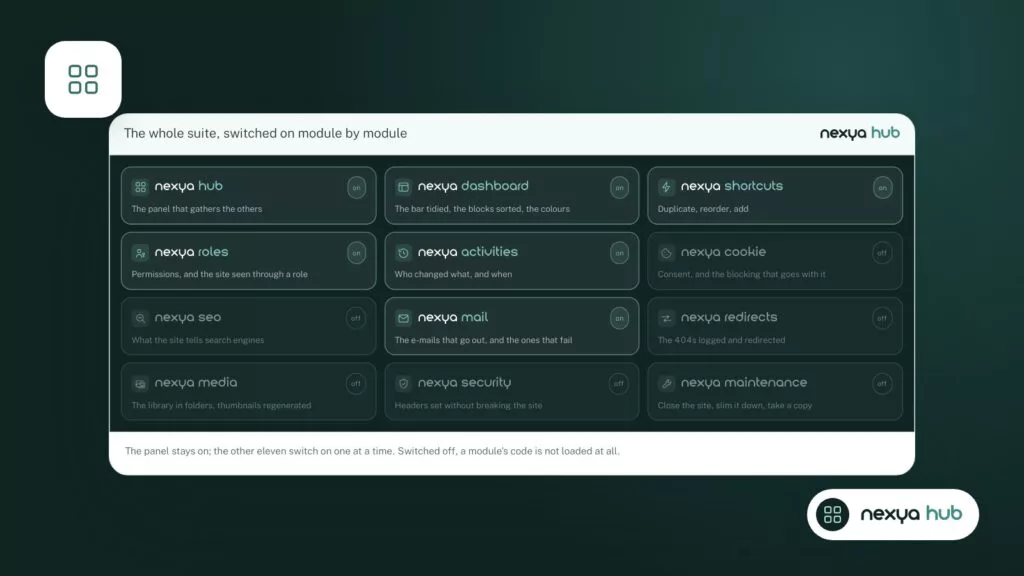
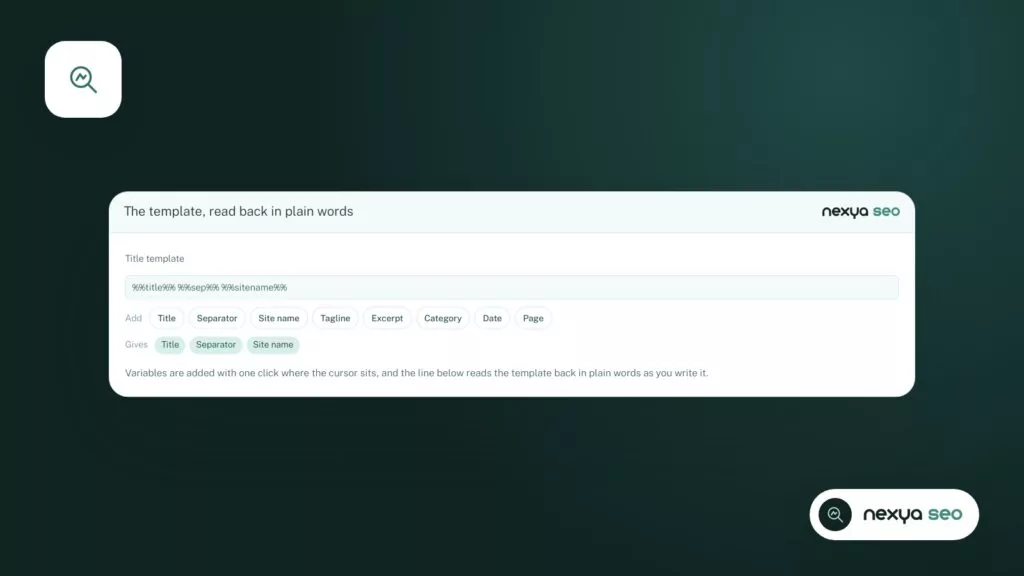
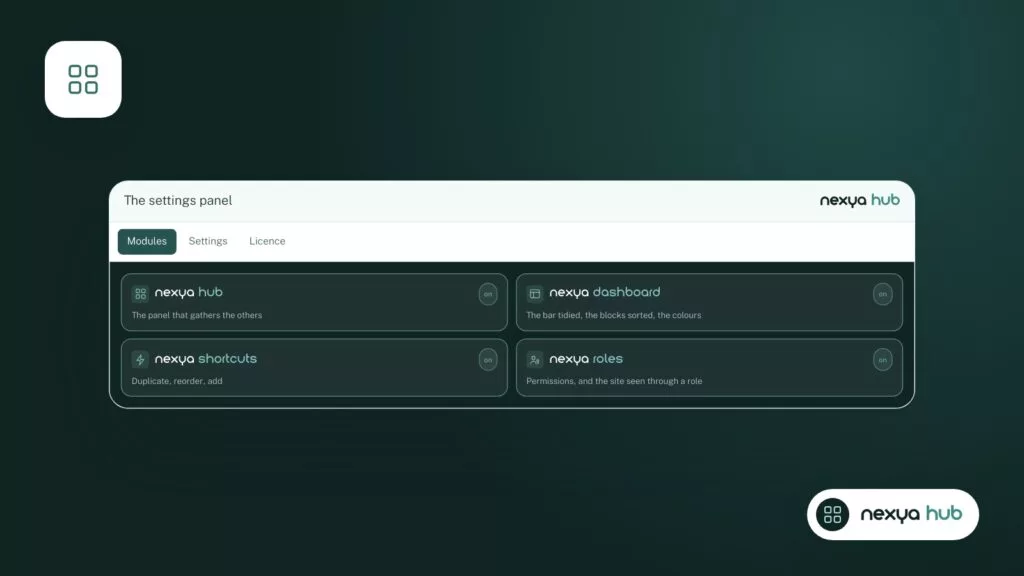
With nexya, the sitemap is part of the SEO module, alongside titles, descriptions, schema, and the llms.txt file. Each module is turned on and off from the hub, and a turned-off module records nothing: none of its hooks run on the site. If you keep another SEO plugin for its sitemap, leave the nexya SEO module turned off. If you switch to the nexya SEO module, disable the other plugin’s sitemap. In all cases, submit only a single sitemap URL to Search Console.
One site, one sitemap generator, one submitted URL: most errors disappear with this single rule.
Incorrect URLs: check the site address
A sitemap that lists the old domain, http instead of https, or a staging address doesn’t make a mistake on its own. It uses the address that WordPress thinks it has. After a migration or site copy, the WordPress Address and Site Address settings often remain on the old value, or the database still contains the old URLs.
Start with these two fields in the general settings. They must contain the exact public address, with the correct protocol. If the entire database was copied from another site, the URLs stored in the content must also be replaced.
The nexya Maintenance module exports the database, giving you a backup before making any fixes. With nexya Pro, a database—whether a backup or one from another site—can be imported into the site with its URLs and table prefix adjusted, keeping your account and license intact, and a full backup taken right beforehand. This is precisely the situation where a sitemap would otherwise fill up with old addresses.
An out-of-date sitemap
If a published page does not appear, first open the sitemap in a private window, adding some parameter to the URL if necessary. If the page is listed there, the sitemap is correct and it is the search engine that hasn’t re-read it yet. If it is not there, a cache is likely serving an old copy: a cache at the host, a caching plugin, or a CDN like Cloudflare. Clear it, then check again.
On the search engine side, the delay is normal. Google re-reads a sitemap at its own pace. The nexya SEO module shortens this delay for other engines: with IndexNow, it notifies Bing, Yandex, and other participating engines as soon as a page is published, updated, or removed. You don’t need to resubmit anything manually.
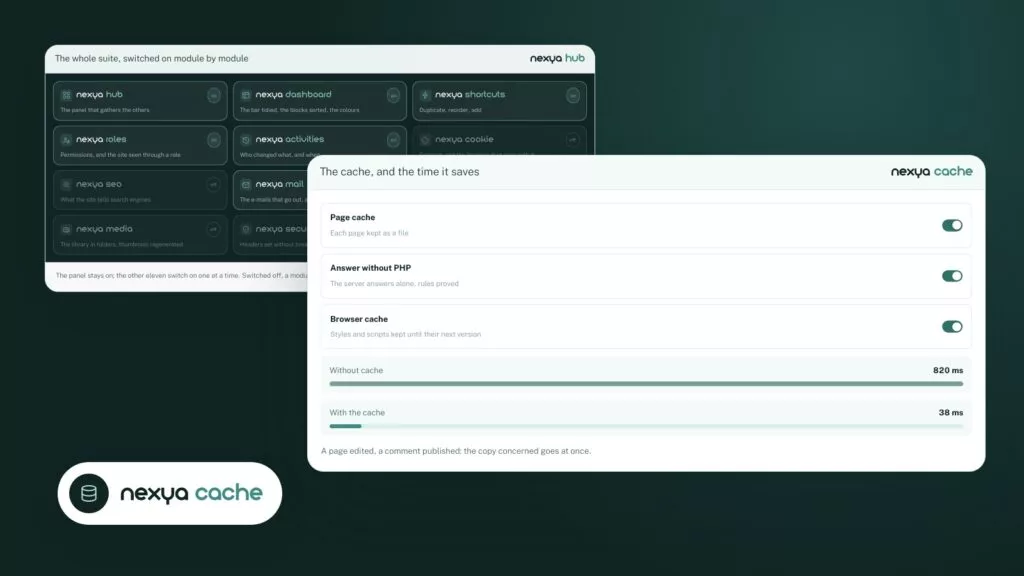
The nexya Pro page cache discards each page as soon as something changes it, and the Cloudflare cache is purged along with nexya’s, either entirely or just for the modified page’s URLs.
Pages that have no business being in the sitemap
A healthy sitemap lists only pages that respond directly, without redirects or errors, and that are meant to be found. Test pages, pages restricted to clients, or URLs that redirect elsewhere clutter it up, and Search Console flags them.
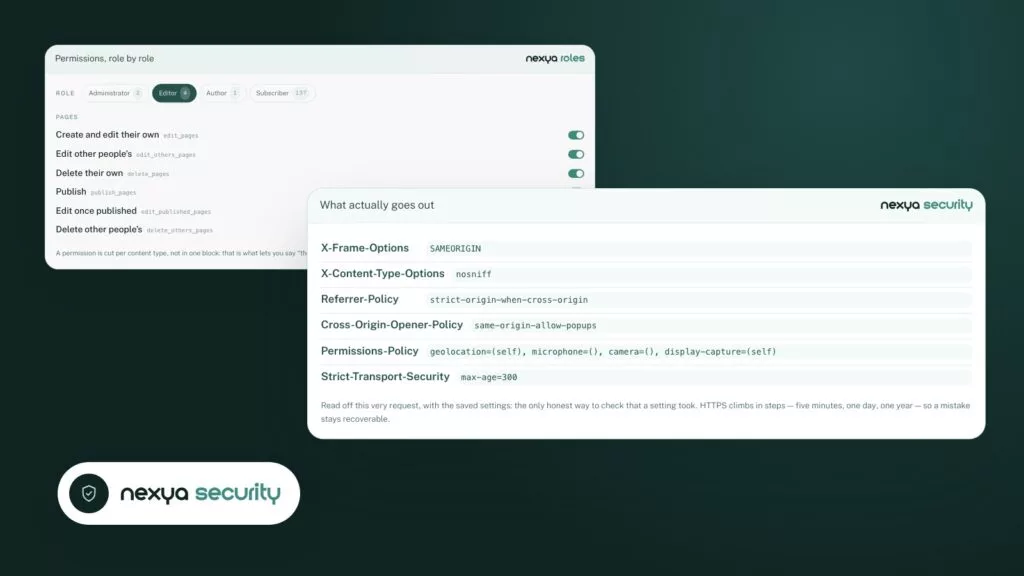
In nexya, the Roles module allows you to restrict a page to logged-in users, specific roles, or certain accounts. Others are sent to the login page or see a message. The page then leaves the sitemap, search, and article lists. There is nothing else to configure for it to disappear from the list.
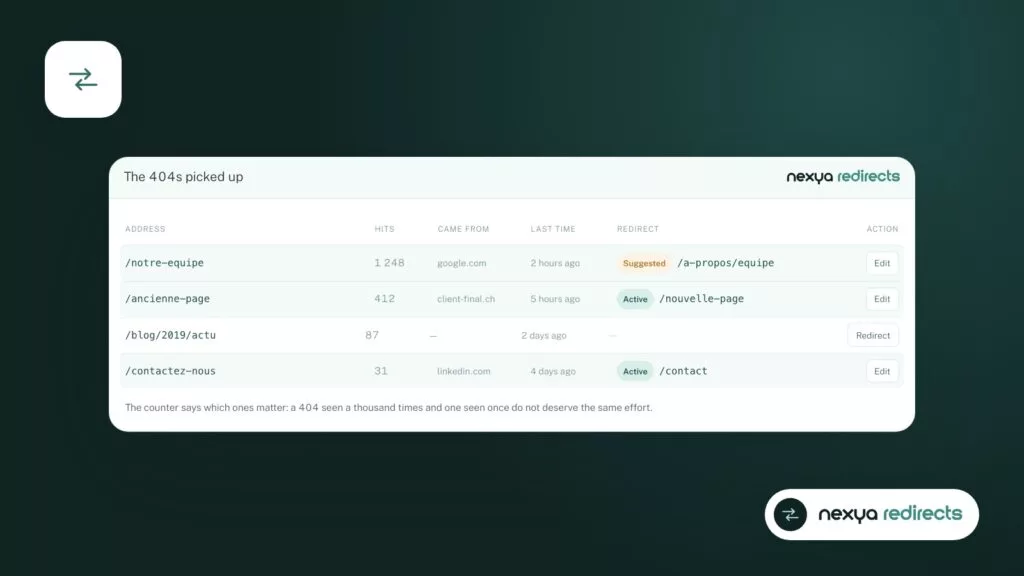
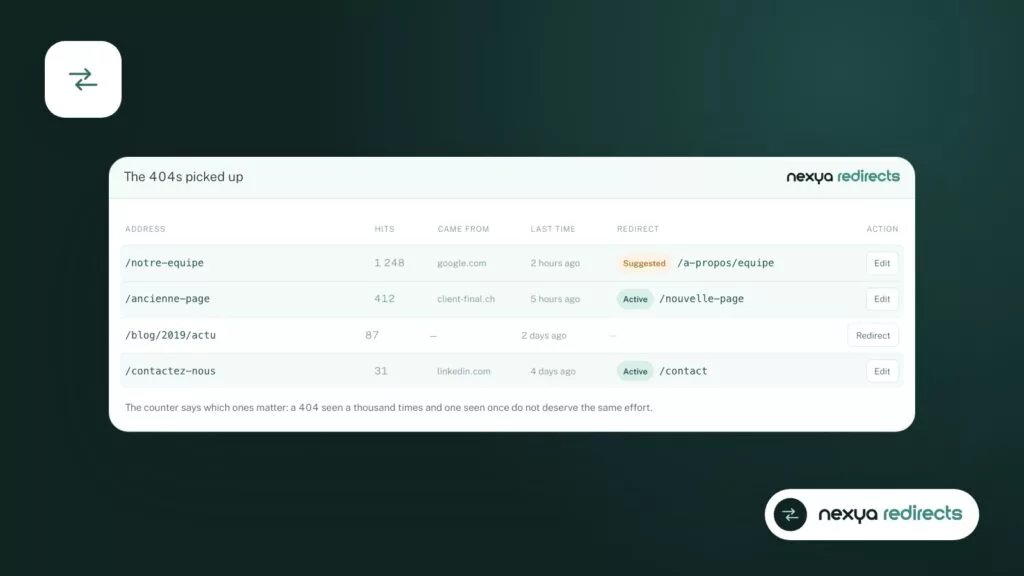
For URLs that lead to a 404, the Redirects module maintains a 404 log with the hit count. This lets you see which old addresses are still being requested by visitors and bots alike, and you can create an exact redirection to the right page. Automatically suggested redirections and pattern-based rules are part of nexya Pro.
Getting a WordPress sitemap back in order, in four checks
-
1
Open the sitemap in a private window
Display the sitemap address in a private window. An XML error or a blank page points to a plugin conflict. An incomplete list points to a cache or a second generator.
-
2
Keep a single generator
Choose the plugin that produces the sitemap. With nexya, turn on the SEO module from the hub and deactivate the other plugin's sitemap, or vice versa. Submit only one address to Search Console.
-
3
Check the site address and clear caches
Verify the WordPress Address and Site Address in the general settings, then clear the host, caching plugin, or CDN cache. Reopen the sitemap to check.
-
4
Track 404s and redirect
In the Redirections module, look at the 404s that recur most often, then create an exact redirection to the right page for the ones that matter.
What the sitemap doesn’t do
A correct sitemap simply helps search engines find your pages. It does not force indexing. Google decides on its own what it keeps, and a listed page may remain out of the index if it is deemed too similar to another or too thin.
The SEO module provides the sitemap, schema, suggested titles and descriptions based on the page text, and the llms.txt file. All of this is free, on as many sites as you want. It does not replace Search Console, which remains the place to read what Google has done with your sitemap.
If your site is multilingual with the Translate module, the versions for each language have their addresses in /en/ or equivalent and are linked together by hreflang. In this case, verify that each version responds correctly to its address before blaming the sitemap.
- Free: sitemap, schema, suggested titles and descriptions, llms.txt, IndexNow, 404 log.
- nexya Pro: suggested redirections and pattern rules, page cache, database import with adapted addresses.
FAQ
Why does my WordPress sitemap show an XML error?
Most of the time, a plugin or the theme writes a space or an empty line before the XML, or two plugins respond to the same address. Deactivate plugins one by one to find which one is causing the issue, and keep only a single sitemap generator.
Should you disable the native WordPress sitemap?
Above all, you should submit only one to Search Console and prevent multiple plugins from producing them in parallel. With nexya, if you keep another SEO plugin, leave the SEO module turned off: an off module executes nothing on the site.
Is nexya's sitemap paid?
No. The SEO module, including the sitemap, schema, suggested titles and descriptions, llms.txt, and IndexNow, is free, on as many sites as you want.
My new pages are in the sitemap but not in Google. Why?
The sitemap helps Google find the pages, but it does not force indexing. Google rereads the sitemap at its own pace and decides on its own what it keeps. Search Console indicates the status of each page.
Does a members-only page appear in the sitemap?
No. A page restricted using the Roles module to logged-in individuals, certain roles, or specific accounts leaves the sitemap, search results, and article lists.
The modules in this post
Try nexya Pro free for 7 days
Every module, forms, newsletters and the page cache, on your site. No commitment.