Key points
- The nexya Shortcuts module allows you to duplicate content, reorder it manually, and add an entry in one click.
- It is free and can be turned on or off from the hub; when turned off, it runs nothing on the site.
- A copy should be proofread before publication: title, URL, SEO texts, images, links, and status.
- For another language, use the Translate module instead of making a copy.
Why duplicate a WordPress page rather than starting from scratch
Duplicating a WordPress page is one of the most common administrative tasks, and one of the least provided for by WordPress itself. A service page, a team profile, an offer page: the structure is the same, only the text and images change. Rebuilding blocks or widgets every time takes time and leaves room for discrepancies.
Without a tool, you copy the content of a page, create a blank page, paste, and then redo the settings one by one. This is where mistakes happen: a forgotten page template, a missing featured image, a search engine description left blank.
Starting from a copy reverses the logic. Everything that needs to stay the same already is, and the work is limited to what needs to change.
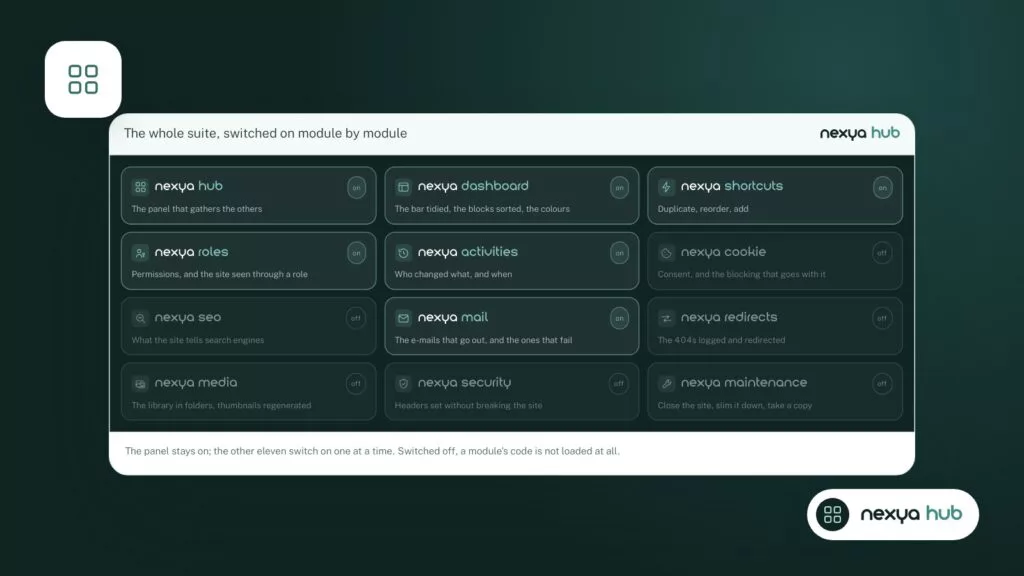
The Shortcuts module: three actions on content lists
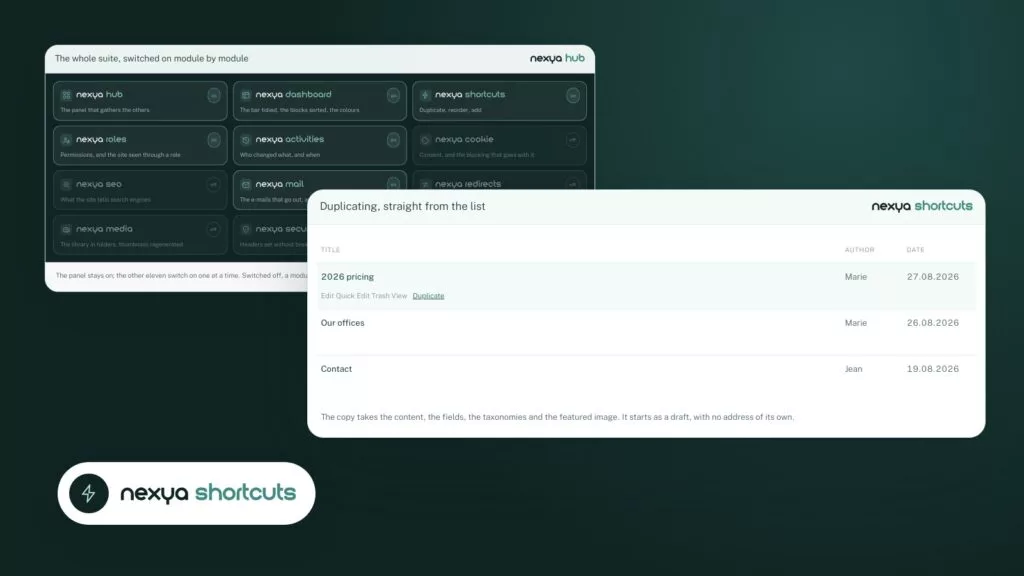
In nexya, this task is handled by the Shortcuts module. It performs three actions on WordPress content lists: duplicate content, reorder it manually, and add an entry in one click.
Like all nexya modules, Shortcuts can be turned on and off from the hub, the panel that brings the modules together. A disabled module records nothing: none of its hooks run on the site. If you only need it during a redesign, you can turn it on for the duration of the project, then turn it off.
The module is part of the free version of nexya, which can be used on as many sites as you want. There is nothing to buy to duplicate, reorder, or add.
- Duplicate: start from existing content instead of a blank page.
- Reorder: place contents in the desired order, manually.
- Add: create a new entry in one click from the list.
Duplicating a WordPress page with nexya, step by step
-
1
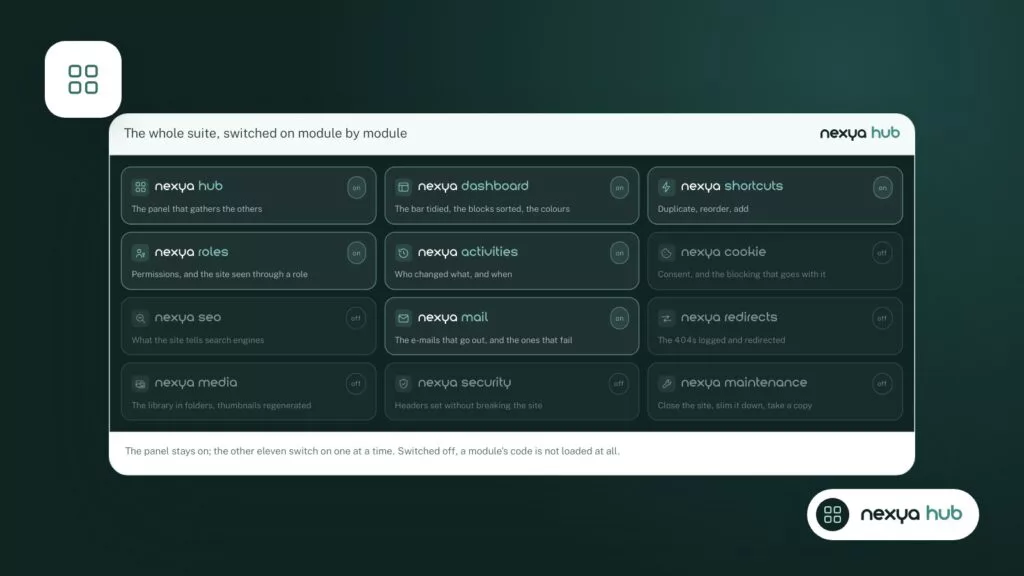
Turn on the Shortcuts module
Open the nexya hub and turn on the Shortcuts module. As long as it is turned off, none of its hooks run on the site.
-
2
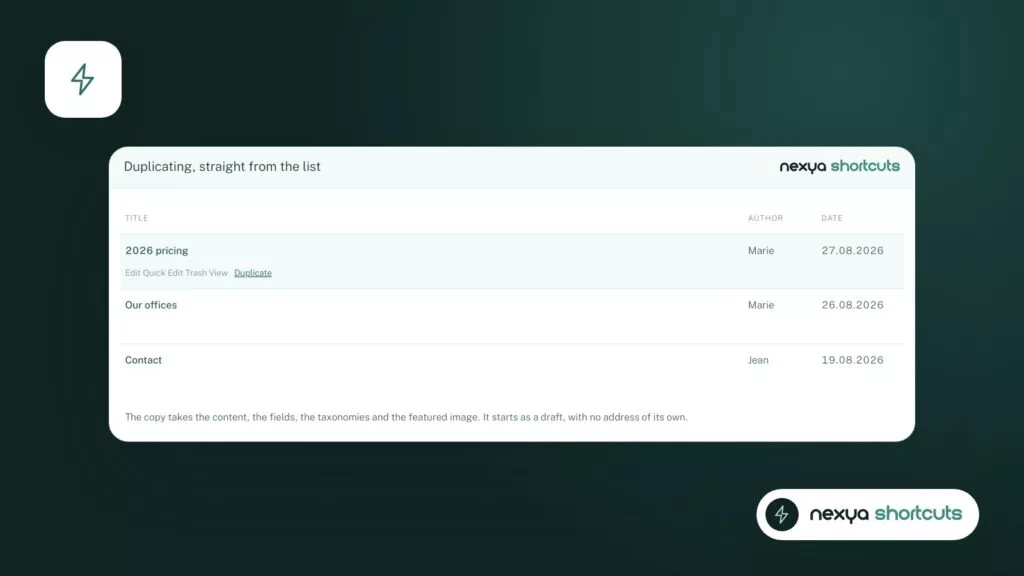
Duplicate the starting page
In the page list, choose the one whose layout suits you and duplicate it. You get a copy to adapt rather than a blank page.
-
3
Proofread and adapt the copy
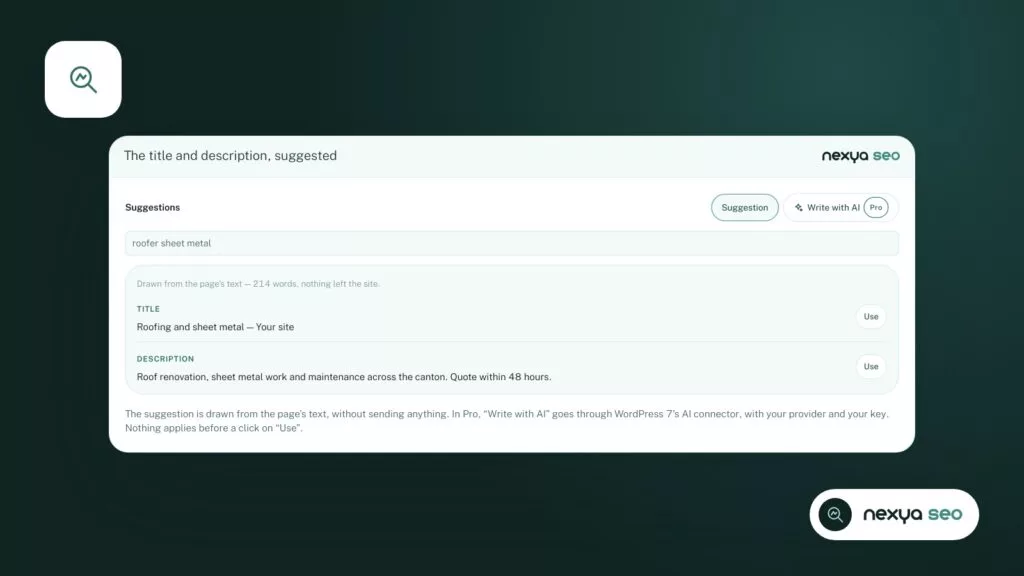
Change the title, URL, texts, images, and links. If the SEO module is turned on, also review the title and description for search engines, then check the status before publishing.
-
4
Put the page back in its place
If order matters, move the new page in the list to the desired location, then check on the public site that the theme respects this order.
Setting up the method
The process takes just a few steps, described below. They assume that nexya is installed and that you have access to the hub with an administrator account.
One thing to know before you start: nexya does not support multisite networks. On a network, the plugin remains disabled and indicates this.
What to review on a copy before publishing it
A copy reuses a page that existed for a different reason. Before publishing it, review what gives it its identity. The most common mistake is forgetting the title or URL: two almost identical pages in search results will compete with each other.
If nexya’s SEO module is enabled, also review the title and description intended for search engines. The module can suggest a description taken from the page text: once the copy’s content is rewritten, the suggestion will follow the new text rather than the old one.
Finally, check the images and internal links. A copied offer page keeps the visuals and buttons of the original offer until you replace them.
- The page title and its URL.
- The title and description for search engines.
- The featured image and content images.
- The links and buttons pointing to other pages.
- The page status before making it public.
A copy saves time on layout, not on proofreading.
Reordering manually: when alphabetical order is not enough
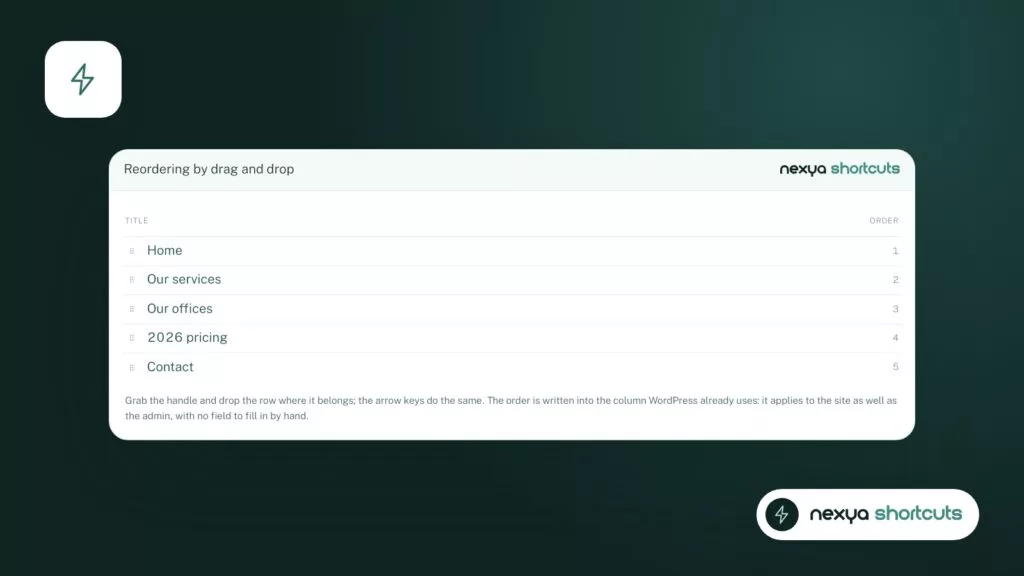
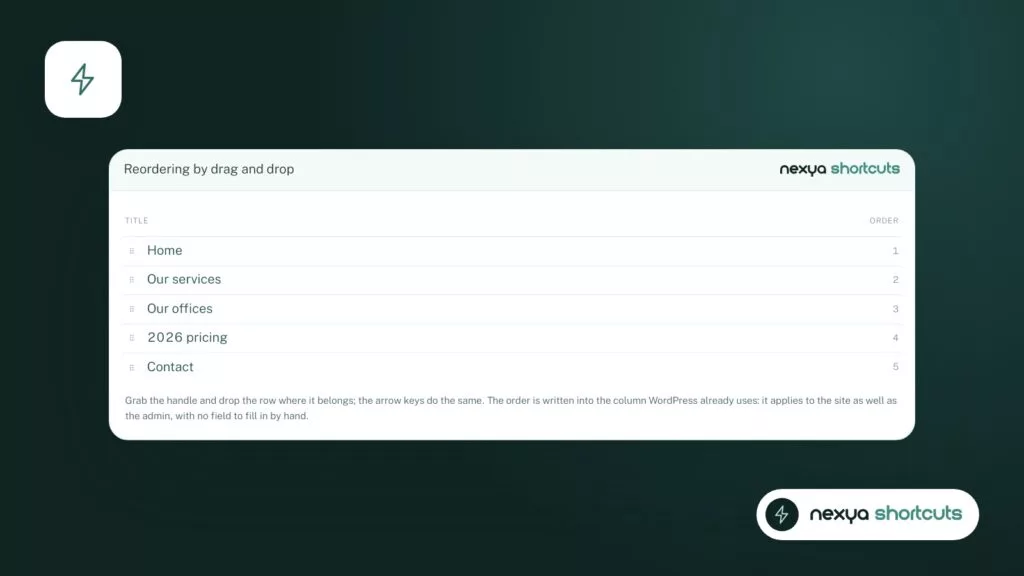
WordPress lists are sorted by date or title. For a team, a sequence of steps, or a service catalog, none of these sorts match the desired order. The Shortcuts module allows you to reorder content manually, directly in the list.
This is often the action that follows duplication. You create a new profile from an existing profile, then place it where it should appear, rather than at the end of the list.
Keep in mind that the order displayed on the site also depends on the theme or widget displaying the list. If it sorts by date, the order chosen in the admin will not be visible. Check the public page after the first reordering.
A copy is not a translation
On a multilingual site, there is a temptation to duplicate a page to make an English or German version. This is a false good idea: the two pages then have no connection between them.
nexya’s Translate module links each page to its translations, places the URLs under /en/ for example, and generates the hreflang tags that tell search engines which version to show to whom. It offers a translation editor where the original is read next to its translation, line by line. Manual translation is free.
Therefore, reserve duplication for new pages in the same language, and use Translate for versions in another language.
What is free, what belongs to nexya Pro
The three actions of the Shortcuts module are free, like all modules described in the free version of nexya: dashboard, roles, activity log, cookies, SEO, emails, redirects, media, security, maintenance, custom fields, Element, and Translate.
nexya Pro, sold on nexya.dev, adds two modules, Mailya for newsletters and a page cache, as well as the parts that do repetitive work for you, such as undoing actions from the activity log or folders in the media library. The free version does not contain this code. nexya Pro is delivered by Freemius after purchase and takes over from this plugin with the same settings.
To duplicate a WordPress page and organize your content, the free version is enough.
FAQ
Do I need nexya Pro to duplicate a WordPress page?
No. The Shortcuts module, which duplicates, reorders, and adds content, is part of the free version of nexya, for as many sites as you want.
Does the module slow down the site when I am not using it?
A module turned off from the hub records nothing: none of its hooks run. You can turn it on only when you need it.
Can I duplicate a page to create its version in another language?
This is not recommended: the copy would have no connection to the original. The Translate module links each page to its translations and generates hreflang tags.
Does the module work on a multisite network?
No. Multisite networks are not supported: on a network, nexya remains turned off and indicates this.
The modules in this post
Try nexya Pro free for 7 days
Every module, forms, newsletters and the page cache, on your site. No commitment.