Key points
- WordPress creates thumbnails only once, upon upload: a new theme or a new format is not applied to old images.
- Regeneration mostly interrupts when it depends on an open tab or processes too many images in a single request.
- The nexya Media module regenerates in the background, in batches, and continues when the tab is closed; it's free.
- Orphaned sizes and media library folders are part of nexya Pro.
Why regenerate WordPress thumbnails
Regenerating WordPress thumbnails becomes necessary as soon as the image formats expected by the site no longer match those that exist on the server. When you upload an image to the media library, WordPress doesn’t just keep the original: it generates several reduced copies, one for each format declared by WordPress itself, by the theme, and by certain plugins.
These copies are created only once, at the time of upload. If you change your theme, if a plugin adds a format, or if the theme modifies the size of an existing format, the images already in place are not reprocessed. The new format simply does not exist for them.
The result is visible on the site: a stretched and blurry article image, a crop that cuts off a face, a gallery where the thumbnails do not all have the same height. WordPress falls back on the closest format it finds, and this format is not the right one. Regeneration recreates, from each original, all the sizes expected today.
- After a theme change.
- After installing a plugin that declares its own image formats.
- When the theme modifies the dimensions or cropping of an existing format.
- After a migration where only the originals were copied.
Why regeneration stops midway
This is the most frequent complaint on the forums: the progress bar advances, then freezes at 40%, or the operation displays an error without further details. In most cases, the problem does not come from a particular image, but from the way the work is carried out.
Many tools drive regeneration from the browser. The tab sends a request for an image, waits for the response, then moves on to the next one. As long as the tab remains open and the session holds up, everything is fine. If the computer goes to sleep, if the connection drops, or if you close the page by mistake, the processing stops right there.
Other tools try to process too many images at once. The server has a limited amount of time for each request and a bounded amount of memory. A photo of several tens of megapixels, reduced into ten formats, can on its own exhaust this memory. The request is then cut off by the host, often without a readable message.
- Tab closed, computer in sleep mode, or session expired.
- Maximum server execution time exceeded.
- Insufficient PHP memory for a very heavy original.
- Too many images processed in a single request.
A regeneration that depends on an open tab stops the day the tab closes.
What nexya’s Media module does
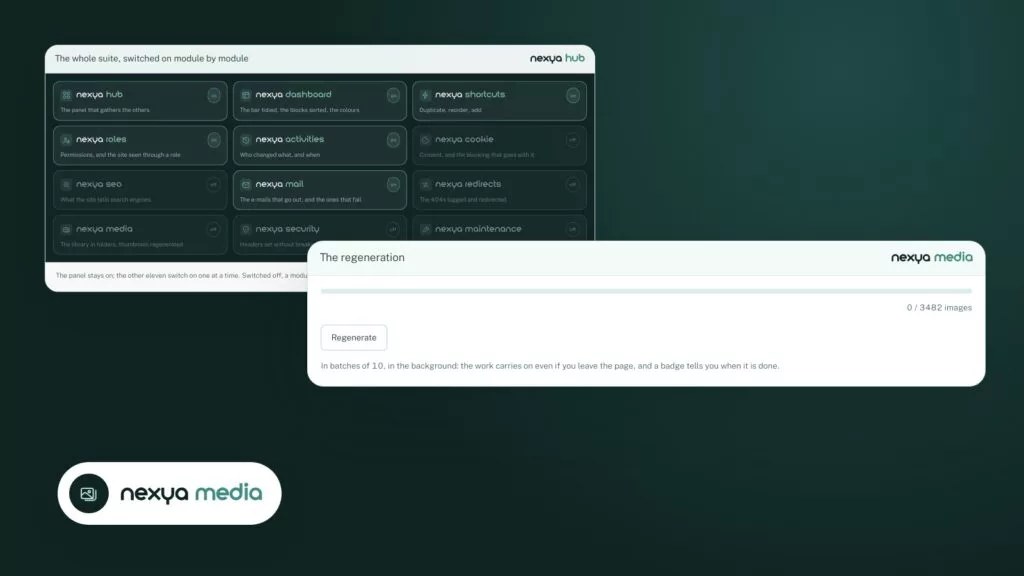
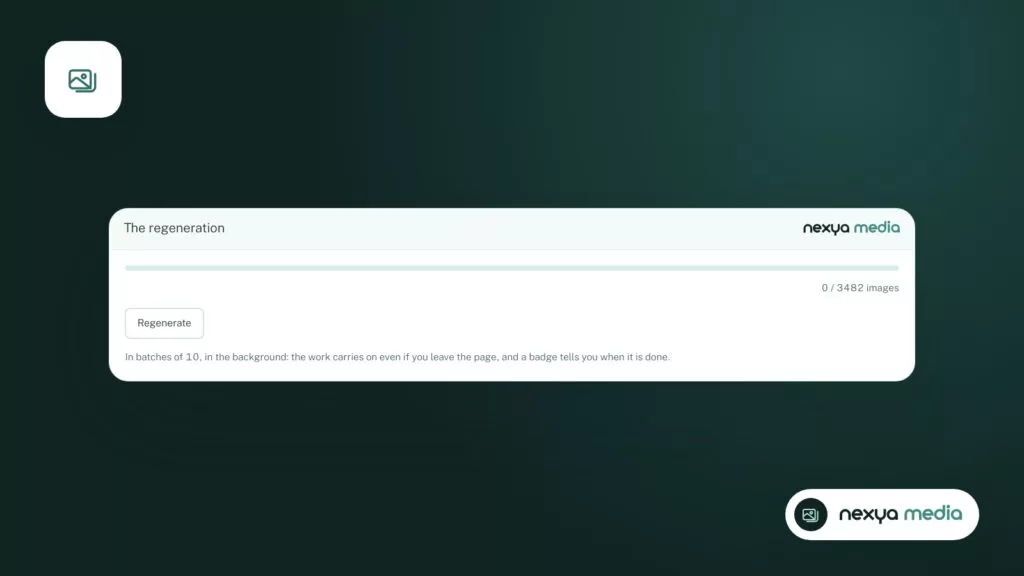
nexya’s Media module regenerates thumbnails in the background, in batches. The work is broken down into small packets of images, each processed in its own request, which avoids hitting the time or memory limit all at once.
Since the processing does not depend on a page left open, it continues when you close the tab. You can start the regeneration, leave the administration area, and come back later to check on its progress.
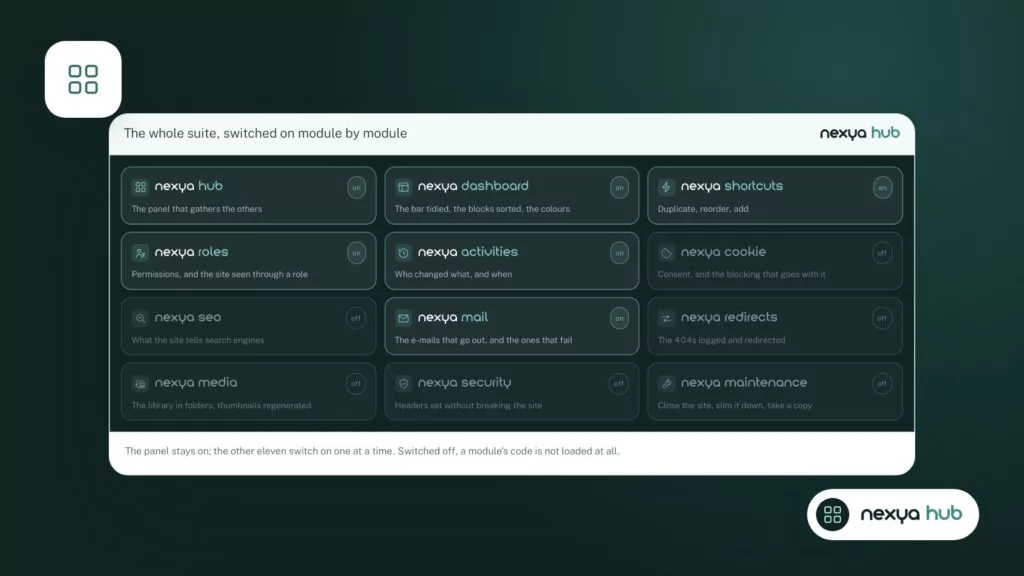
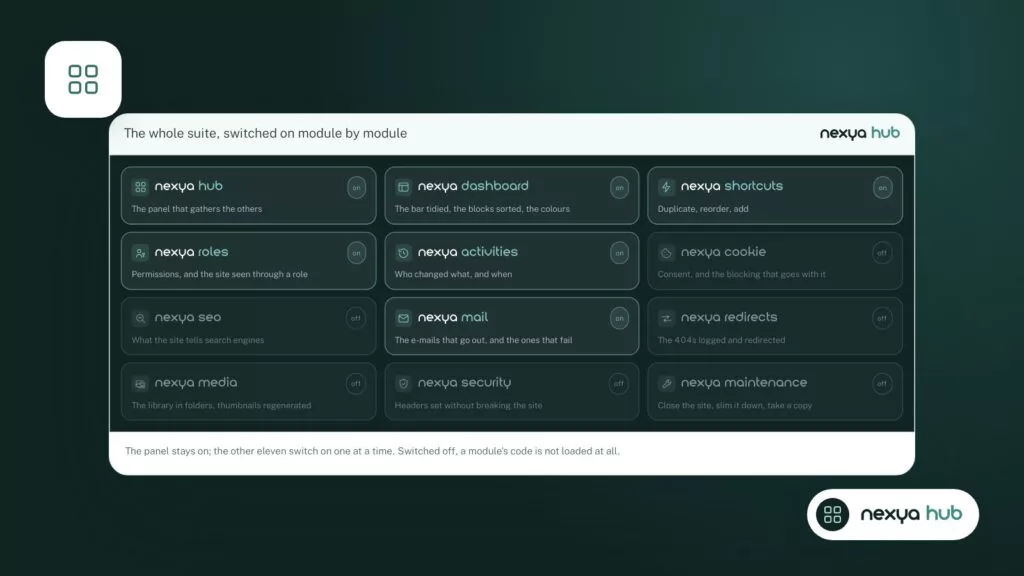
This feature is part of the free version of nexya, on as many sites as you want. The module is turned on and off from the hub, just like the others. As long as it is turned off, it records nothing: none of its hooks run on the site.
Regenerating WordPress Thumbnails with nexya, Step by Step
-
1
Turn on the Media module
Open the nexya hub and enable the Media module. As long as it remains turned off, it adds nothing to the site.
-
2
Start regeneration
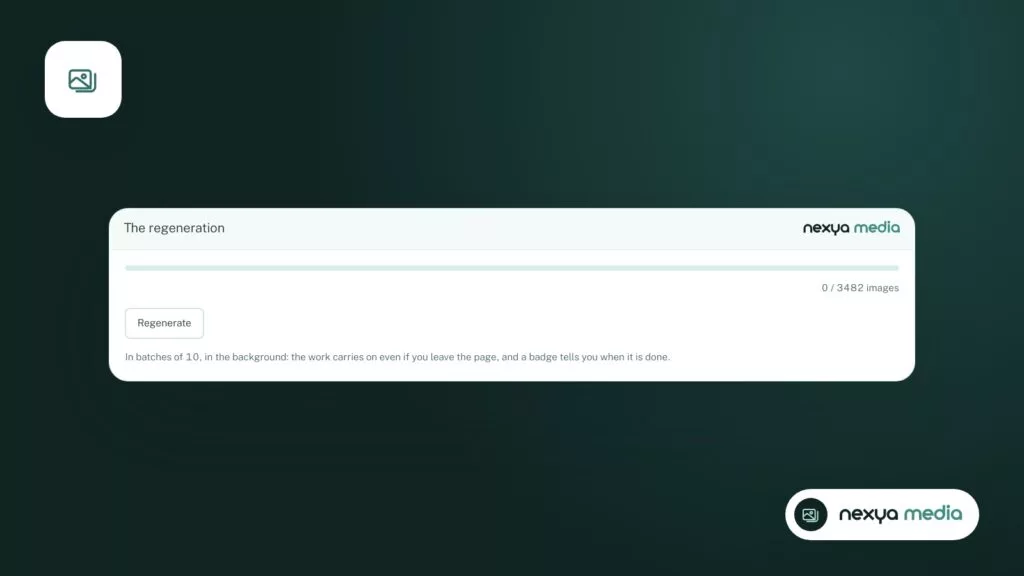
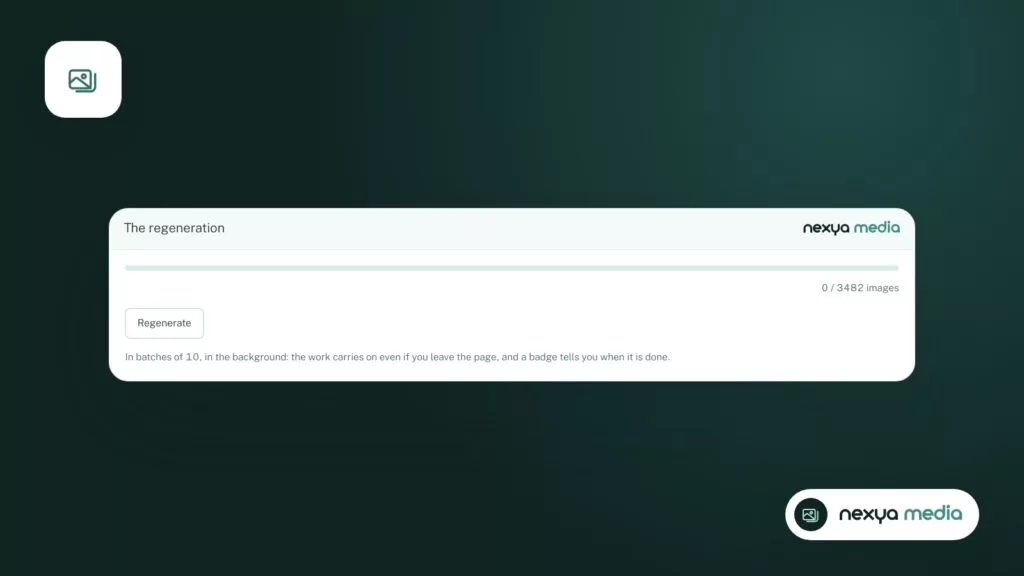
From the Media module, start thumbnail regeneration. The work is broken down into batches of images, processed one after the other in the background.
-
3
Let the process work
You can close the tab or leave the admin area: regeneration continues. Come back later to track its progress.
-
4
Clear cache and check the site
Once the process is complete, clear your page cache if you have one, then open a few older posts to verify that the images are sharp and properly cropped.
Before you start: three checks
Regeneration writes new files to the server. A few checks before launching it will save you from having to do it over again.
First, make sure the theme is final. If you still plan to change your theme or adjust its formats, wait: every format change will require a new pass.
Next, check the available disk space with your host. Each new format adds one file per image. On a media library of several thousand images, the difference quickly adds up to hundreds of megabytes.
Finally, think about the cache. If a page cache extension or a service like Cloudflare keeps pages in memory, visitors may continue to see the old image addresses after regeneration. Clear this cache once the processing is complete.
- Theme and image formats finalized.
- Sufficient disk space with the host.
- Page cache cleared at the end of processing.
If processing still gets stuck
Batch processing fixes most interruptions, but not all. If progress still stops at the same place, it is likely that an original image is causing a problem: a damaged file, a format that the server’s image library cannot read, or a photo so heavy that it exceeds the memory even on its own.
Locate the offending image in the media library, open it, and, if necessary, replace it with a lighter version. A 6000-pixel-wide original is rarely useful on a website.
If the block comes from hosting limitations, nexya cannot lift them. Very low PHP memory or an overloaded server must be fixed with your hosting provider. For very large media libraries, WordPress’s WP-CLI command, run via the command line, remains another route, provided you have SSH access.
What is free, what is nexya Pro
Thumbnail regeneration in the background, in batches, is free. It covers the need described in this guide: recreating the expected formats for all existing images.
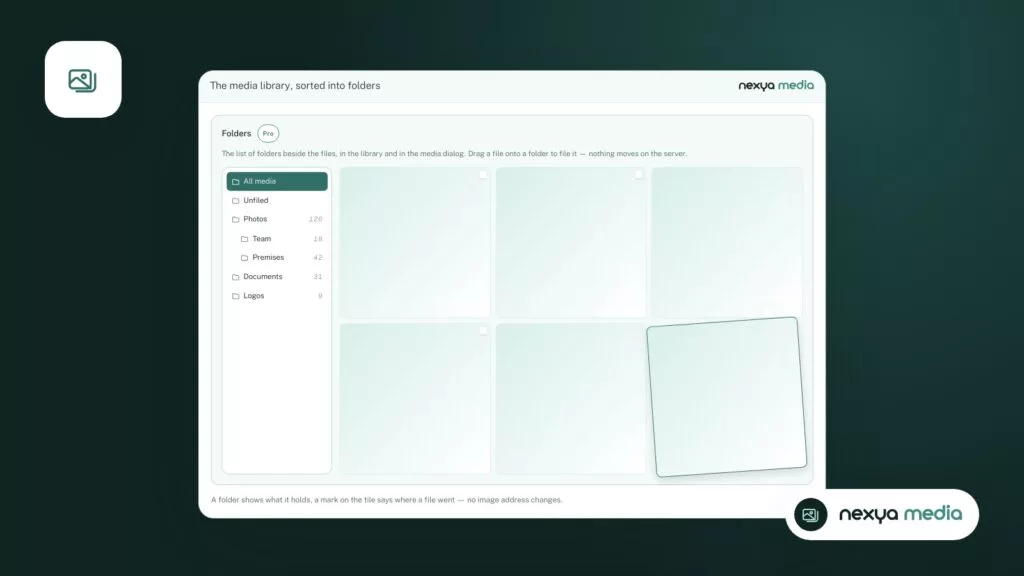
nexya Pro, sold on nexya.dev, adds two media-related features: tracking orphaned image sizes—those files left on the server by formats that are no longer used—and folders to organize the media library. The free version does not include this code. nexya Pro is delivered by Freemius after purchase and uses your existing settings.
FAQ
Should you regenerate thumbnails after every theme change?
Only if the new theme declares different image formats than the old one. When in doubt, a regeneration doesn't hurt: it recreates the expected formats from the originals.
Can I close the tab during regeneration?
Yes. With the nexya Media module, regeneration runs in the background, in batches, and continues when the tab is closed.
Does regeneration delete old sizes that are no longer used?
Tracking orphaned image sizes is part of nexya Pro. The free version regenerates expected formats without this tracking.
Is thumbnail regeneration paid?
No. It is part of the free version of nexya, usable on as many sites as you like.
The modules in this post
Try nexya Pro free for 7 days
Every module, forms, newsletters and the page cache, on your site. No commitment.