Key points
- A conflict between an SEO plugin and Elementor or Divi most often stems from a recent update to one of the two.
- The browser console and debug.log file often point to the plugin at fault even before disabling anything.
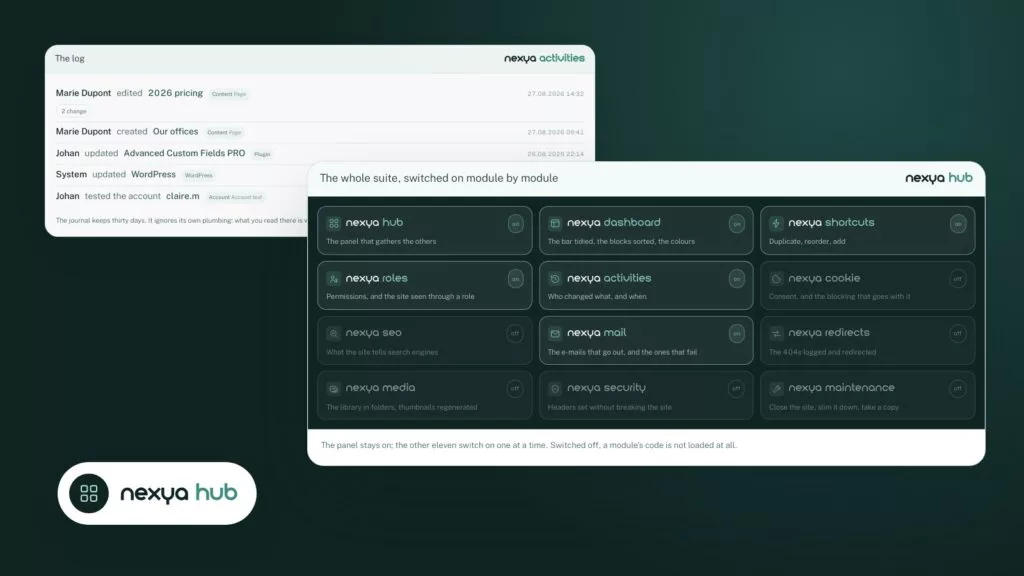
- In nexya, you can turn off just the SEO module: a disabled module executes no hooks.
- The nexya Pro cache is cleared when saving in Elementor, and the Cloudflare cache along with it since version 1.2.31.
- The previous version of each extension is kept for free and can be restored with a single click. Bugs specific to the page builder remain the responsibility of its developer.
Elementor SEO plugin conflict: what the forums say
The SEO plugin and Elementor conflict keeps coming up on the WordPress.org forums, with about twenty threads in six weeks. The messages are similar: “server error on publish in Elementor when the SEO plugin is active”, “the latest version breaks Divi 5”, “the Divi builder no longer loads”. The starting point is almost always a recent update of the SEO plugin, the builder, or both.
There is a reason for this. An SEO plugin installs itself into the editor. It adds a panel there, reads the page content to suggest a title or a description, and steps in at the time of saving. A page builder does the same thing, just more heavily. When one changes how it loads its scripts or how it saves, the other may receive an unexpected response. A PHP error then results in a 500 error, and a JavaScript error locks the editor on its loading screen.
- Server error or 500 error when clicking Publish or Update.
- Builder stuck on the loading screen, with no message.
- Page saved, but the old version remains displayed on the site.
- SEO plugin panel empty or missing in the editor.
What belongs to the SEO plugin, and what belongs to the builder
Let’s be clear: no SEO plugin fixes page builder bugs, and neither does nexya. Its SEO module handles titles and descriptions, with suggestions drawn from the page text, as well as the sitemap, schema, and llms.txt file. It does not handle the internal workings of Elementor or Divi.
With Elementor, nexya does two specific things. The nexya Pro page cache is cleared when saving in Elementor. The free Element module provides sixteen Elementor widgets to display custom NCF or ACF fields: repeaters in cards, tabs, or tables, galleries, key figures, teams, timelines, maps. For Divi, nexya does not offer anything specific.
What nexya can bring you in such a conflict is above all a clean way to look for the cause: turn off a single module, check what has changed, revert to the previous version of a plugin.
A disabled module saves nothing: none of its hooks run on the site.
Read the error before disabling anything
Disabling plugins at random wastes time and sometimes erases useful traces. First, note the exact symptom and the exact time it appeared.
If the editor remains stuck loading, open the browser console (F12, Console tab) and reload the page. The filename appearing in the red error often indicates the offending plugin. For a server error on save, enable WordPress debugging (WP_DEBUG and WP_DEBUG_LOG in wp-config.php), repeat the operation, then read wp-content/debug.log. A fatal error there gives the file path and line number.
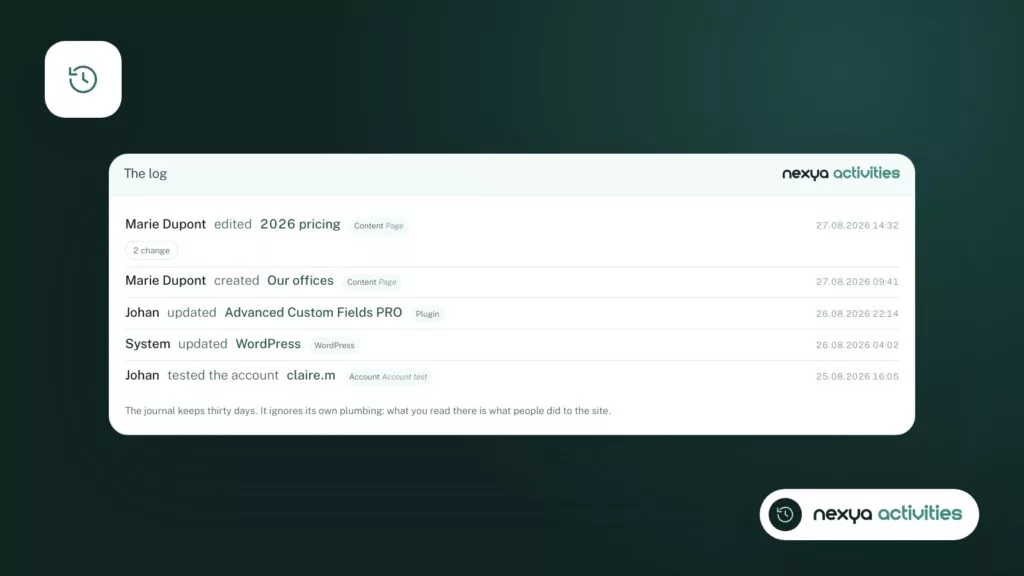
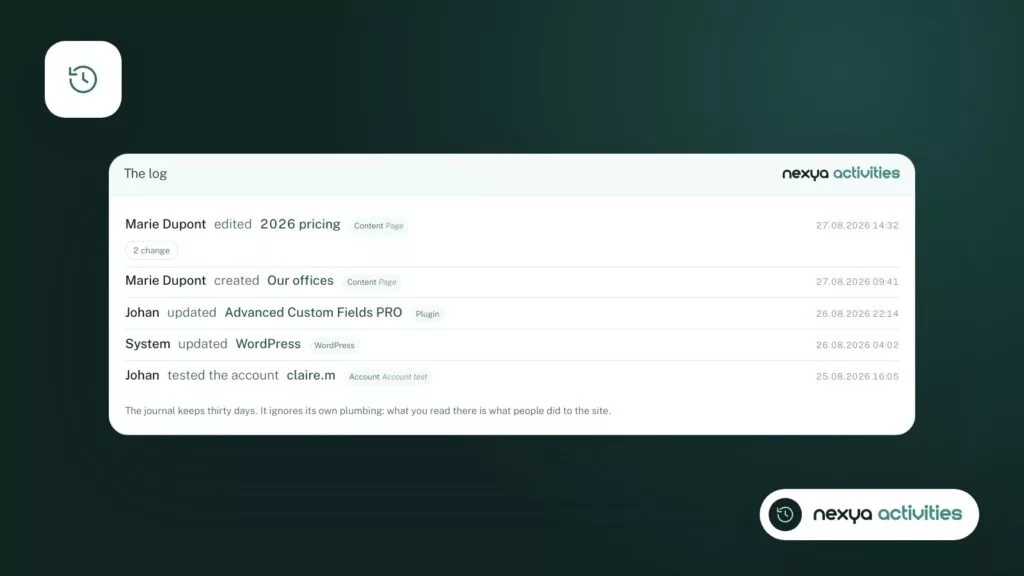
The nexya activity log helps you reconstruct the timeline. It shows who changed what, with the before and after states. If the builder was still working on Tuesday and not at all on Wednesday, this is where you will see what shifted in between.
- Browser console: JavaScript error, offending filename.
- debug.log: fatal PHP error, path and line.
- Activity log: what changed right before the failure.
Isolating a conflict between the SEO plugin and the page builder
-
1
Note the error and timeline
Open the browser console and the debug.log file, then check the activity log to see what changed right before the page builder stopped working.
-
2
Turn off the SEO module alone
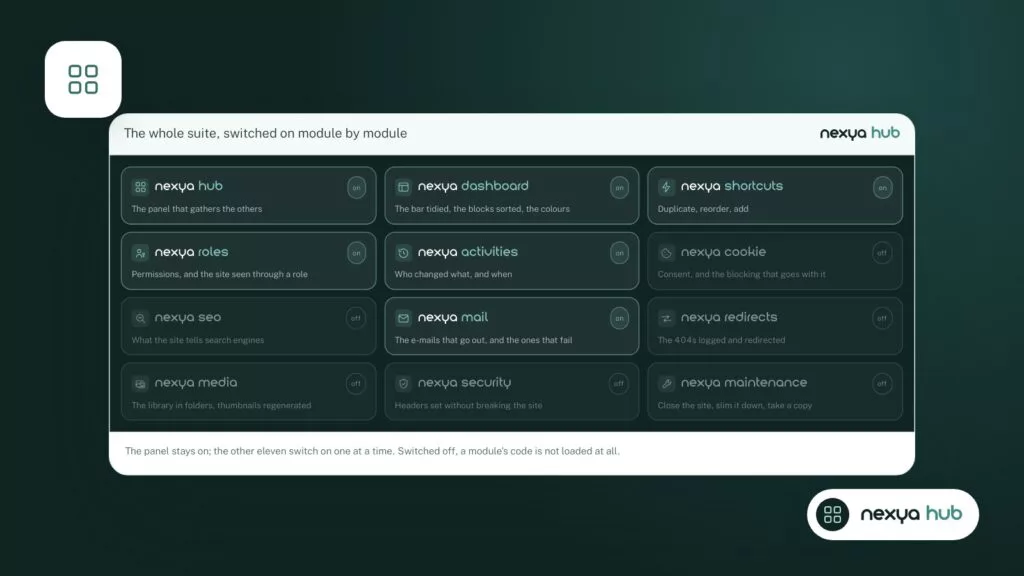
Disable the SEO module from the hub and leave the other modules turned on. Reload the page builder. If it works again, the module was at fault. Otherwise, turn it back on and test the next one.
-
3
Clear caches before concluding
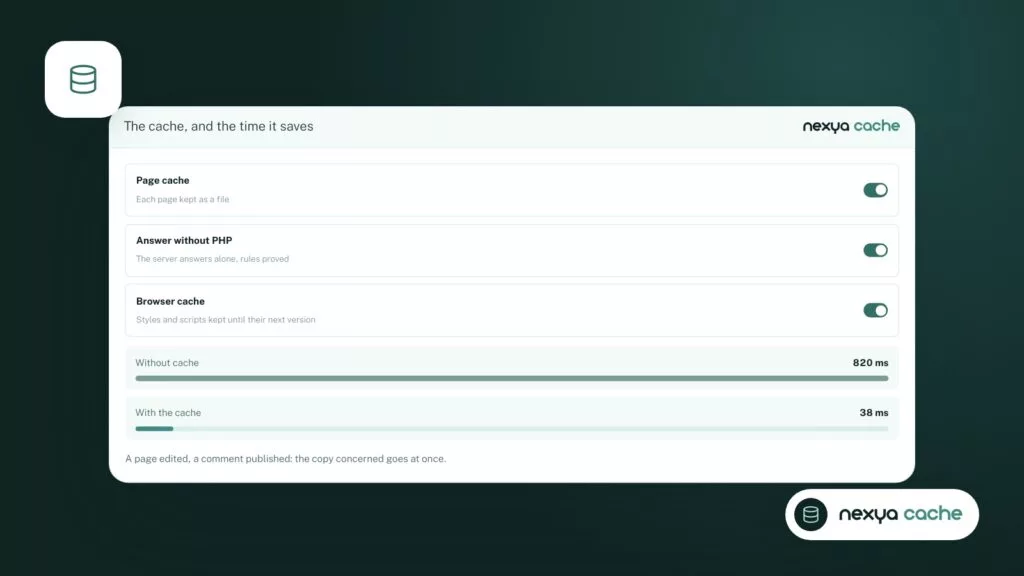
The nexya Pro cache is cleared upon saving in Elementor, and Cloudflare's cache along with it. Manually clear any other cache, then check the page in a private window.
-
4
Roll back and report
Restore the previous version of the extension at fault from the Maintenance module. Then send the installed versions, the symptom, and the error message to both developers.
Isolate the cause without shutting down the whole site
The standard method consists of disabling all plugins except the builder, then re-enabling them one by one. On a live site, this also disables the contact form, the cookie banner, and redirects for the entire duration of the troubleshooting.
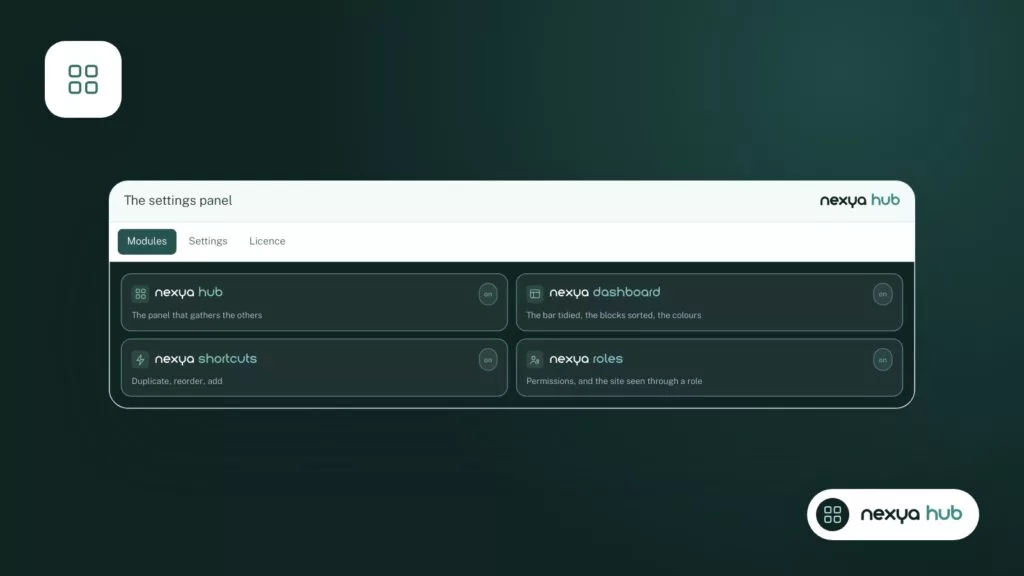
In nexya, each function is a module that you enable or disable from the hub. You can therefore turn off just the SEO module and keep cookies, emails, and security running. A disabled module registers no hooks: it no longer loads anything into the editor and no longer intervenes upon saving. If the builder starts working again, you have found the offending module. Otherwise, turn it back on and move on to the next one, for example Element if the error appears on a page containing its widgets.
For other plugins, the Health Check & Troubleshooting plugin’s troubleshooting mode disables plugins for your session only, without affecting what visitors see. Also test with a default theme when Divi is used as a theme.
The cache is not an Elementor bug
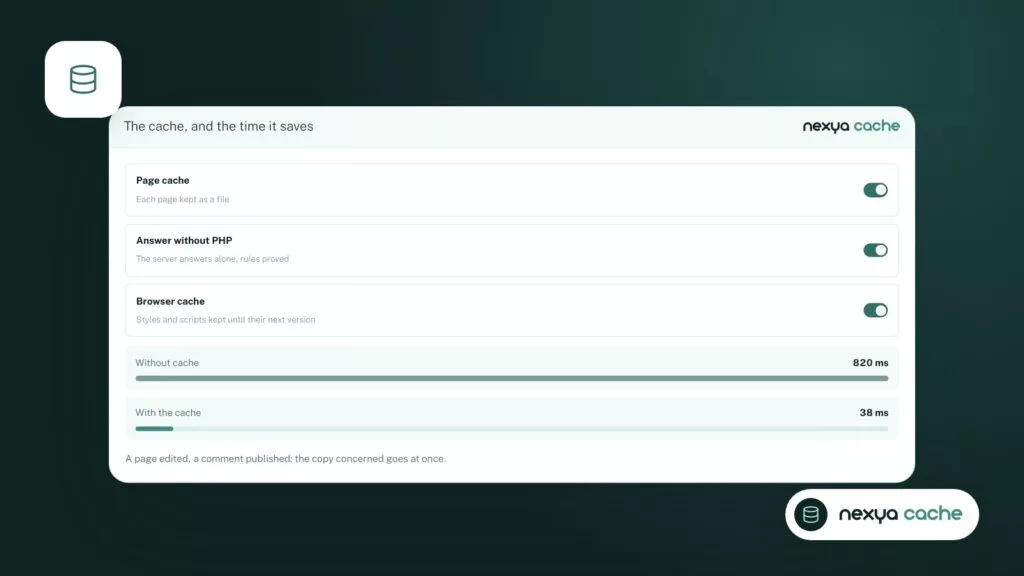
Some of the “the plugin breaks Elementor” threads actually describe a caching issue. The page saves successfully, but the visitor still sees the old version. The builder has nothing to do with it: it is a copy kept somewhere for too long.
The nexya Pro page cache is cleared when saving in Elementor. Since version 1.2.31, the Cloudflare cache is cleared at the same time as nexya’s, entirely or only for the modified page’s URLs. If you use another cache, from the host or another plugin, clear it manually before concluding there is a conflict. Then test in an incognito browsing window.
Revert to the previous version, then report the problem
When an outage follows an update, the fastest solution is often to revert to the previous version while waiting for the developer to release a patch. The nexya Maintenance module keeps the previous version of each extension and theme right before the update and restores it with a single click. This feature is free. In nexya Pro, an update that breaks the site is automatically rolled back and the administrator receives an email.
Then report the issue to both developers: the SEO plugin developer and the page builder developer. A useful report provides the exact versions of WordPress, PHP, the page builder, and the SEO plugin, the precise symptom, the error found in the console or debug.log, and specifies whether the issue disappears when the plugin or module is deactivated. With these details, the relevant team can reproduce the problem instead of asking you to reinstall everything.
- Versions of WordPress, PHP, the page builder, and the SEO plugin.
- Precise symptom and the action that triggers it.
- Error message copied from the console or debug.log.
- Result of the test with the extension or module disabled.
FAQ
Can nexya's SEO module conflict with Elementor?
No extension that interacts with the editor is immune to a conflict. With nexya, you just need to turn off the SEO module from the hub to check: a turned-off module no longer registers any hooks. If the problem persists, the module is not at fault.
Does nexya fix bugs in Elementor or Divi?
No. Bugs specific to page builders are not handled by nexya. With Elementor, nexya clears its Pro cache on every save and provides widgets. For Divi, it offers nothing specific.
My Elementor page is saved, but the site displays the old version. Is this a conflict?
Most of the time, it is a cache issue. The nexya Pro cache is cleared upon saving in Elementor, along with the Cloudflare cache. If you use another cache, clear it manually, then check in a private window.
How do I revert to an extension's version from before the update?
The nexya Maintenance module keeps the previous version of each extension and theme right before its update and restores it with a single click. This feature is free. In nexya Pro, an update that breaks the site is automatically rolled back.
Do I need to disable all extensions to find the conflict?
This is not necessary. First, read the browser console and the debug.log file. Then, turn off a single nexya module at a time, or use the Health Check troubleshooting mode, which only affects your session.
The modules in this post
Try nexya Pro free for 7 days
Every module, forms, newsletters and the page cache, on your site. No commitment.